
How to Upload Customer Contacts into BRS (Through Orders/Customers Tab)
What This Is
If you already have an existing customer list, you can upload your contacts directly into BRS instead of adding them manually one at a time.
This article explains how to properly format your spreadsheet and import customer records successfully.
How to Upload Contacts
-
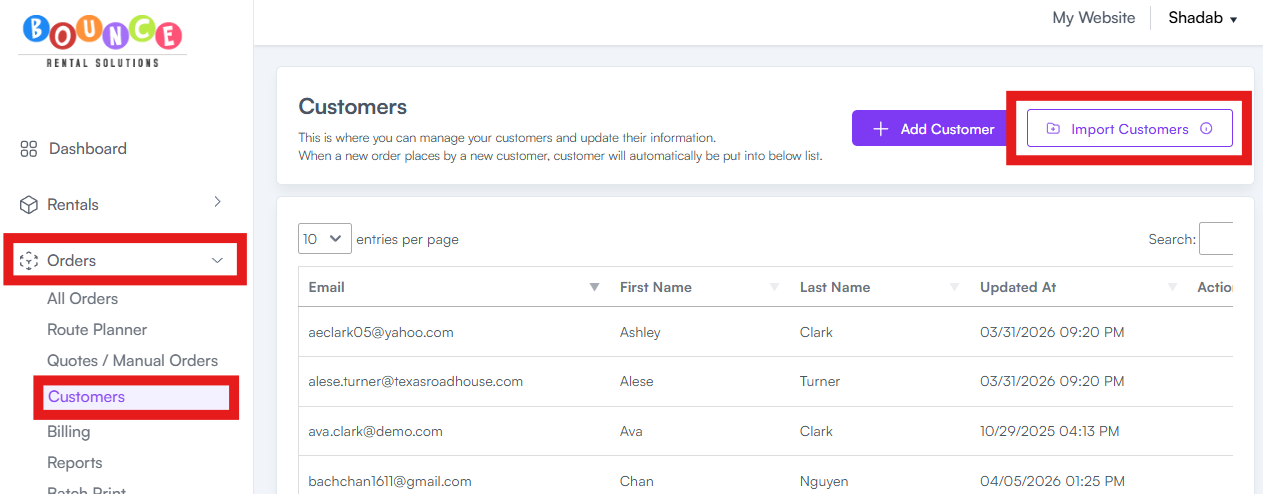
Go to Orders → Customers → Import Customers
-
Click Select File
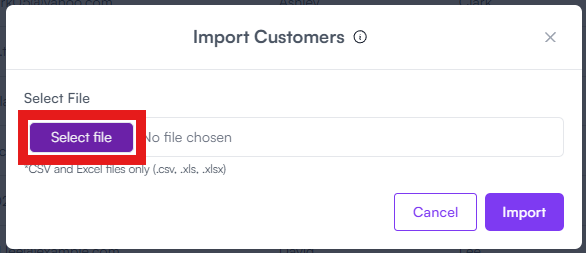
- Choose the spreadsheet file you want to upload
-
Click Import
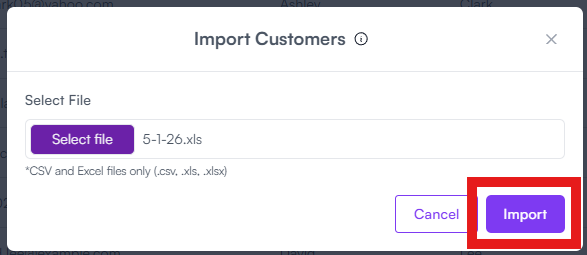
Once uploaded, BRS will begin importing the customer records from your spreadsheet.
Required Spreadsheet Format
Your spreadsheet headers must match the exact wording and order listed below.
Use these column titles exactly as written:
- FirstName
- LastName
- CompanyName
- Phone
- City
- Address
- State
- Zipcode
- Country
Important Requirements
Header Names Must Match Exactly
The import system is strict.
Files will not upload correctly unless:
- The column names match exactly
- There are no extra spaces or modified wording
For example:
- FirstName works
- First Name does not work
- Zipcode works
- Zip Code does not work
- Country Must Use ISO Country Codes
The Country field must use ISO country codes instead of full country names.
Examples:
US = United States
CA = Canada
GB = United Kingdom
Do not use:
United States
Canada
United Kingdom
Only use the two-letter country codes.
Sample Import File
For reference, I have linked a sample file attached to this article on how it should look.
The sample file already includes:
- The correct column order
- The exact required header names
- Proper formatting examples
Using the sample template is the easiest way to avoid import errors during upload.
Here is the Contacts Sample Excel File.
Recommended Before Uploading
Before importing:
- Remove duplicate contacts
- Verify phone numbers and emails are correct
- Make sure formatting is clean and consistent
- Save the file as an Excel spreadsheet before uploading
Poorly formatted customer data can create messy customer records inside your CRM later.
Additional Notes
Large imports may take a few moments to process depending on file size.
If your upload fails, the issue is usually caused by:
- Incorrect column names
- Incorrect column order
- Invalid country formatting
- Missing required fields
- Spreadsheet formatting issues
Double-check the spreadsheet structure first before attempting another upload.