
How to Add Customer Contacts into BRS (Through the Email Tab)
What This Is
If you want to build a marketing or email contact list inside BRS, you can manually add contacts through the Email section.
This method is useful for:
- Creating promotional email lists
- Building seasonal marketing groups
- Adding customers manually for campaigns
- Organizing contacts into separate audiences
Unlike the customer import tool, this process adds contacts directly into an email contact list one at a time.
How to Create a Contact List
-
Go to Email → Contacts → Add Contact List
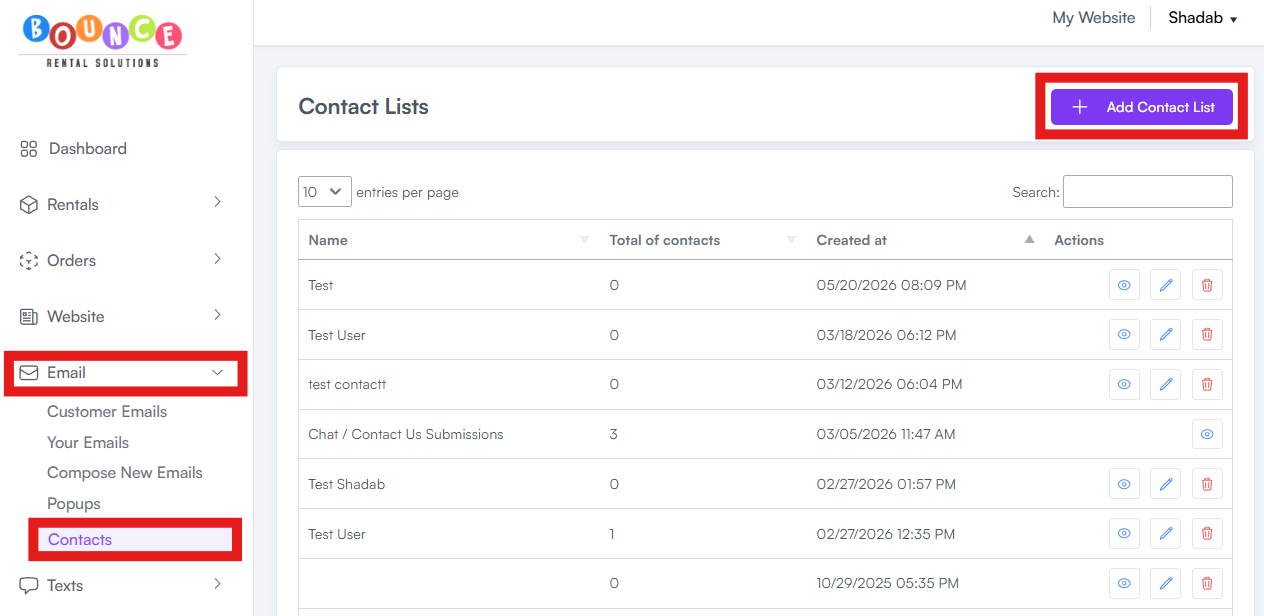
- Enter a name for the contact list
Example: Special Promotions
- Create the contact list

Once created, the contact list will appear in your Contacts table.

How to Add Contacts
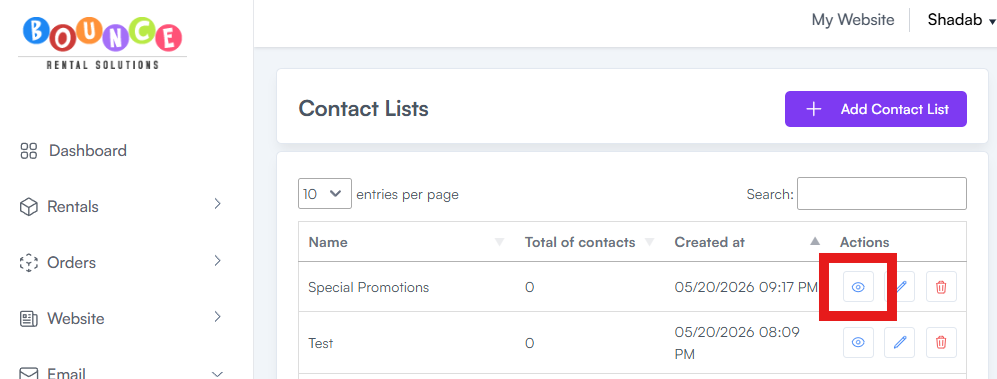
- Locate the contact list you created
-
Click the View button (eye icon) next to the list
-
Click Add Contact
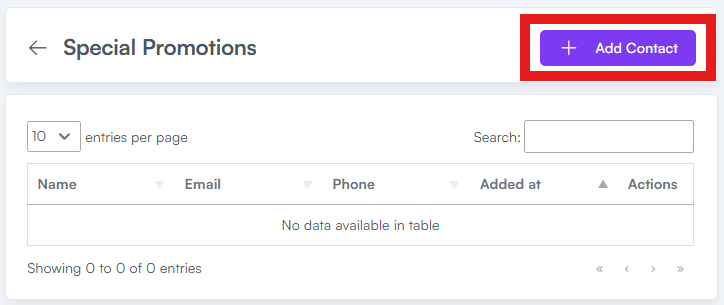
- Enter the contact’s:
- Name
- Phone Number
-
Click Create Contact
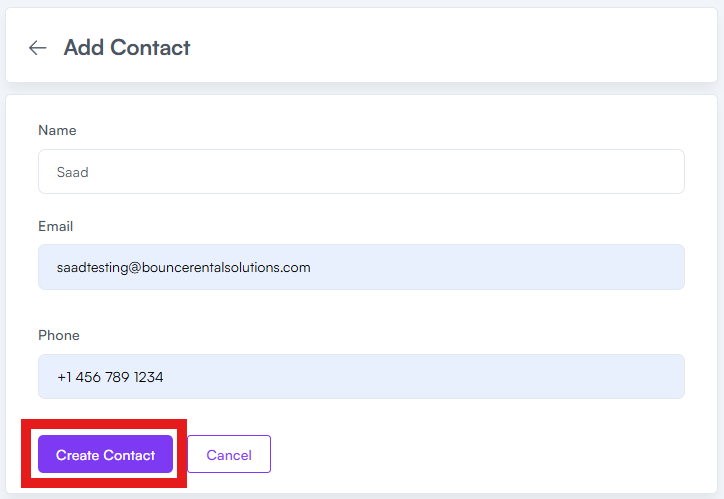
After creating the contact, you will automatically be routed back to the Add Contact page so you can continue entering additional contacts.

Repeat the process until all contacts have been added.
Important Notes
This method is manual and designed for smaller contact additions or organized marketing lists.
If you need to upload a large number of customer records at once, use the customer import feature instead. See: How to Upload Customer Contacts into BRS (Through Orders/Customers Tab)
Best Practices
Before adding contacts:
- Verify email addresses are correct
- Remove duplicate entries
- Organize contacts into clear list categories
- Use descriptive contact list names so campaigns stay organized later
Messy contact organization becomes a problem quickly once marketing lists grow.