
How to Sync Your Calendar with BRS
What This Is
Calendar Sync allows you to connect your BRS bookings with external calendar applications so you can view upcoming orders outside of the BRS dashboard.
This helps you:
- Track bookings from your phone
- View schedules inside your preferred calendar app
- Keep your team informed about upcoming events
- Monitor deliveries and reservations more easily
How to Access Calendar Sync
-
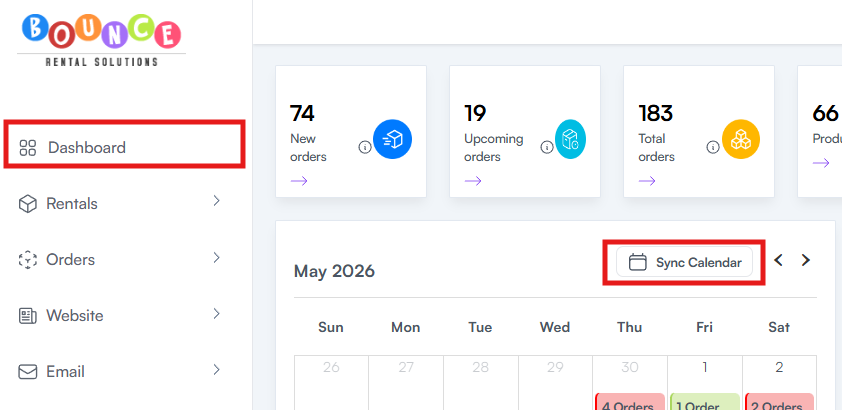
From your Dashboard, click Sync Calendar
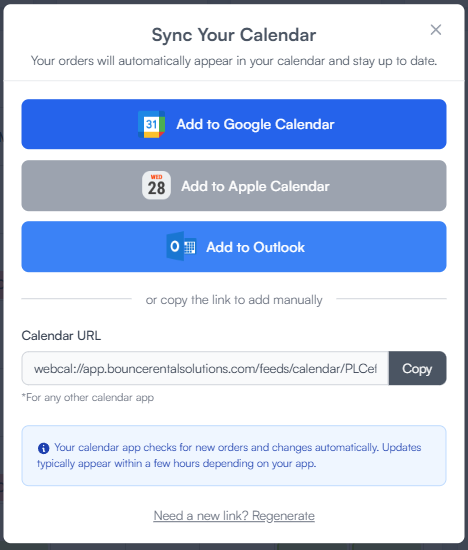
- Choose the calendar option you want to connect
Available options include:
- Google Calendar
- Apple Calendar
- Outlook
-
Manual calendar link (for unsupported calendar apps)
Connecting Google Calendar
Select Google Calendar and follow the prompts provided by your browser or calendar application.
Once connected, your BRS bookings will begin appearing inside your Google Calendar.

Connecting Apple Calendar
Select Apple Calendar and follow the prompts to subscribe to your BRS calendar feed.
Your events will automatically appear inside your Apple Calendar application once synced.

Connecting Outlook
Select Outlook and follow the setup prompts.
Your BRS events will sync into your Outlook calendar automatically after setup is completed.

Using the Manual Calendar Link
If your calendar provider is not listed:
-
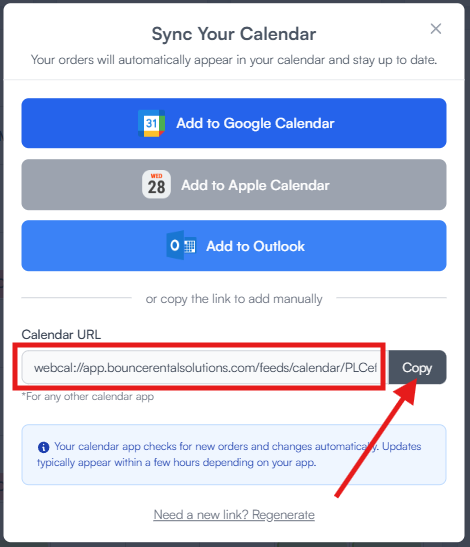
Copy the calendar link provided in BRS
- Open your calendar application
- Add a calendar subscription using the copied link
Most calendar apps support importing external calendar feeds using subscription URLs.
Regenerating Your Calendar Link
If your calendar stops updating correctly or appears out of sync:
- Return to the Sync Calendar section
-
Click Regenerate Link
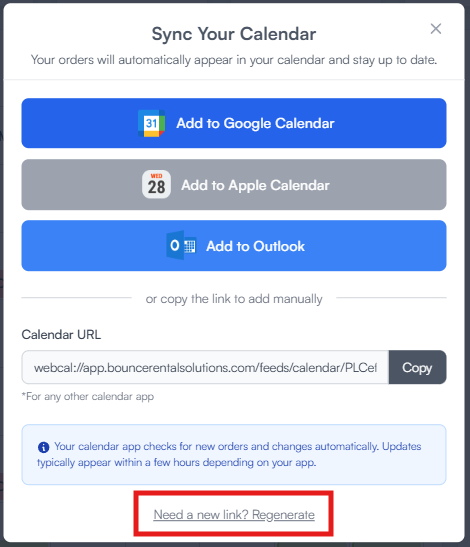
This creates a new calendar feed link that can help resolve syncing issues with some calendar providers.
You may need to reconnect the new link inside your calendar application after regenerating it.
Important Notes
Calendar sync must be set up from the BRS dashboard using a web browser. It cannot be set up from the mobile app yet.
Calendar sync is one-way only: BRS bookings appear in your external calendar, but events added to your external calendar do not appear in BRS.
Calendar syncing is not always instant.
Your calendar provider checks for updates automatically on its own schedule. New bookings and changes typically appear within a few hours, depending on the calendar application being used.
Some providers refresh more frequently than others.
Because of this:
- Do not rely on external calendars for real-time availability management.
- Always use your BRS dashboard as the primary source of truth.
- Expect occasional delays between booking creation and calendar updates.
Best Practices
- To avoid scheduling confusion:
- Regularly check your BRS dashboard directly
- Verify calendar syncing is active after setup
- Reconnect the calendar if events stop updating
- Use regenerated links if sync discrepancies appear
External calendar providers control how often they refresh subscription feeds, not BRS.