
How to Add Videos to Products in BRS
What This Is
BRS allows you to attach videos to your rental products to help customers better understand the item before booking.
Videos can help:
- Showcase product features
- Demonstrate size and setup
- Increase customer confidence
- Improve conversion rates on product pages
You can attach videos from supported third-party platforms by pasting the video URL into the product settings.
How to Add a Video to a Product
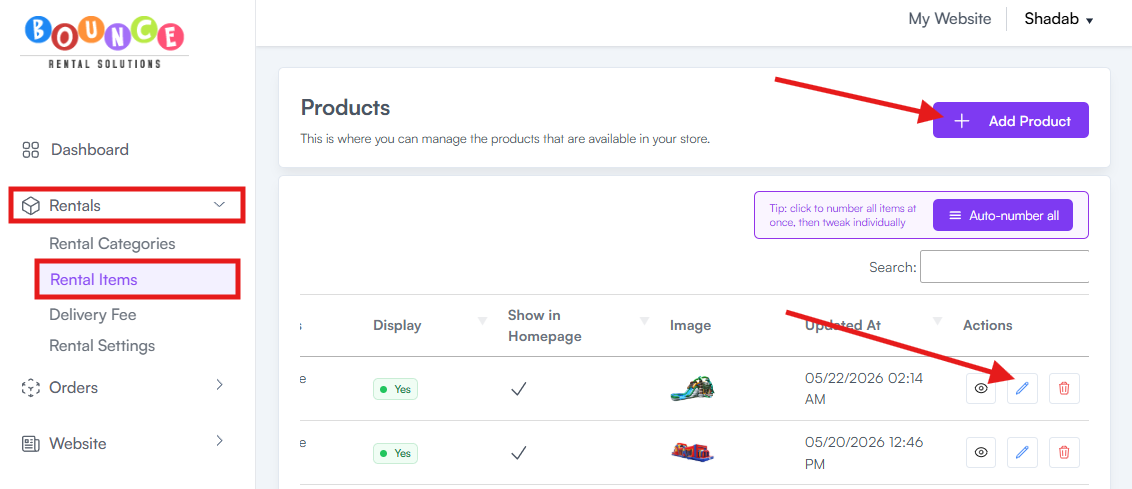
- Go to Rentals → Rental Items
-
Select the product you want to edit or click Add Product if creating a new item
-
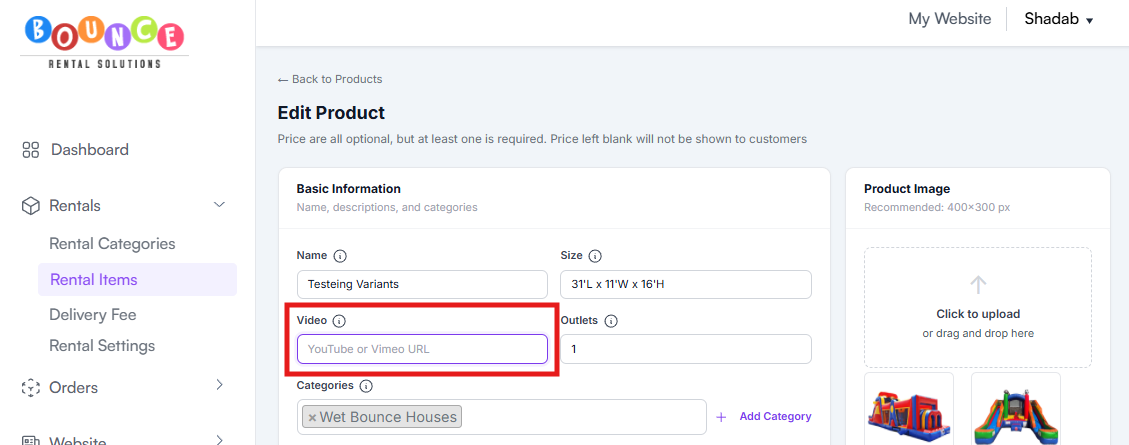
Locate the video section inside the product settings
- Upload your video to a supported platform such as:
- YouTube
- Vimeo
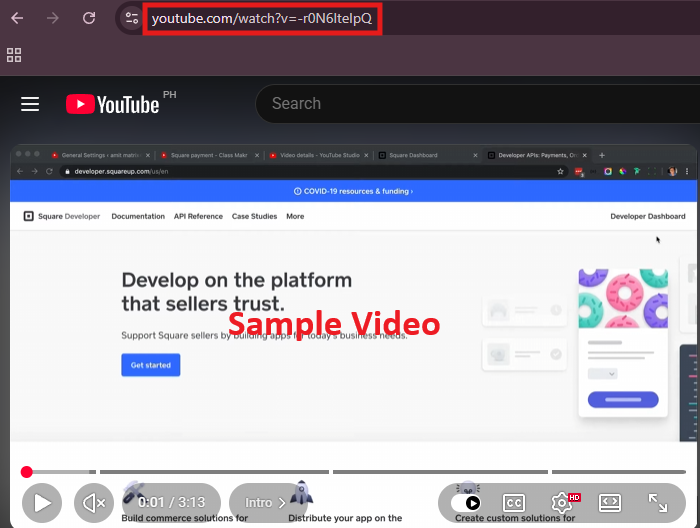
- Open the actual video you want to use
-
Copy the video URL link from your browser
- Return to your BRS product settings
-
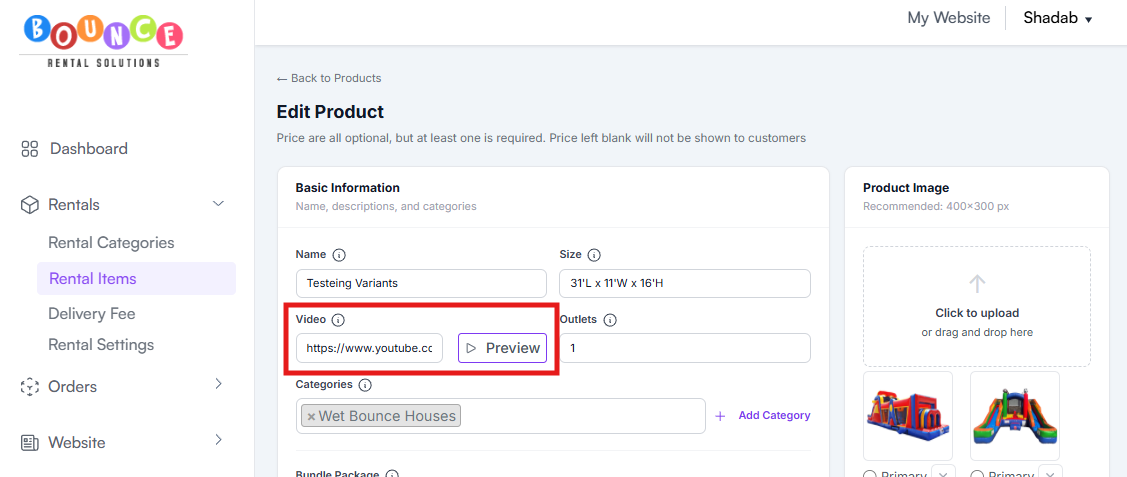
Paste the video URL into the provided video field
- Update Product or Save Product
Once saved, the video will appear on the product page.
Important Notes
Make sure:
- The video is publicly accessible
- The sharing permissions allow viewing
- You copy the direct video link and not a general profile or folder link
If the video is private or restricted, customers may not be able to view it on your site.
Best Practices
Good product videos usually perform better when they:
- Clearly show the product setup
- Demonstrate scale and size
- Show the item in real events
- Are short and easy to watch
- Use vertical formatting for mobile users when possible
Poor-quality videos can hurt trust just as much as good videos can improve it.
Additional Recommendations
Adding videos works best when combined with:
- High-quality product images
- Clear product descriptions
- Accurate dimensions and requirements
- Updated pricing and availability information