
How to Edit Your Website Pages (Home, About Us, Contact Us & More)
What This Is
BRS allows you to customize the content and appearance of several pages on your website through the CMS Pages section.
Using CMS Pages, you can update:
- Images and banners
- Headlines and sub-headlines
- Page content and text
- Contact information
- Hero images
- Page styling elements
This is where you manage the content that appears on key website pages such as your Home Page, About Us page, Contact Us page, and All Products page.
How to Access CMS Pages
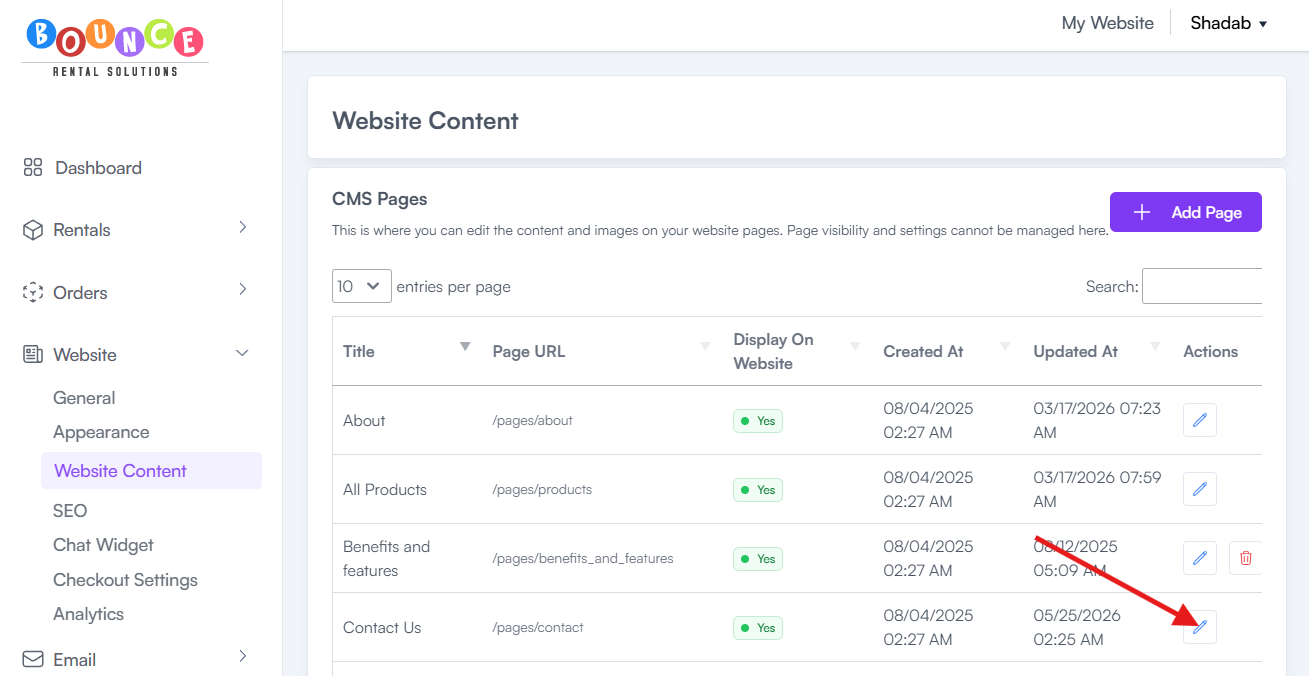
Go to Website → Website Content → CMS Pages
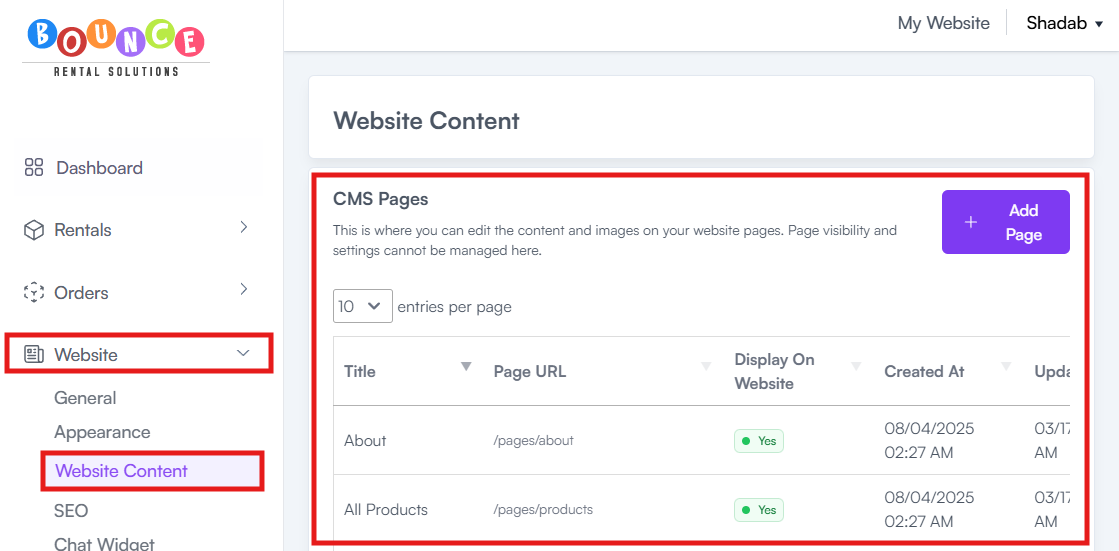
Editing the Home Page
The Home Page is often the first page visitors see when they arrive on your website.
To edit it:
-
Navigate to the Home Page section
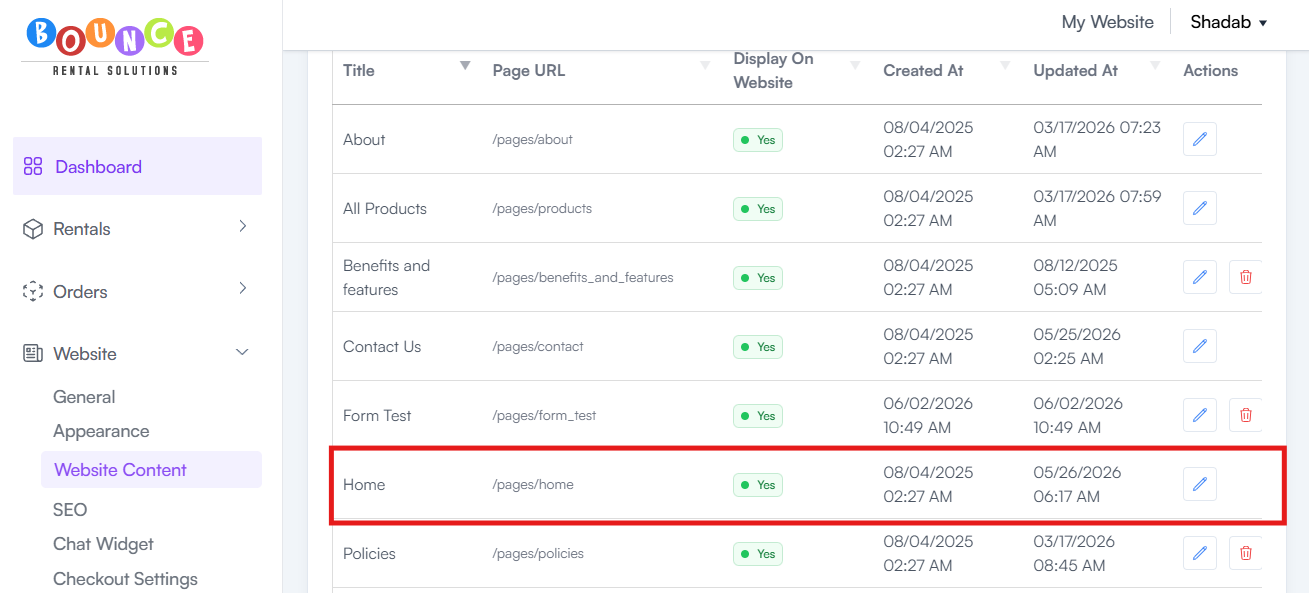
-
Click Edit (pencil icon)
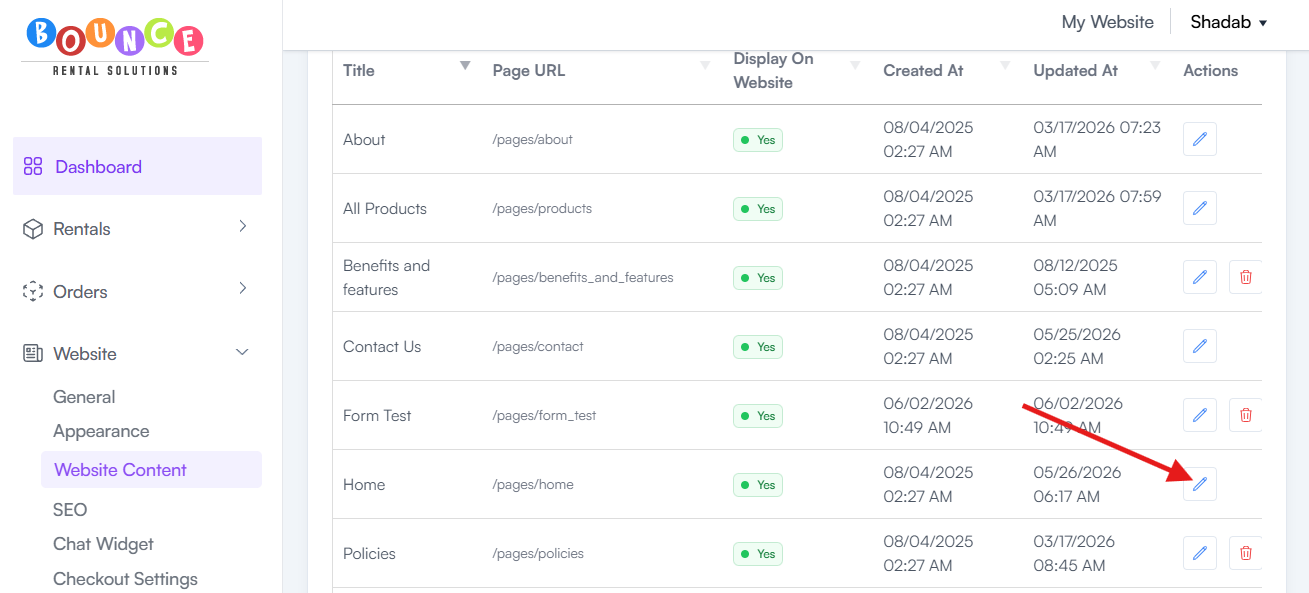
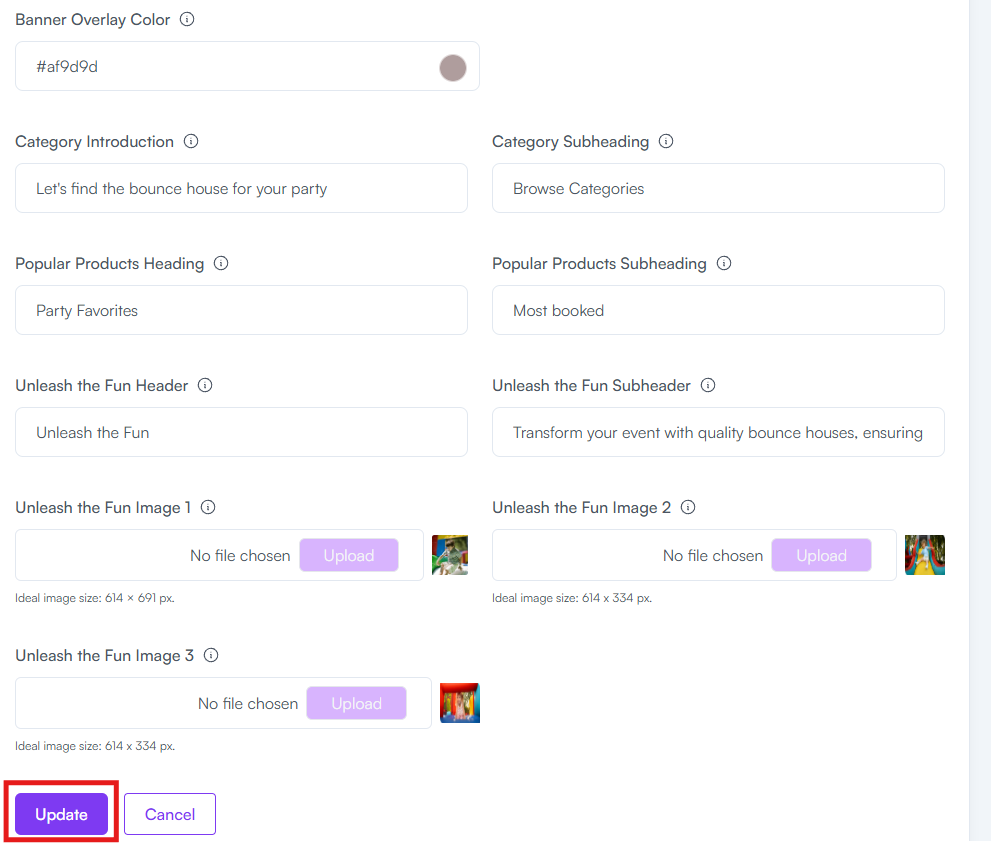
- Update the desired content, such as:
- Photos
- Banners
- Headlines
- Content sections
-
Other homepage elements
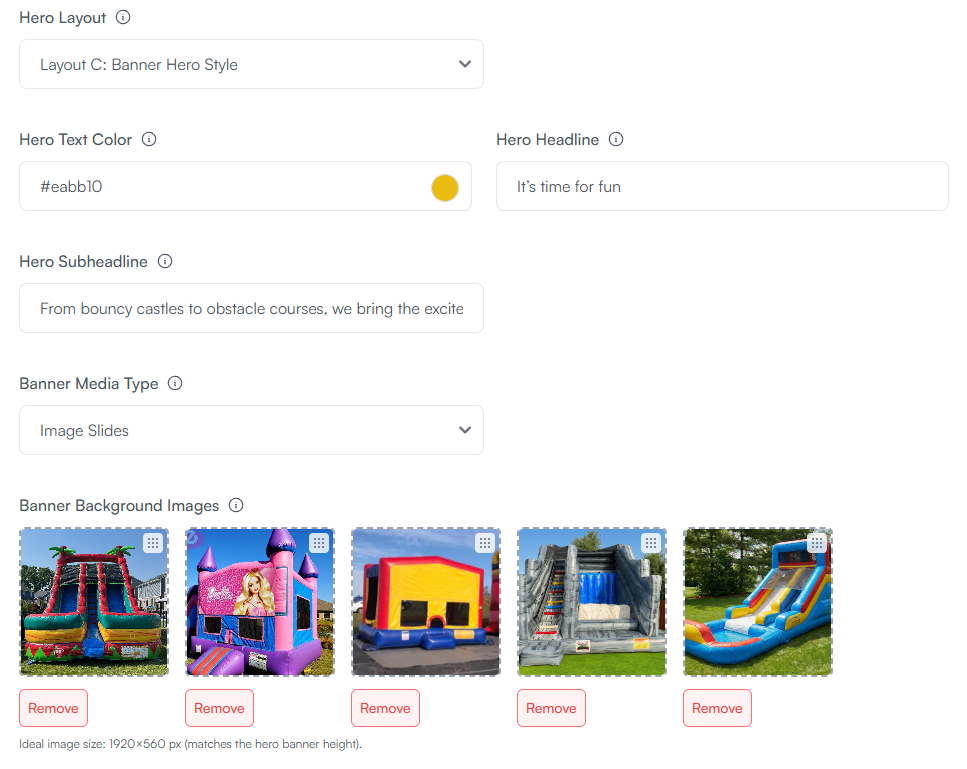
-
Click Update
Editing the All Products Page
The All Products page controls the appearance of your product listing page.
To edit it:
-
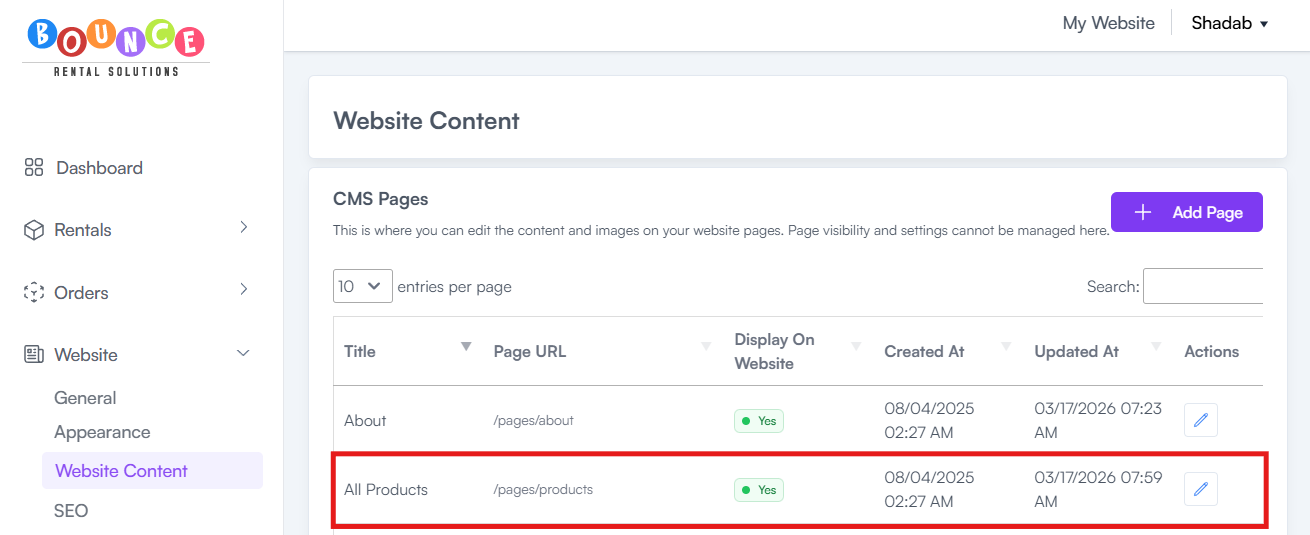
Navigate to the All Products Page section
-
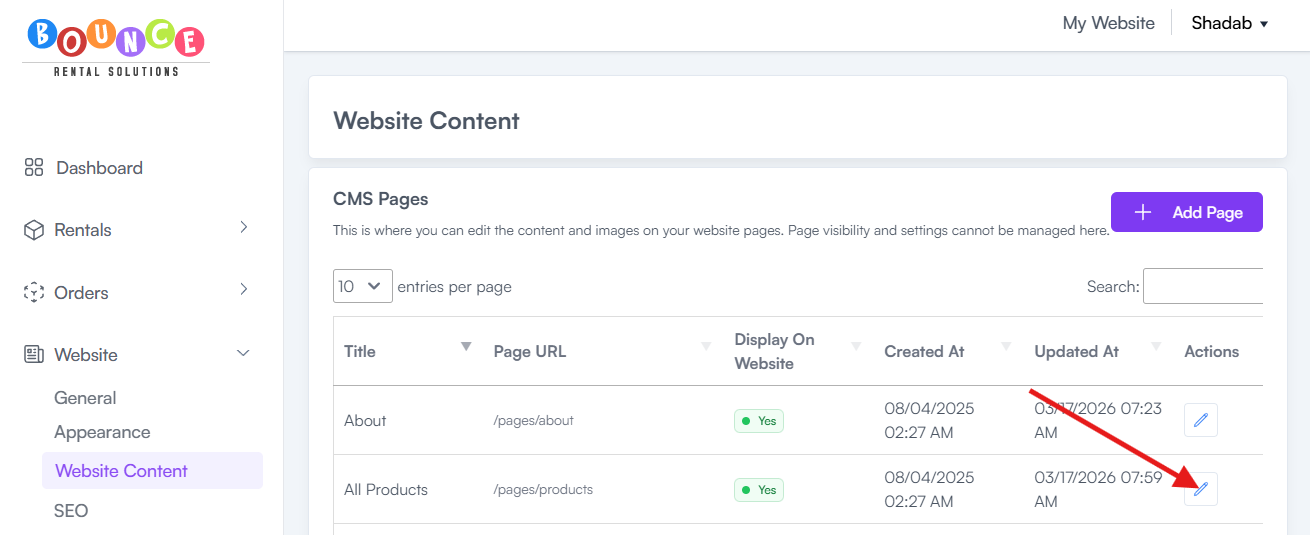
Click Edit (pencil icon)
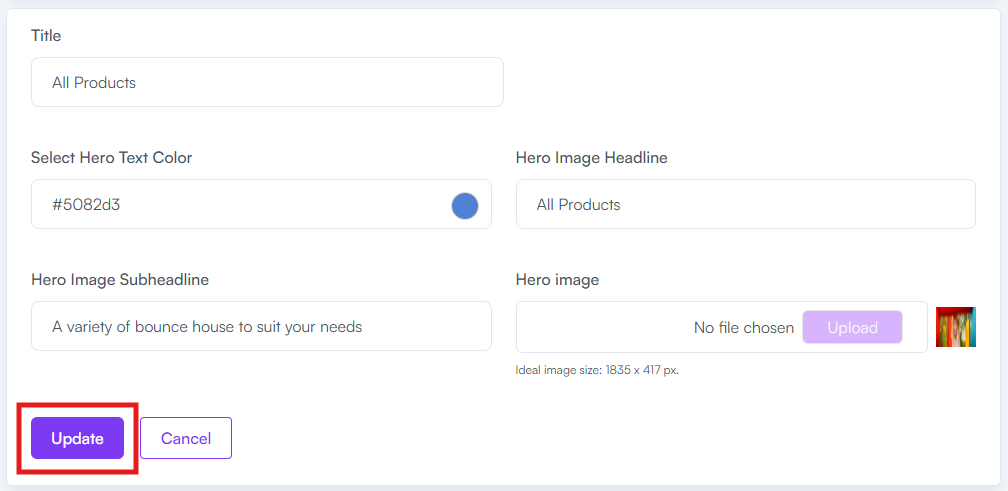
- Update the desired content, such as:
- Headline
- Sub-headline
- Text color
- Banner image (Hero Image)
-
Click Update
Editing the About Us Page
The About Us page helps customers learn more about your business.
To edit it:
-
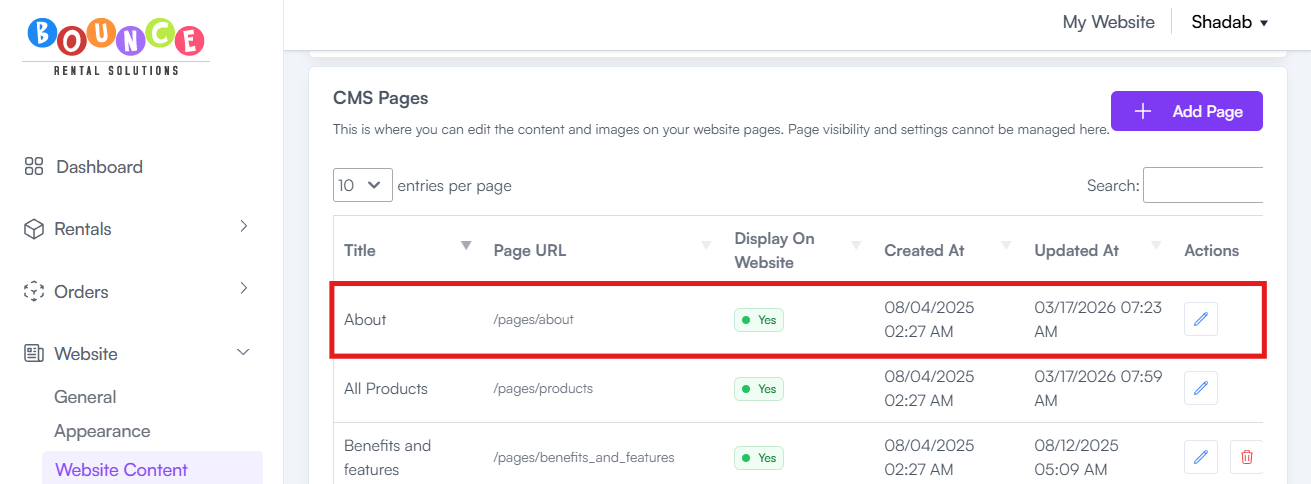
Navigate to the About Us Page section
-
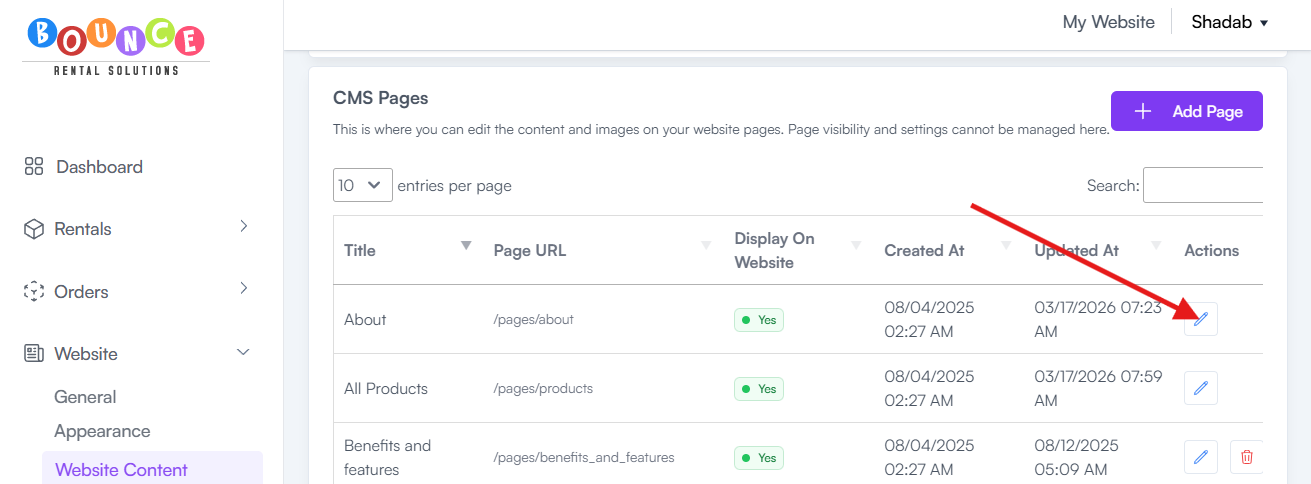
Click Edit (pencil icon)
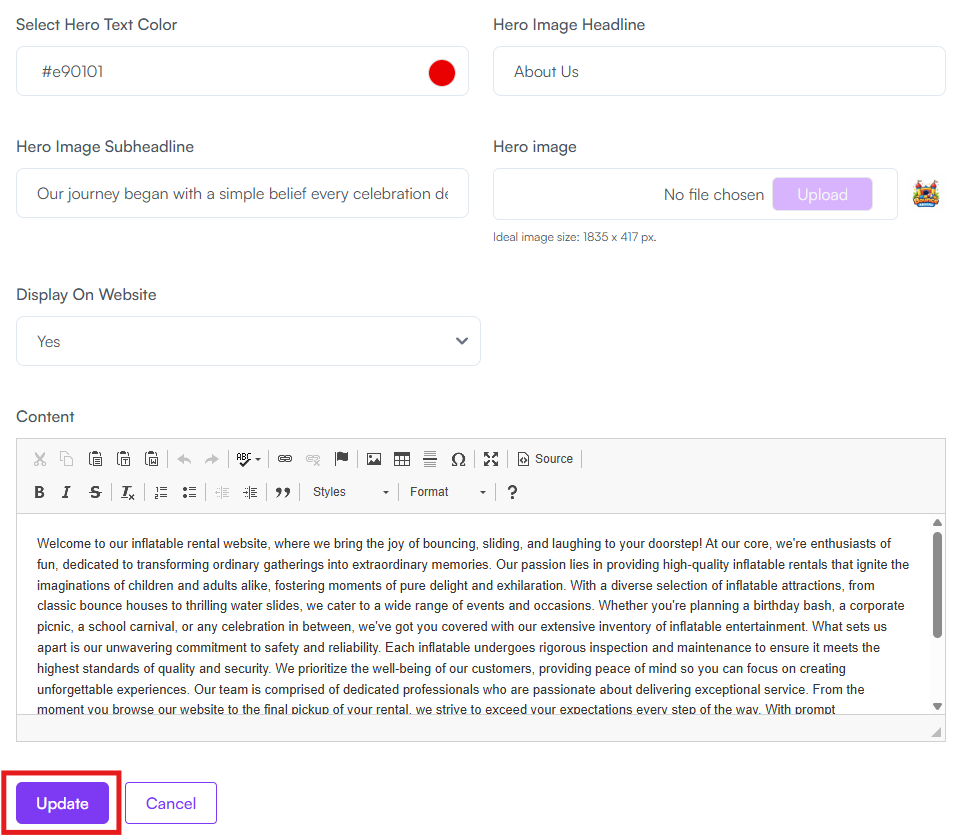
- Update the desired content, such as:
- Headline
- Sub-headline
- Text color
- Page content
- Banner image (Hero Image)
-
Click Update
Editing the Contact Us Page
The Contact Us page contains your business contact information and customer communication details.
To edit it:
-
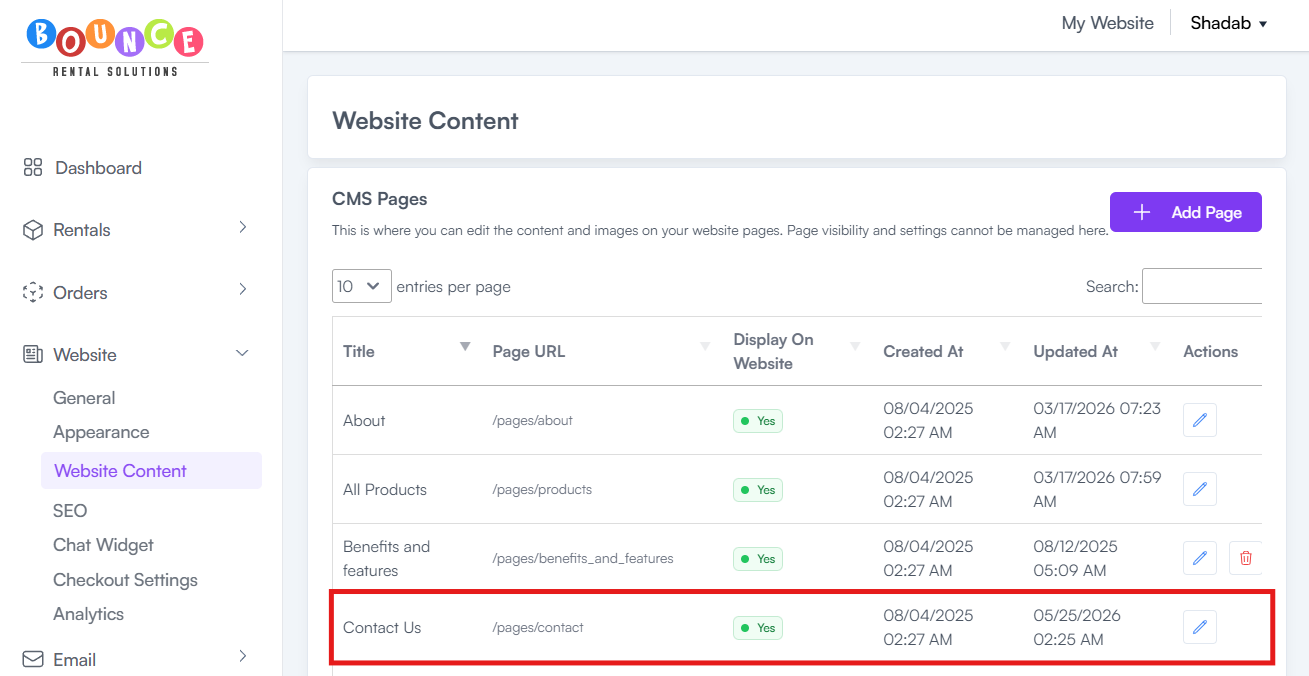
Navigate to the Contact Us Page section
-
Click Edit (pencil icon)
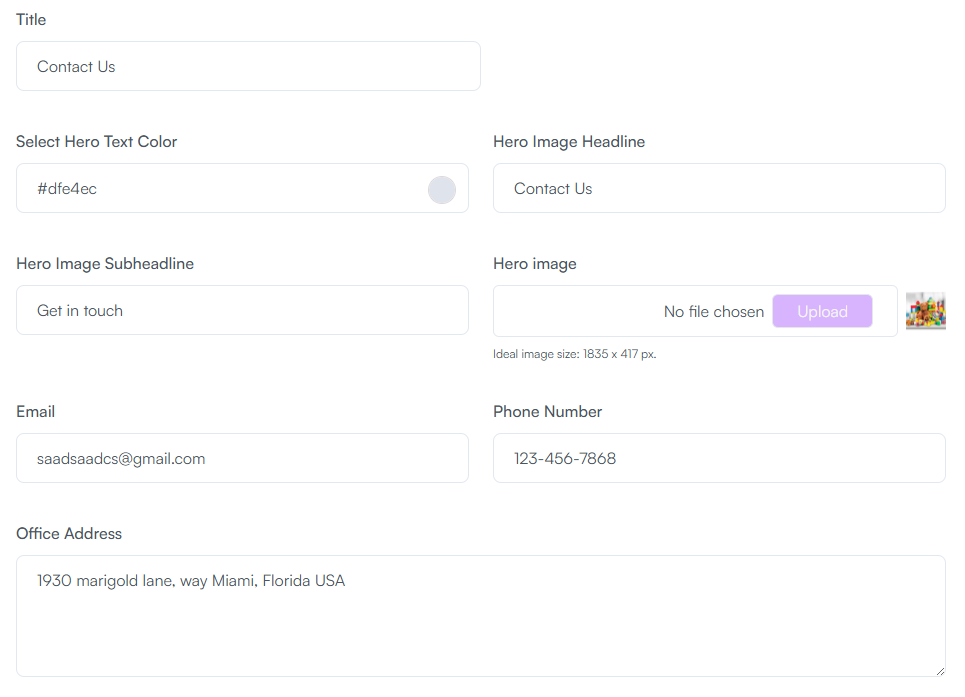
- Update the desired content, such as:
- Email address
- Contact number
- Office address
- Headline
- Sub-headline
- Text color
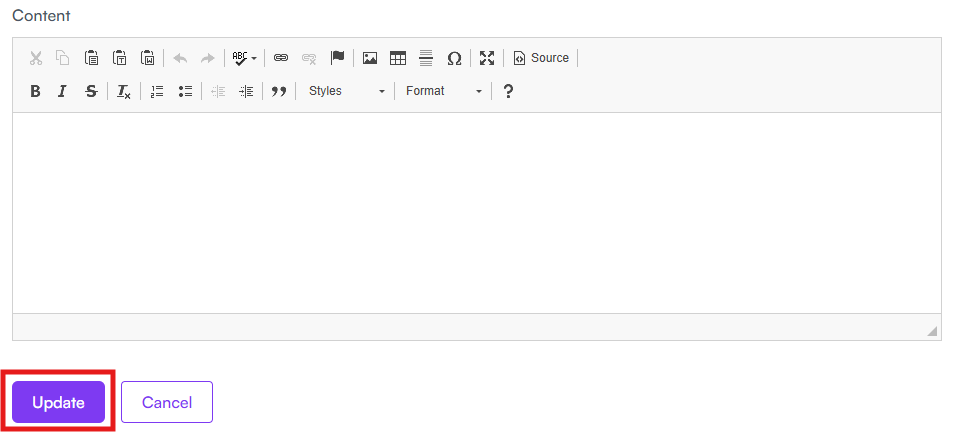
- Page content
-
Banner image (Hero Image)
-
Click Update
Important Notes
Changes made through CMS Pages affect the live content displayed on your website.
Before updating:
- Double-check spelling and grammar
- Verify phone numbers and email addresses
- Confirm images are correct
- Review formatting on both desktop and mobile devices
Small content errors can create a poor first impression for potential customers.
Best Practices
When updating website pages:
Use High-Quality Images
Professional photos generally perform better than low-resolution or blurry images.
Keep Headlines Clear
Customers should immediately understand:
- What you rent
- Where you operate
- Why they should choose your company
Keep Content Updated
Review pages regularly to ensure:
- Contact information is current
- Business hours are accurate
- Service areas are up to date
- Branding remains consistent
Focus on Customer Questions
Good website content answers common customer questions before they need to call or email.
Additional Recommendations
Your Home Page, About Us Page, and Contact Us Page are often among the most visited pages on your website.
Keeping these pages updated with accurate information, professional images, and clear messaging helps improve customer trust and creates a better overall booking experience.