
Managing Rental Categories: Order, Homepage, and Footer Visibility
What This Is
The Rental Categories section allows you to manage how categories appear throughout your website.
From here, you can:
- Control the order categories appear in
- Choose which categories display on your homepage
- Choose which categories display in your website footer
These settings help you organize your inventory, highlight important products, and create a better browsing experience for customers.
How to Access Rental Categories
-
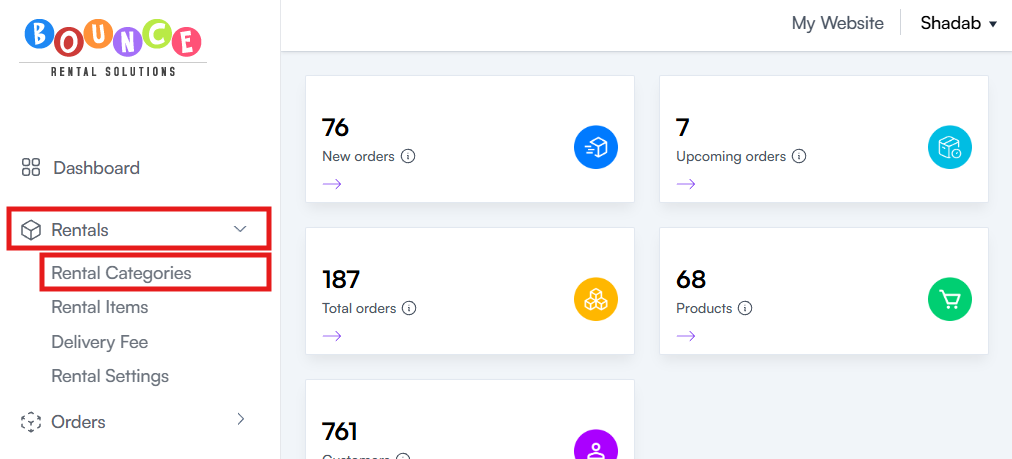
Go to Rentals → Rental Categories
-
You will see a list of all categories currently configured on your website
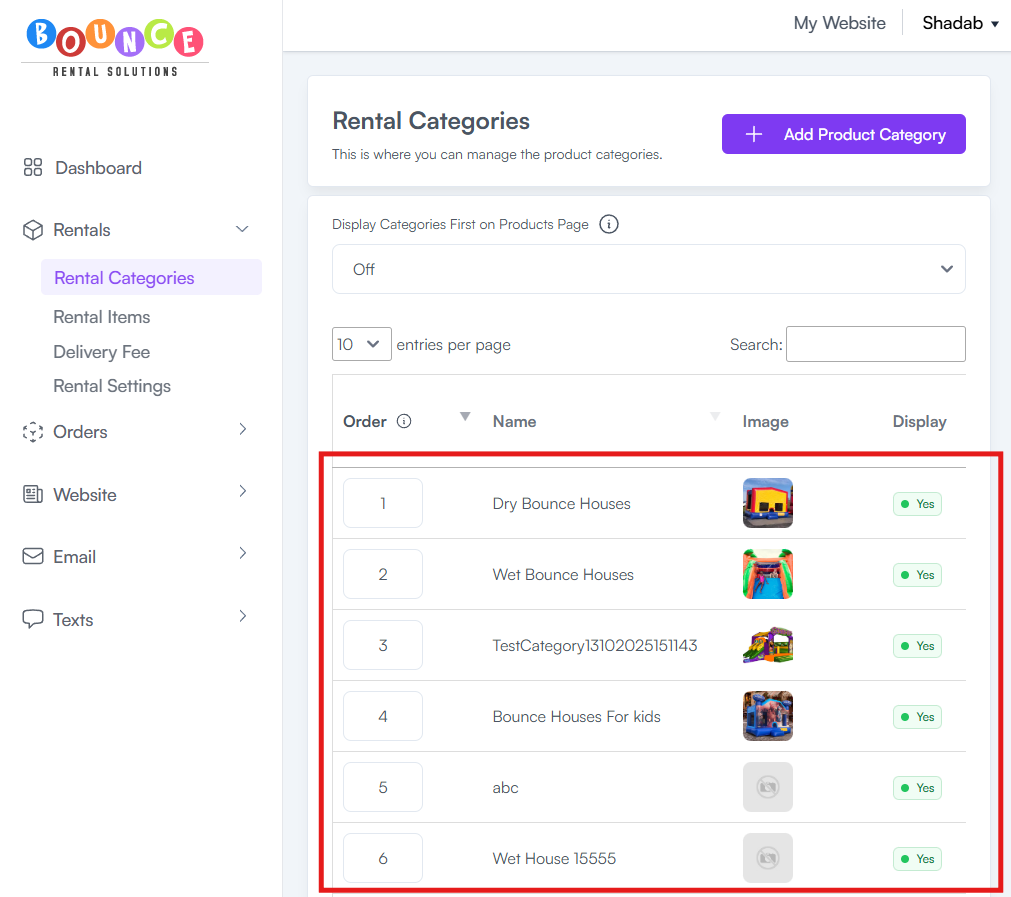
From this page, you can manage category order and visibility settings.
How to Change Category Display Order
The Order column controls the sequence in which categories appear on your website.
Steps
-
Go to Rentals → Rental Categories
-
Locate the Order column
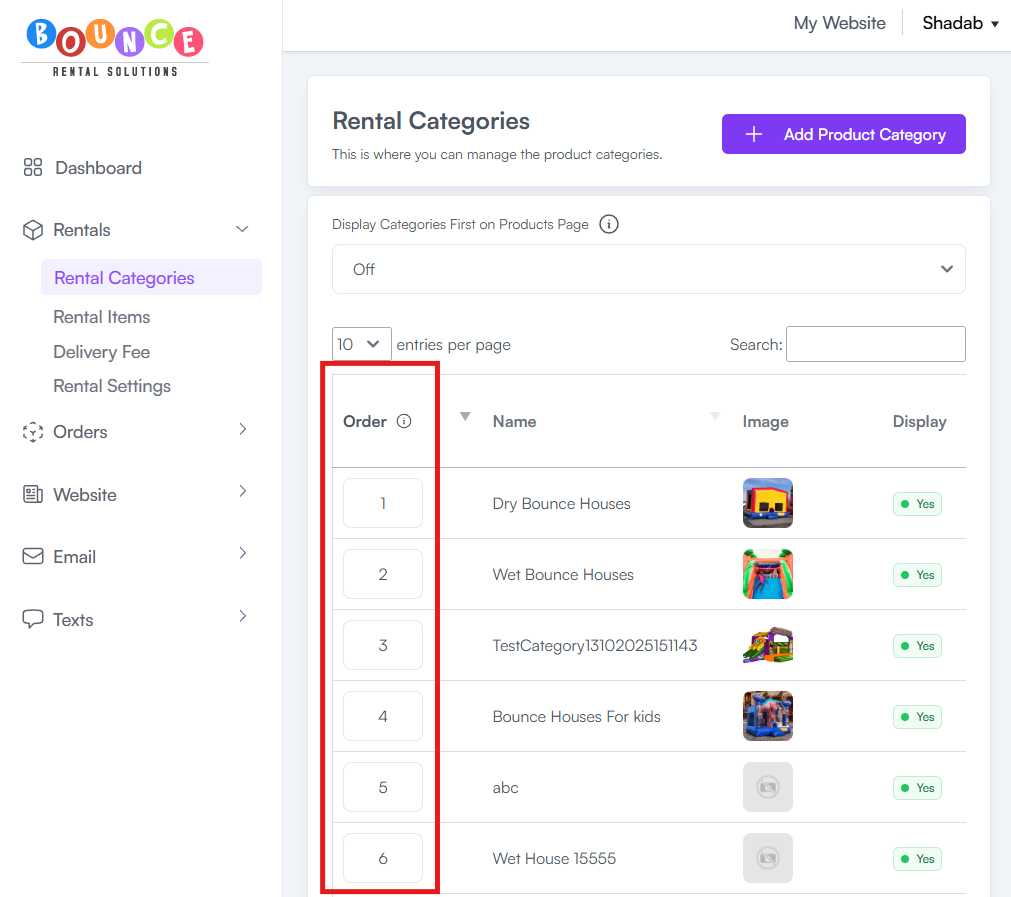
- Enter the number representing where you want each category to appear
Categories will display according to the order numbers assigned.
Example
| Order | Category |
|---|---|
| 1 | Bounce Houses |
| 2 | Water Slides |
| 3 | Obstacle Courses |
| 4 | Concessions |
In this example, Bounce Houses will appear first, followed by Water Slides, then Obstacle Courses.
How Ordering Works
Lower numbers appear first.
Many businesses place:
- Best-selling categories first
- Seasonal inventory near the top
- High-revenue products in prominent positions
- Less popular categories lower in the list
Customers are more likely to browse categories that appear first on the page.
Understanding Homepage and Footer Categories
Homepage Categories
Homepage categories appear on the main page of your website and are often one of the first things customers see.

Many businesses use homepage categories to highlight:
- Best-selling products
- Seasonal inventory
- Featured categories
- High-revenue items
Footer Categories
Footer categories appear at the bottom of your website.

They provide additional navigation links and make it easier for customers to browse inventory from any page on your site.
How to Show or Hide Categories on Your Homepage
- Go to Rentals → Rental Categories
- Locate the category you want to edit
-
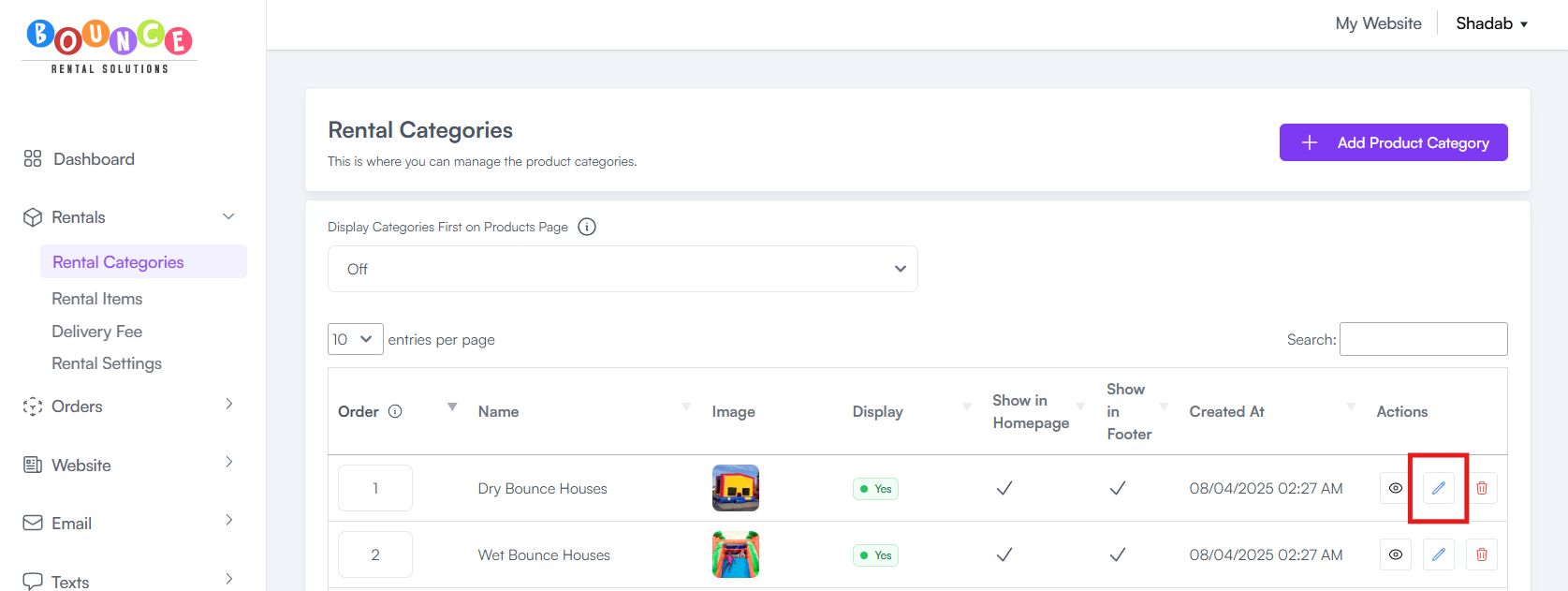
Click the Edit button (pencil icon)
-
Locate the "Show in Homepage" setting
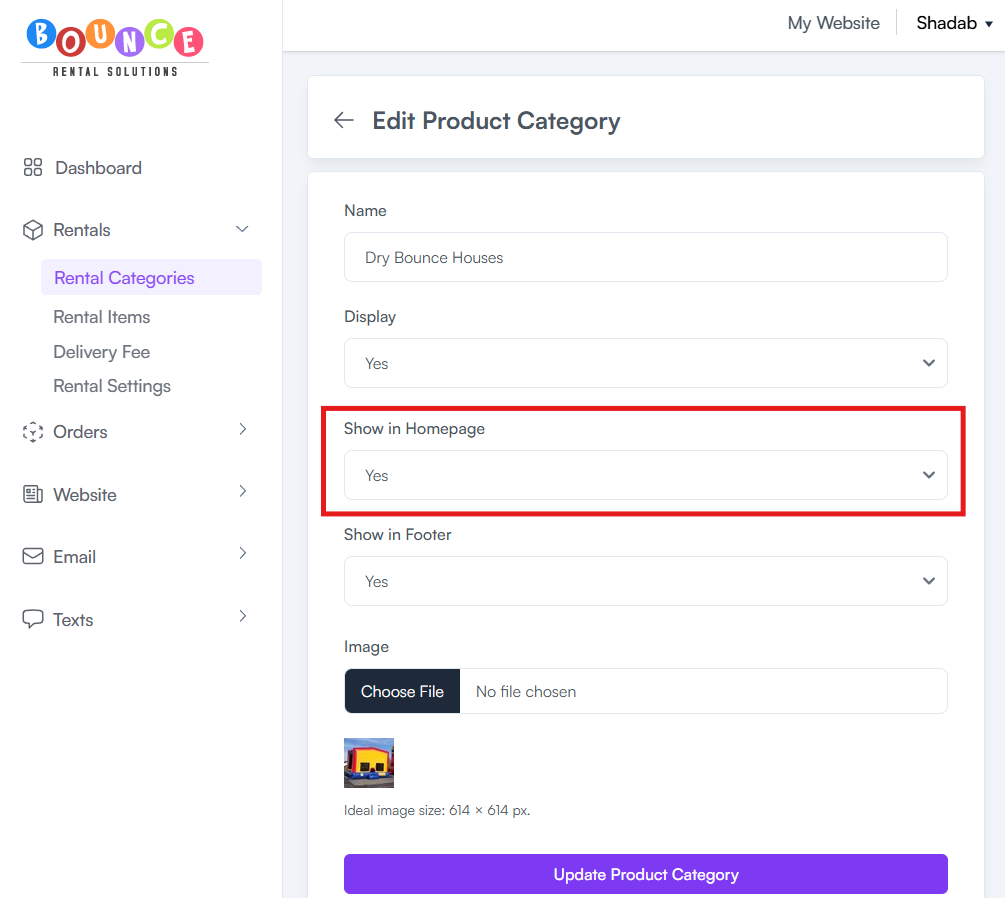
- Click the dropdown menu
To Show the Category
-
Select Yes
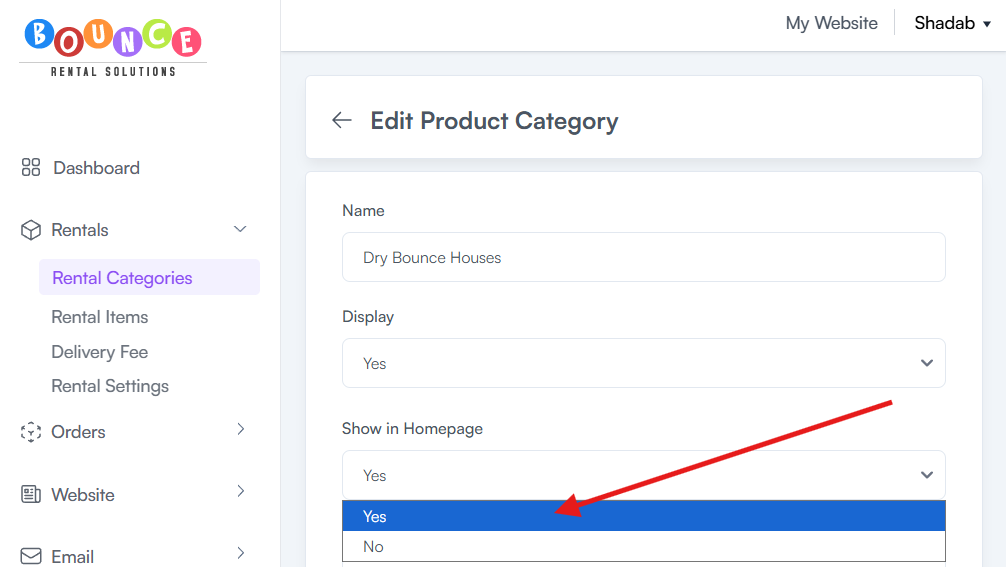
- Click Update Product Category

The category will now appear on your homepage.
To Hide the Category
-
Select No
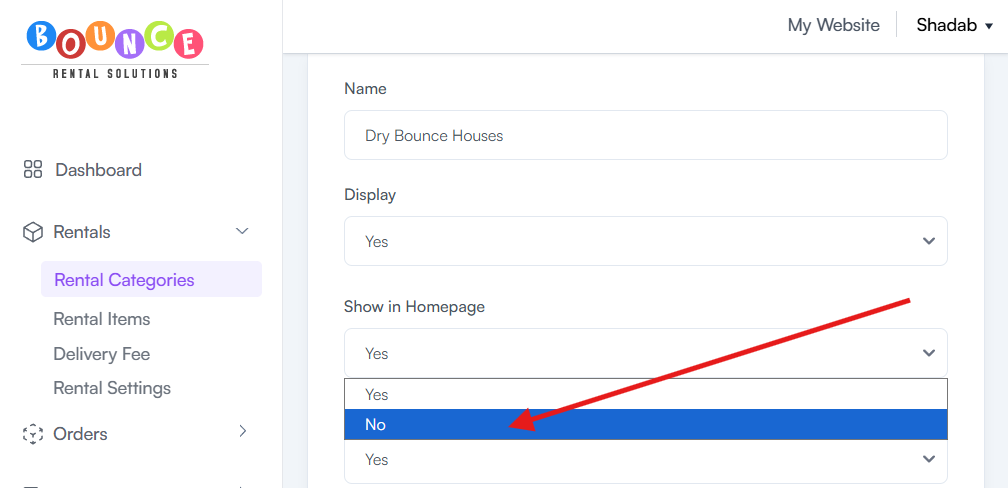
- Click Update Product Category

The category will no longer appear on your homepage.
How to Show or Hide Categories in Your Footer
-
Go to Rentals → Rental Categories
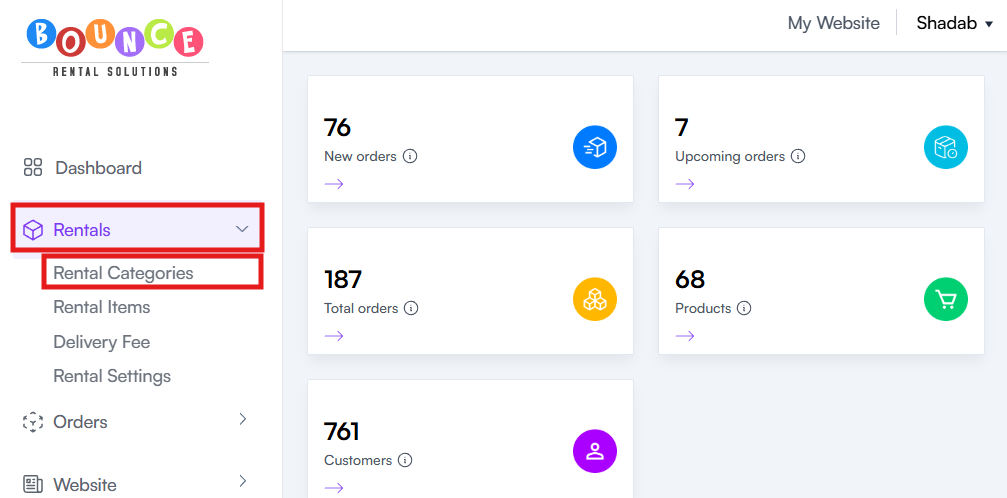
- Locate the category you want to edit
-
Click the Edit button (pencil icon)
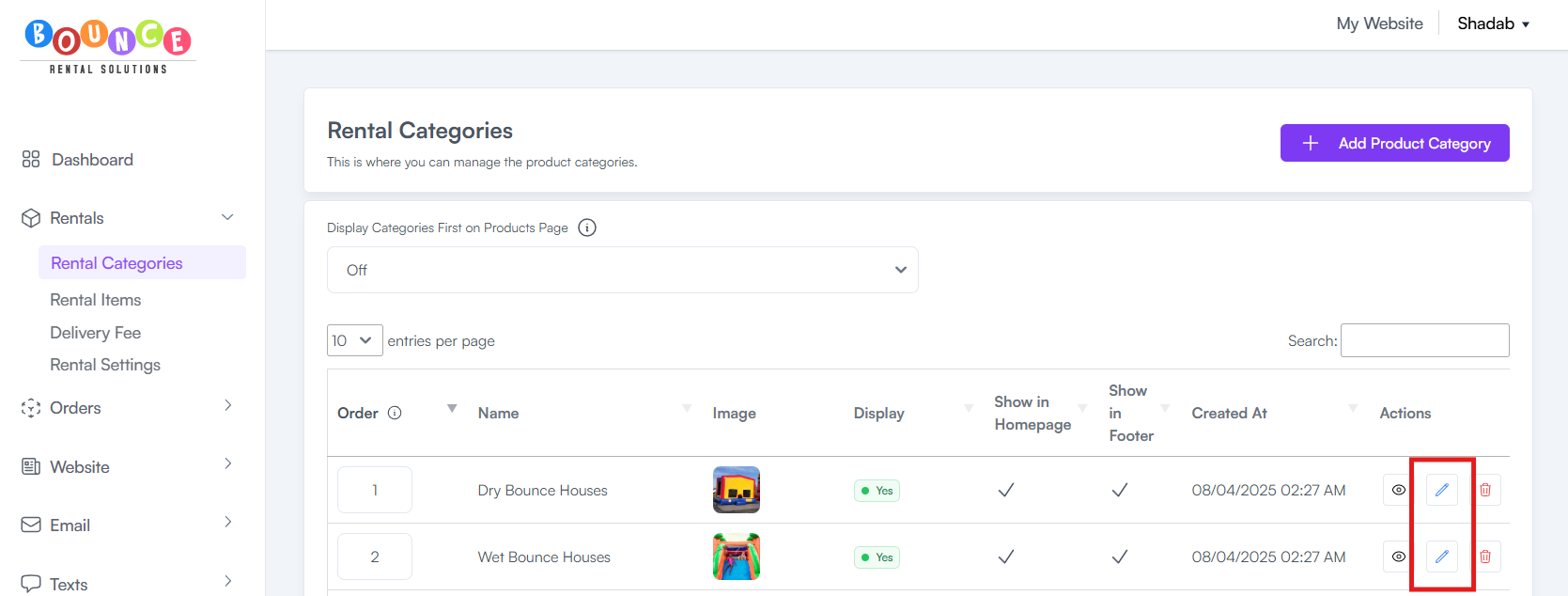
-
Locate the Show in Footer setting
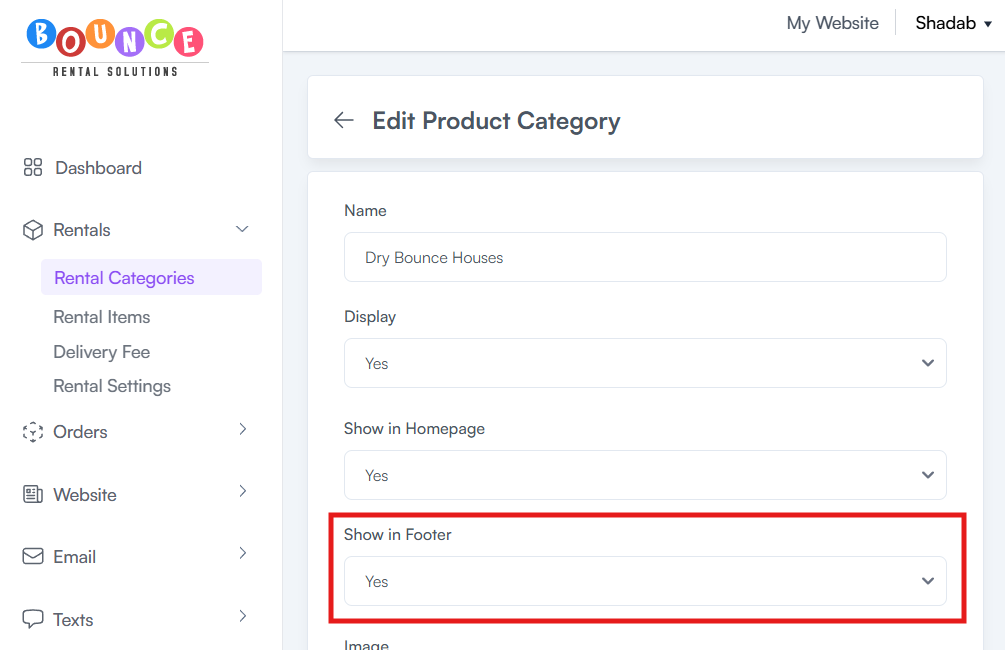
- Click the dropdown menu
To Show the Category
-
Select Yes
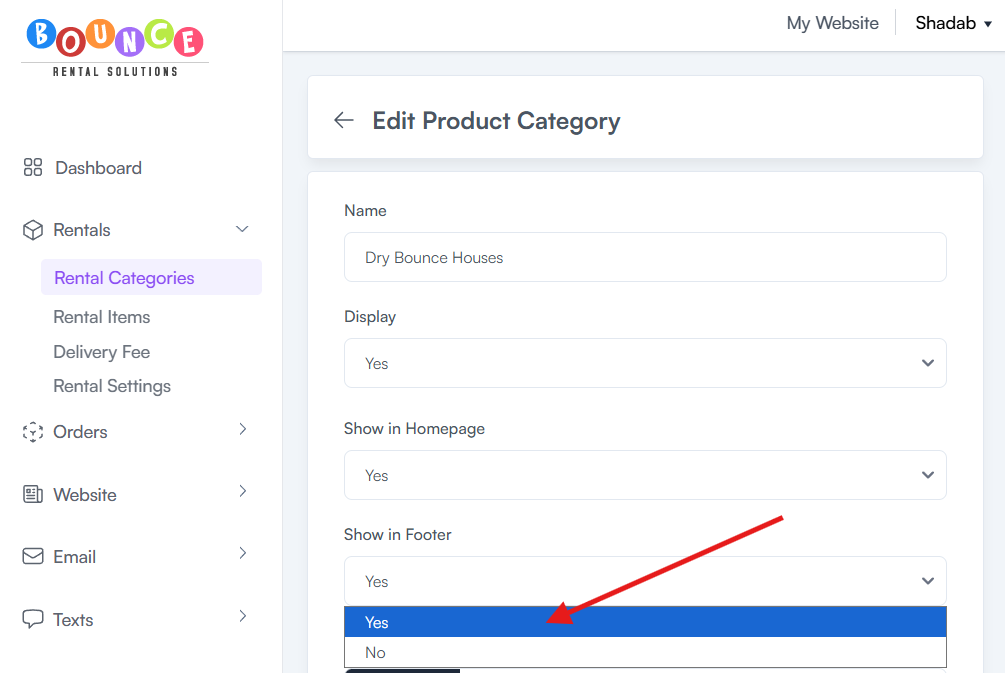
- Click Update Product Category

The category will now appear in your website footer.
To Hide the Category
-
Select No
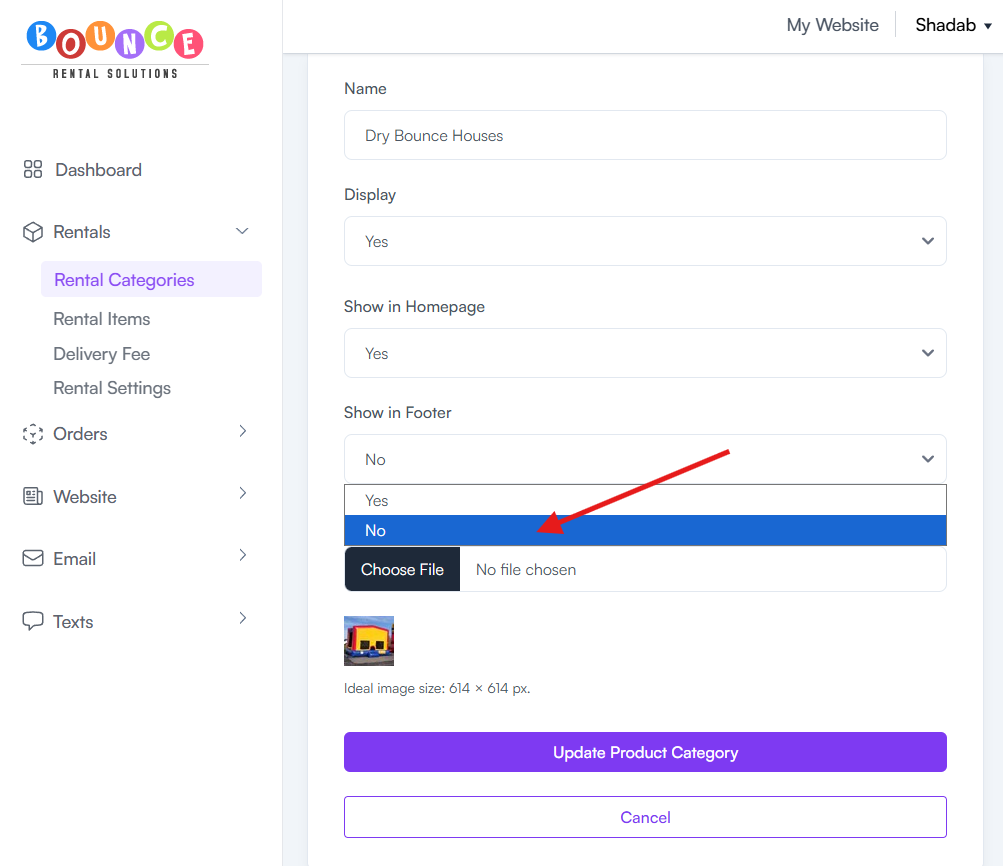
-
Click Update Product Category
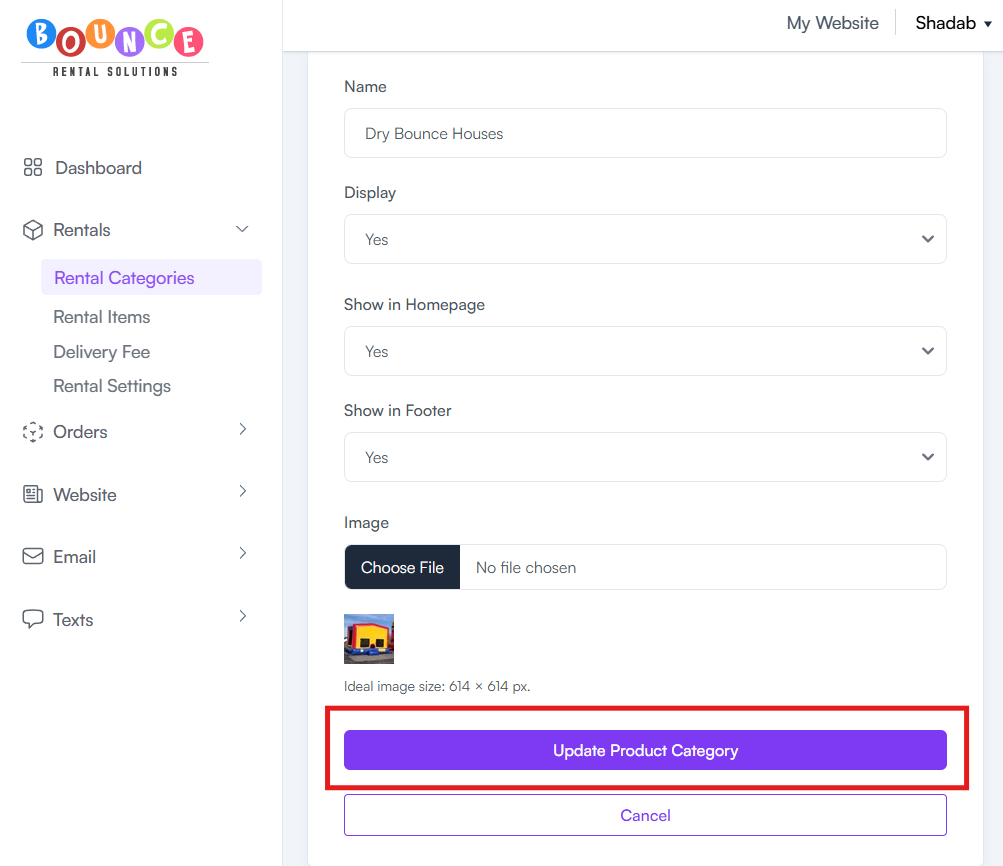
The category will no longer appear in your website footer.
Common Uses
Feature Popular Categories
Examples:
- Bounce Houses
- Water Slides
- Obstacle Courses
Displaying these prominently helps customers find popular products faster.
Promote Seasonal Inventory
Move seasonal products higher in your category order and display them on your homepage during peak seasons.
Examples:
- Water Slides during summer
- Holiday-themed rentals during holiday seasons
Hide Unused Categories
You may choose to hide categories that:
- Have no products
- Are seasonal
- Are temporarily unavailable
Simplify Website Navigation
Too many categories on the homepage can make the website feel cluttered.
Showing only your most important categories often creates a cleaner customer experience.
Important Notes
Category Order:
- Changes display sequence only
- Does not affect pricing
- Does not affect inventory counts
- Does not impact existing orders
Homepage and Footer Visibility:
- Controls where categories appear
- Does not delete categories
- Does not remove products
- Does not affect product availability
Products within a hidden category remain active unless they are separately hidden or removed.
Best Practices
For most websites, homepage categories should focus on:
- Top-selling inventory
- Categories customers browse most often
- Seasonal promotions
- Revenue-generating products
When organizing category order, consider:
- Popularity
- Revenue generation
- Seasonal demand
- Product availability
- Customer browsing behavior
A common structure might be:
- Bounce Houses
- Water Slides
- Combo Units
- Obstacle Courses
- Concessions
- Tables & Chairs
This often aligns with how customers naturally shop for rental items.
Additional Recommendations
Review your category settings periodically, especially before busy seasons.
As your inventory changes, you may want to:
- Feature new categories
- Promote seasonal rentals
- Remove outdated categories from the homepage
- Reorganize category order based on demand
Well-organized categories make it easier for customers to find products, improve navigation, and create a better overall booking experience.