
Managing Product and Category Visibility on Your Website
What This Is
Display Settings allow you to control which products and categories appear on your website and where they are displayed.
There are two primary visibility options:
Display on Website
Makes the product or category visible to customers on your website.
If this option is disabled, customers will not be able to browse or book the item through your storefront.
Show in Homepage
Features the product or category in the Homepage sections of your website, helping highlight important inventory and increase visibility.
Many businesses use this option to promote:
- Best-selling products
- Seasonal inventory
- New additions
- High-revenue categories
Managing Display Settings for Rental Items
How to Access Product Display Settings
-
Go to Rentals → Rental Items
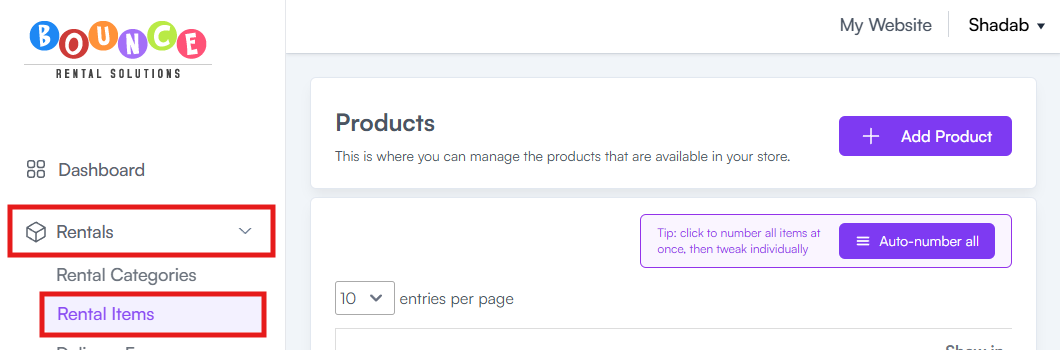
- Locate the product you want to update
-
Click Edit (Pencil Icon)
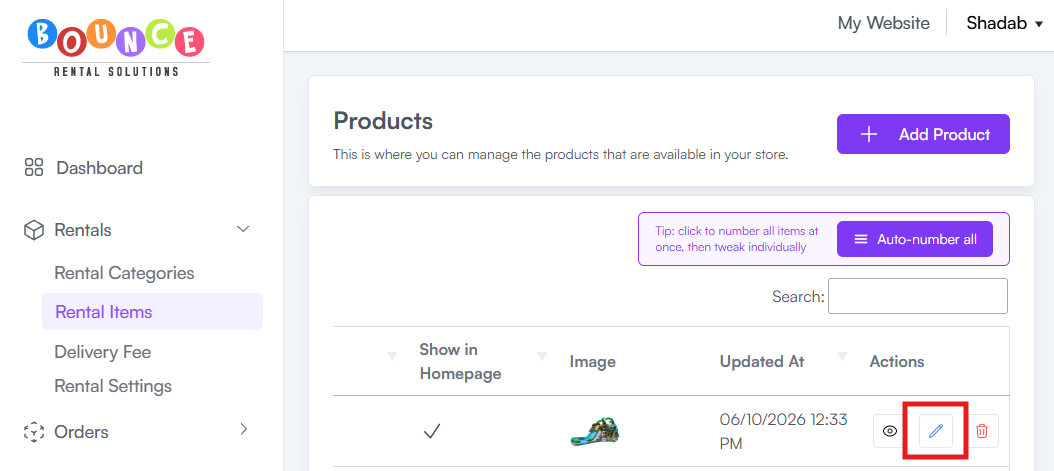
- Scroll down to the Display Settings section
- Enable or disable the desired options:
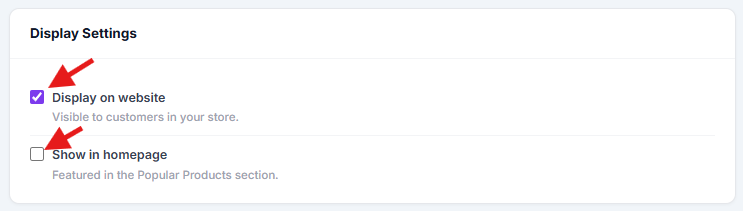
- Display on Website
- Show in Homepage
- Click Update Product
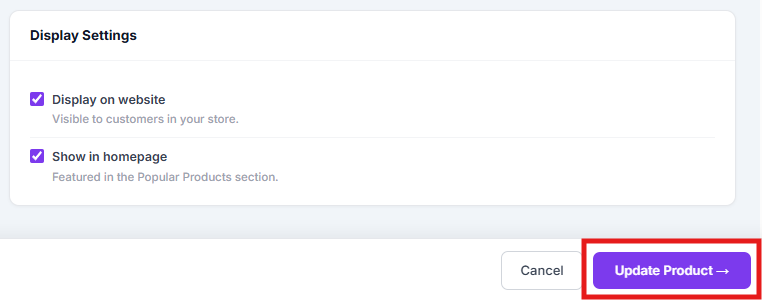
Your changes will take effect immediately after saving.
If you're creating a new product:
-
Go to Rentals → Rental Items
-
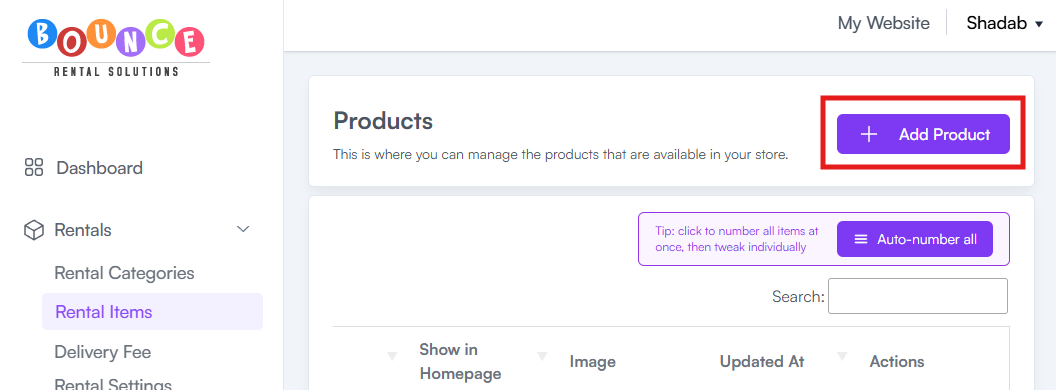
Click Add Product
- Scroll down to the Display Settings section
-
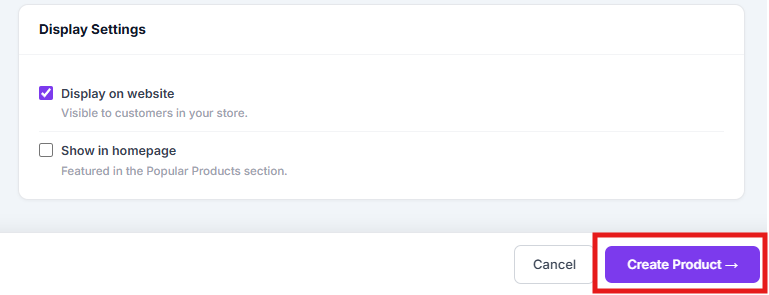
Enable or disable the desired options:
- Display on Website
- Show in Homepage
-
Click Create Product
Your changes will take effect immediately after saving.
Managing Display Settings for Rental Categories
How to Access Category Display Settings
-
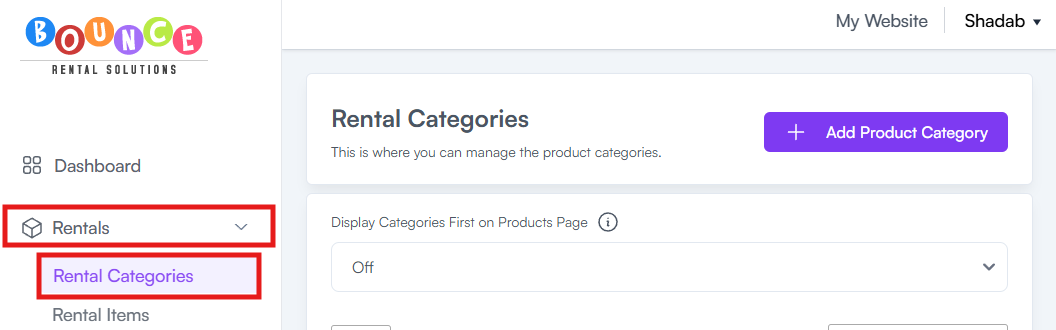
Go to Rentals → Rental Categories
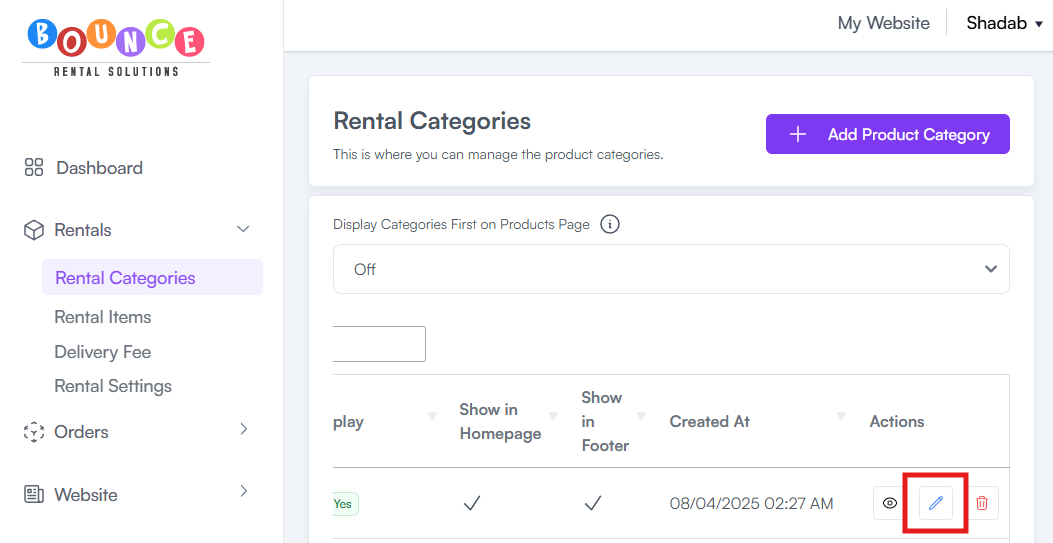
- Locate the category you want to update
-
Click Edit (Pencil Icon)
-
Enable or disable the desired options:
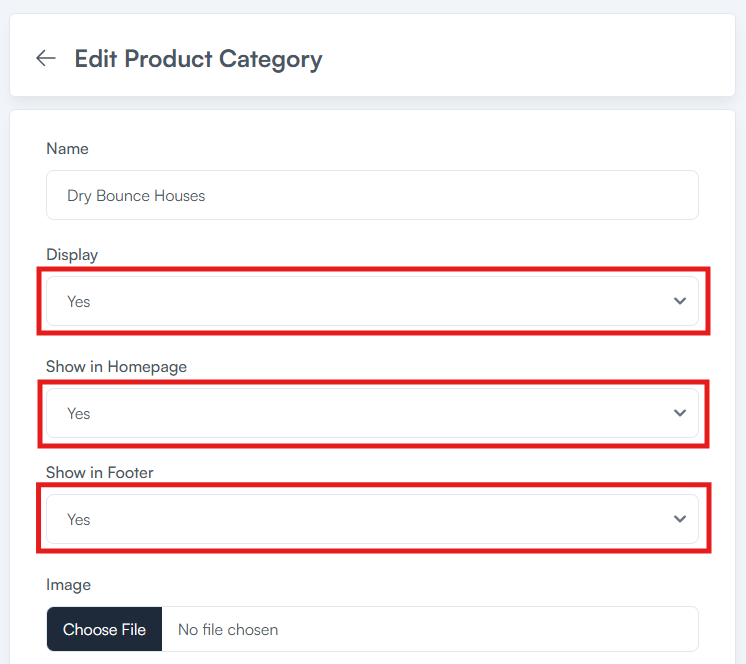
- Display on Website
- Show in Homepage
- Show in Footer
-
Click Update Product Category
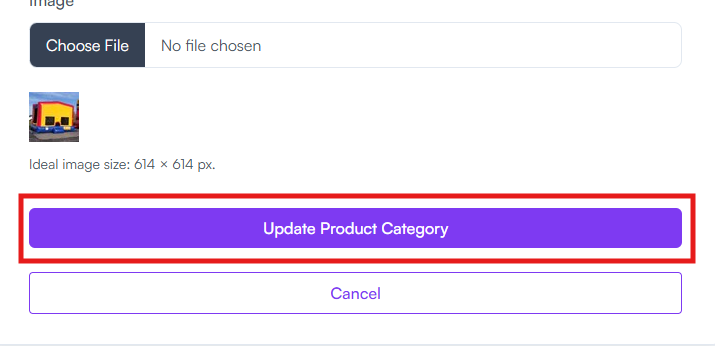
Your category visibility will update immediately after saving.
If you're creating a new category:
-
Go to Rentals → Rental Categories
-
Click Add Category
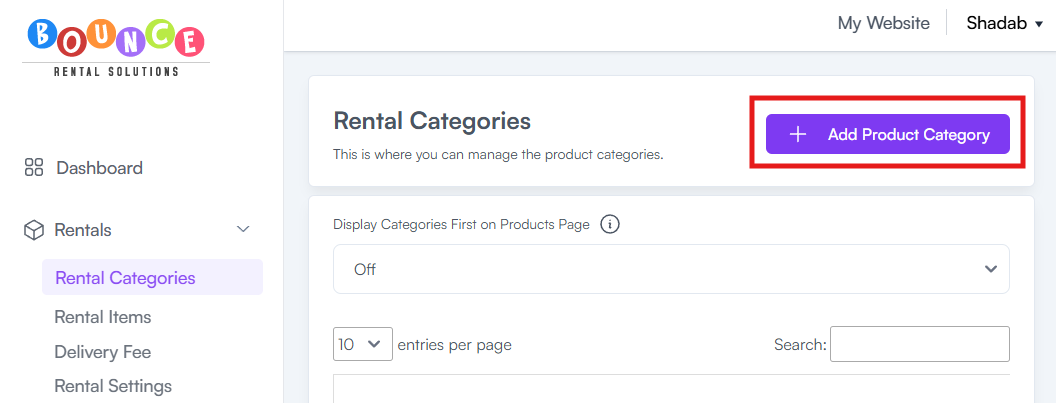
-
Enable or disable the desired options:
- Display on Website
- Show in Homepage
- Show in Footer
-
Click Create Product Category
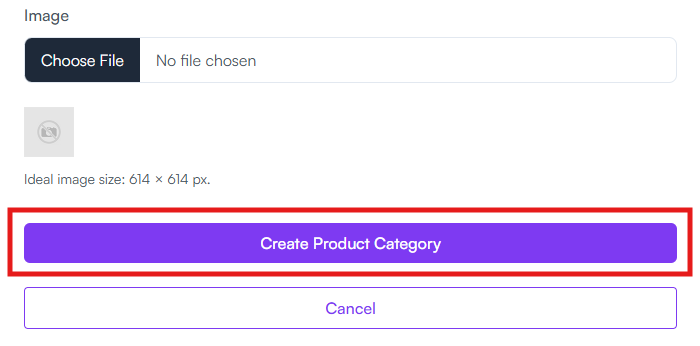
Your category visibility will update immediately after saving.
Understanding the Difference
Display on Website
Controls whether customers can see and browse the item or category anywhere on your website.
Use this option when:
- A product is temporarily unavailable
- A category is being retired
- Inventory is out of service
- You are preparing products before launch
Show in Homepage
Controls whether the item or category appears in featured homepage sections.
Use this option when:
- Promoting popular inventory
- Highlighting seasonal products
- Featuring new additions
- Drawing attention to high-performing categories
An item can be visible on the website without being featured on the homepage.
Common Examples
Example 1: Hidden Product
Display on Website: No
Show in Homepage: No
Result:
The product is hidden from customers.
Example 2: Visible but Not Featured
Display on Website: Yes
Show in Homepage: No
Result:
Customers can find the product through browsing and categories, but it will not appear in homepage featured sections.
Example 3: Featured Product
Display on Website: Yes
Show in Homepage: Yes
Result:
The product is visible throughout the website and featured on the homepage.
Best Practices
Consider featuring:
- Best-selling products
- Seasonal inventory
- New products
- High-margin items
Avoid overcrowding the homepage with too many featured products or categories, as this can make browsing more difficult for customers.
A smaller selection of featured items often creates a cleaner and more effective customer experience.
Important Notes
These settings only affect visibility.
They do not:
- Change pricing
- Affect inventory counts
- Modify availability rules
- Impact existing orders
- Delete products or categories
Products and categories remain in your account even when hidden from customers.