
How to Mark a Rental Item as Non-Taxable
What This Is
Some rental items or services may be exempt from sales tax depending on your business, the type of item being rented, or your local tax laws.
BRS allows you to mark individual rental items as Non-Taxable, preventing sales tax from being applied to those items during checkout.
This setting is useful for businesses that offer both taxable and non-taxable products or services.
Where to Find This Setting
-
From your Dashboard, go to: Rentals → Rental Items
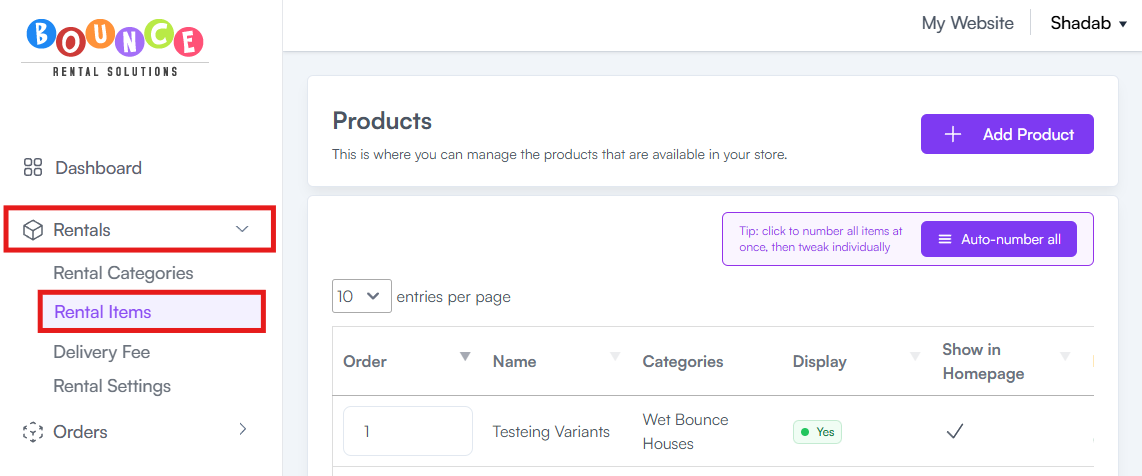
- Locate the rental item you want to make non-taxable.
-
Click Edit (pencil icon).
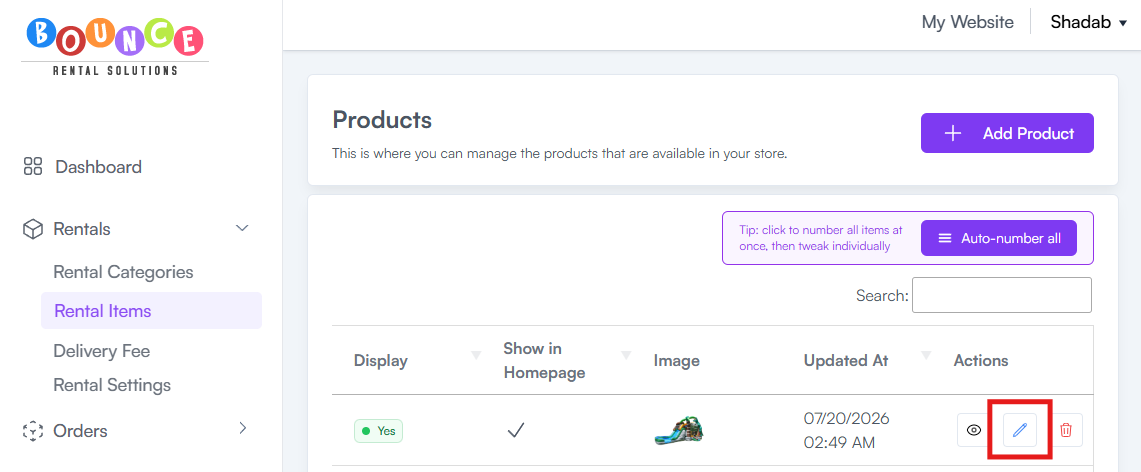
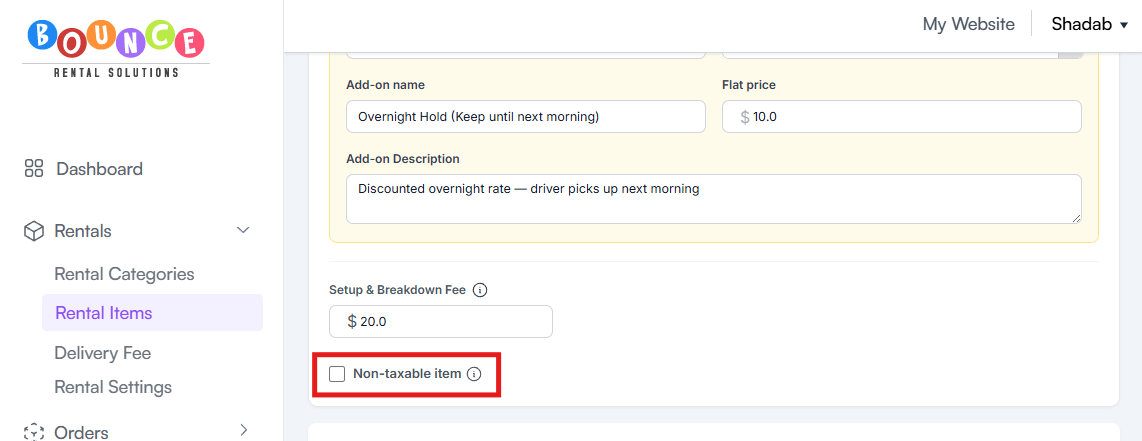
- Scroll down to the Pricing and Billing section.
-
Locate the Non-taxable Item checkbox.
-
Check the box.
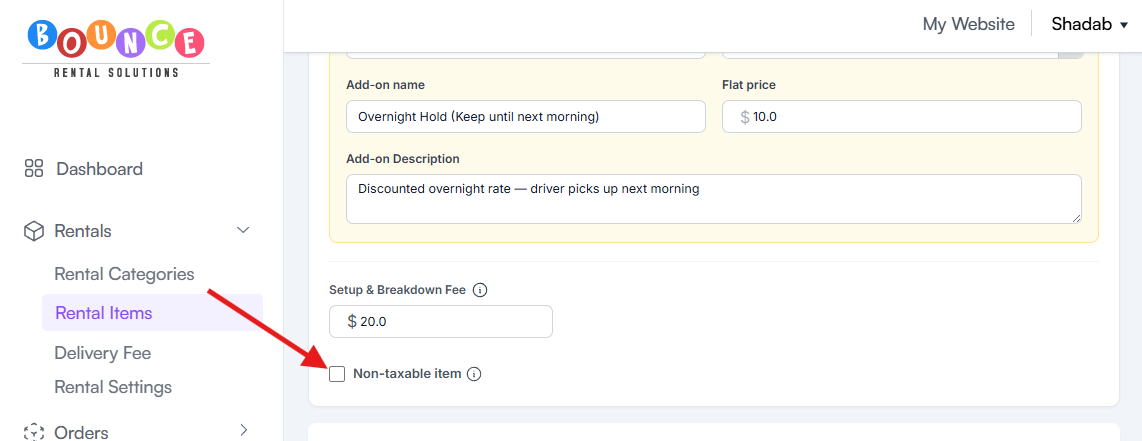
- Click Update Product.

Once saved, sales tax will no longer be applied to that item during checkout.
When to Use This Setting
You may want to mark an item as non-taxable if:
- The item or service is exempt from sales tax under your state or local laws.
- You offer services that are not subject to tax.
- Your business sells a mix of taxable and non-taxable products.
Only enable this setting if you are confident the item qualifies for a tax exemption.
Important Notes
- This setting applies only to the rental item you edit. It does not affect other products in your inventory.
- Tax calculations for all other items will continue to follow your configured tax settings.
- Existing orders are not automatically updated. The non-taxable setting will apply to new bookings after you save the product.
Best Practices
Before marking an item as non-taxable, verify that it qualifies under your local or state tax regulations.
If you're unsure whether an item should be taxed, consult your accountant or tax professional. BRS provides the ability to configure tax settings but does not determine whether an item is legally taxable in your jurisdiction.