
How to Require an Electronic Signature on Your Rental Contract
What This Is
You can choose how customers accept your rental contract: by ticking a checkbox, or by typing their full legal name as an electronic signature. Electronic signatures are included on every plan.
Turn On Electronic Signatures
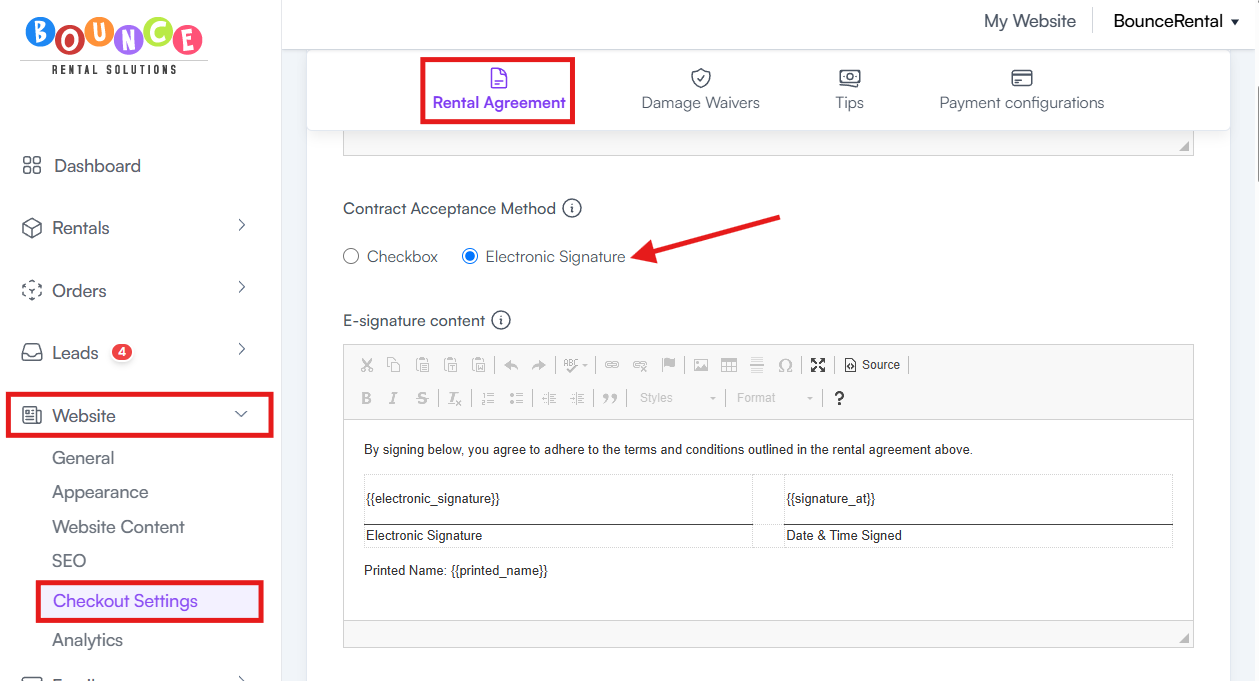
- Go to Website → Checkout Settings → Rental Agreement.
-
Under Contract Acceptance Method, choose Electronic Signature. (Choose Checkbox to keep the original checkbox.)
-
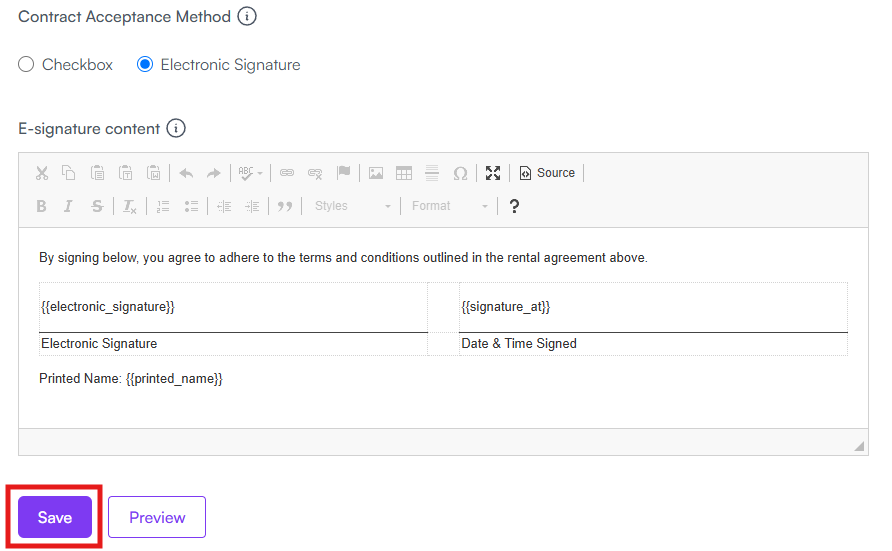
Save.
What Customers See at Checkout
Instead of the checkbox, customers type their full legal name to sign. They can't finish checkout until a valid name is entered; blank or single-letter entries aren't accepted.
Signature Request Email
When you create a manual order with Require Contract Signature turned on, BRS automatically emails the customer asking them to review and sign the contract. This applies to orders created from the dashboard, the mobile app, or by converting a quote.
The email includes a link to the customer's order. If the contract remains unsigned, BRS sends one reminder email with "Reminder:" in the subject line and copies you.
- By default, the reminder is sent after 7 days, or 2 days before the event if that comes first.
- Reminders are never sent after the event starts or once the order is signed or cancelled.
- You can change the reminder timing or turn it off under Email → Customer Emails → Signature Request Email. Set Reminder if not signed to No reminder or choose a timeframe of 1–30 days.
- This email is included on every plan.
- Website checkout orders do not receive this email because customers sign their contracts during checkout.
Manual Orders
When you create or edit a manual order, use the Require Contract Signature toggle. It's on by default when you use Electronic Signature, and you can turn it off for any order. The order goes on your calendar right away. Send the Order Link to whoever needs to sign. It can be someone other than the customer on the order. They click Sign Contract, type their full legal name and confirm.
After Signing
• The contract shows the signer's name and the date, time and IP address of the signature.
• A contract can only be signed once. If the wrong person signs, delete the order and create it again.
• Orders still waiting for a signature show an Unsigned badge on the Orders list and order page. The badge disappears once signed.
• Orders created before you turned this on are not affected.