
How to Set Up the Chat Widget (Growth and Scale)
What This Is
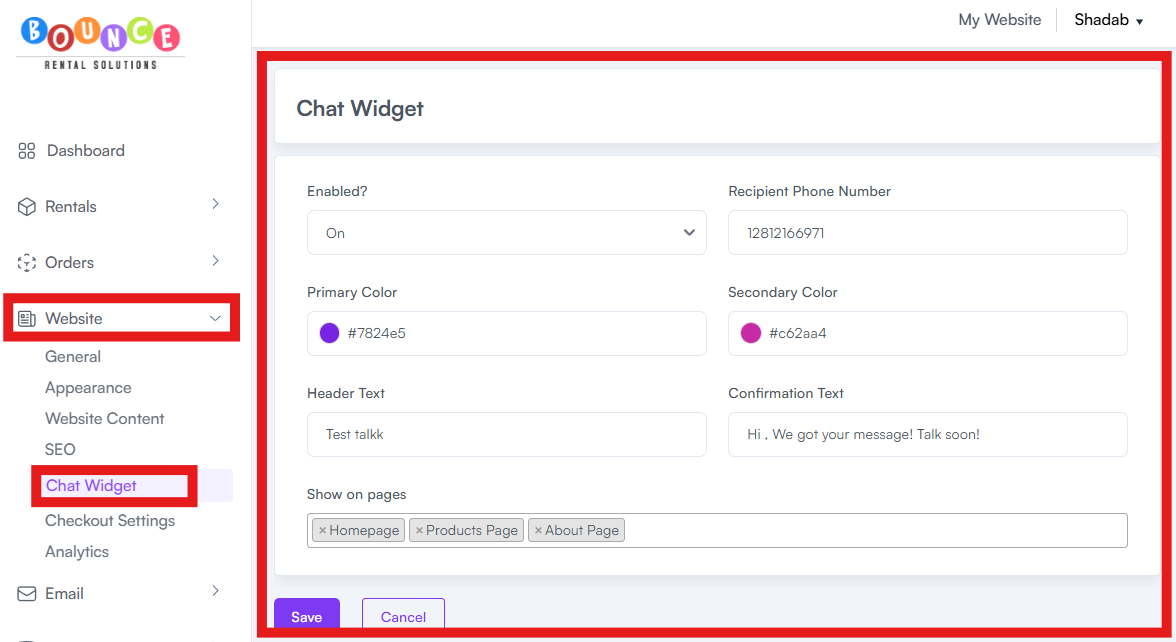
The chat widget is a small messaging icon that appears on your customer-facing website. Customers can use it to send you a quick message instead of calling or filling out a form.
The Chat Widget is a Growth and Scale feature. Tenants on the Core plan will not see the Chat Widget in the Leads menu. To use it, upgrade to Growth or Scale from your profile dropdown → Billing.
Where to Find It
Go to Leads → Chat Widget.
How to Set It Up
1. Go to Leads → Chat Widget
2. Turn the chat widget on using the Enabled toggle
3. Customize the header text (the title customers see at the top of the chat box)
4. Customize the confirmation message (what customers see after they send their message)
5. Pick the colors so the widget matches your brand
6. Choose which pages of your website the widget should appear on
7. Save your changes
How It Works
When a customer sends a message through the chat widget on your website, BRS sends a text message to the phone number on file under your chat settings. By default, this is the phone number you signed up with. If you want messages to go to a different phone, update the number in your chat widget settings.
Note: Chat messages are delivered to your phone as a text. Reply to the customer using whatever method works best (call them back, text them directly, or follow up by email).
Important:
AI-powered customer chat is included with Scale.