
How to Add Variants to a Product
What This Is
Variants let you offer different versions of the same item under one product listing instead of creating duplicate products.
Example
Instead of creating three separate table products, create one 'Folding Tables' product with variants for:
• 6-ft Table
• 8-ft Table
• Round Table
Steps
- Open the product in Rentals → Rental Items → Edit Product/Add Product

- Scroll to the Variants section.
Note: Variants are only available for Day-Based rentals. If you are using Rental Duration or Hourly booking type, variants are not supported.
- Tick "This product has variants" to be able to add some variants then Click Add Variant Attribute

- Choose the type of Variant.
- Size
- Color
- Custom
For Custom, you will also need to choose the Input mode.

- Once done choosing the Variant type. In the Available options section, type in the variant you wanted to add then hit Enter once done. This screenshot shows that my input for the available size is Large, Medium and Small with 3 custom inputs Called Spandex, Plastic, and Rubber.

- Choose the desired Variant Inventory Behavior.
- Variant Inventory Behavior controls how stock is tracked when a product has multiple variants.
- Separate inventory per variant: Each variant has its own inventory quantity. For example, a Red Small shirt and a Blue Large shirt would each have separate stock counts.
- Shared product inventory across variants: All variants pull from the same shared inventory quantity from the main product.
Use Separate inventory per variant when each option should have its own stock tracking. Use Shared product inventory across variants when all variants are drawing from the same physical inventory pool.

- Save/Update Product.

- Once done, Click Generate Variants

- Enter its price, inventory, and tick/mark Add-ons if the variant should be displayed and available or untick/unmark if it should not be available on your website..

- Save/Update Product
-
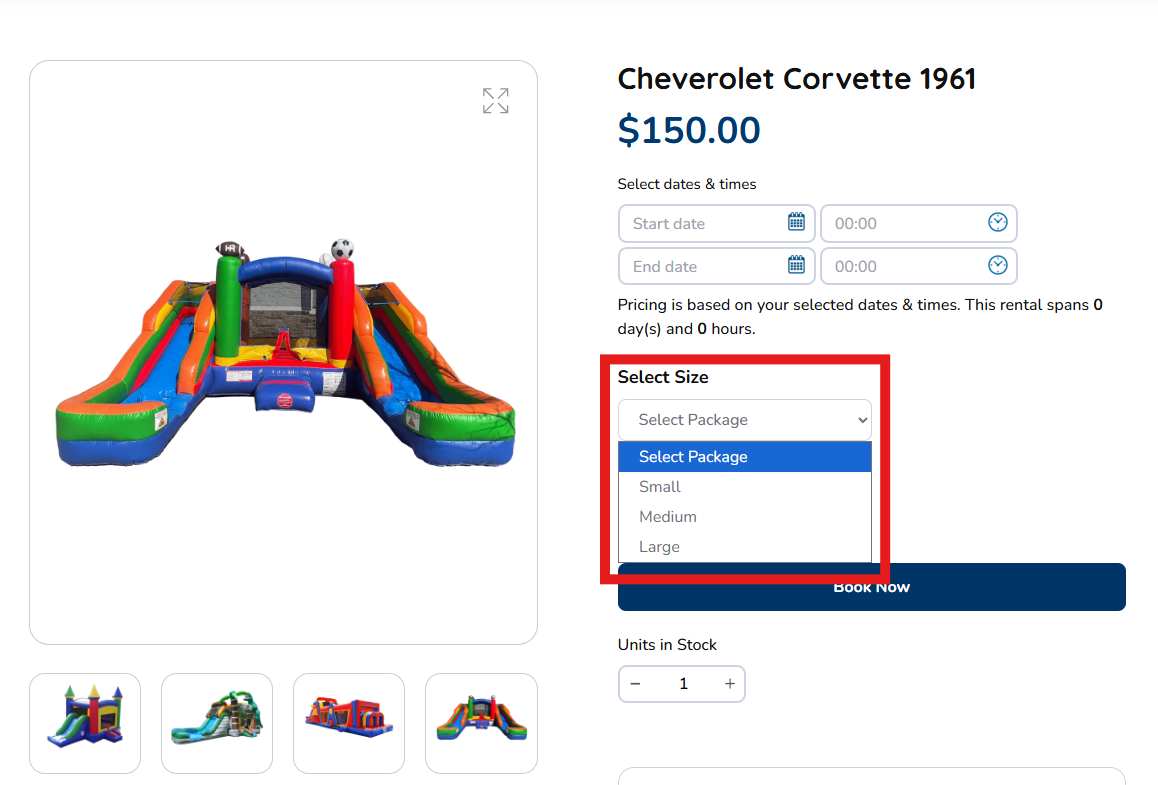
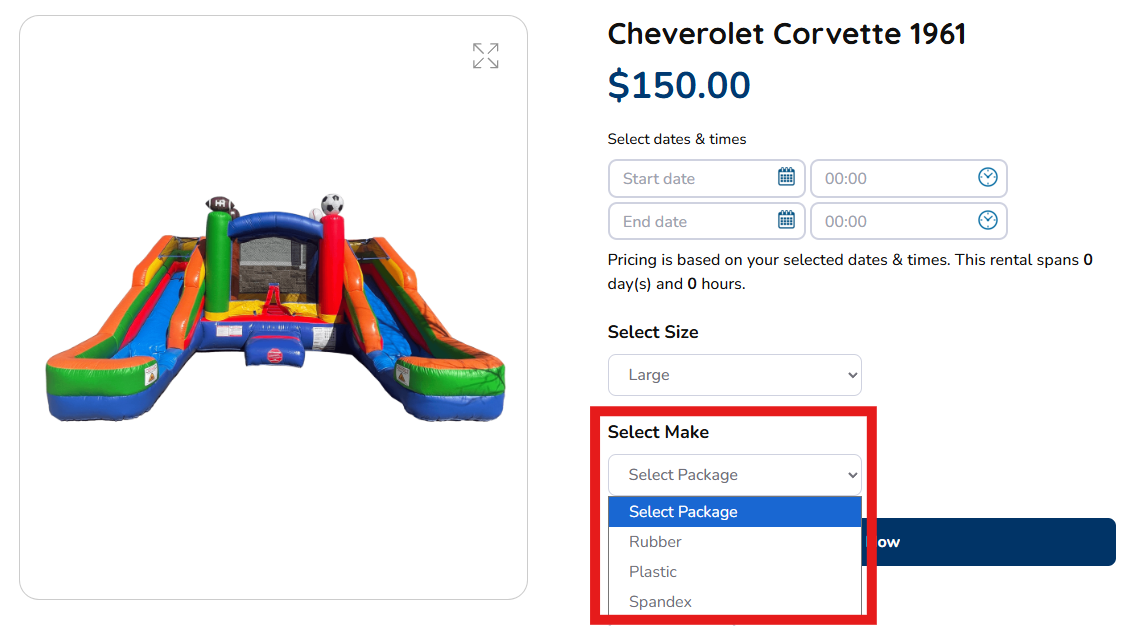
This is how it should look to a customer's point of view
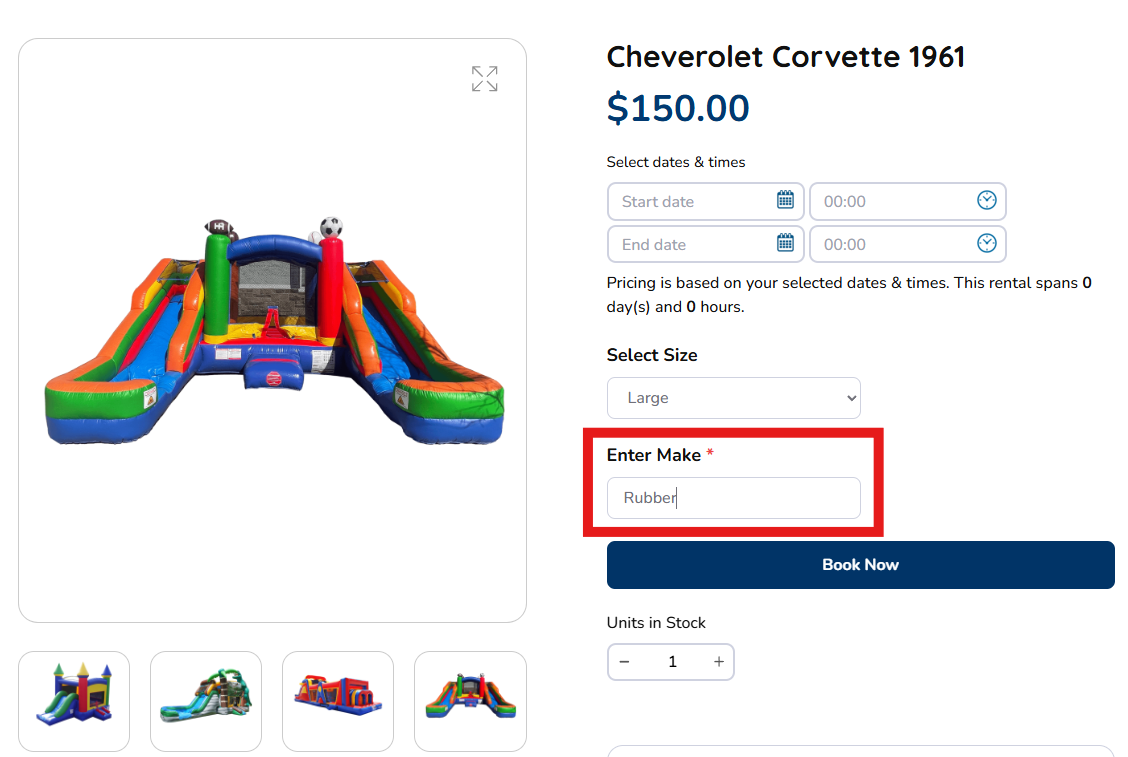
If you chose Text instead of a dropdown in your custom variant this is how it would look. It will let you type in the option you wanted.
Note: Variants are only available for Day-Based rentals. If you are using Rental Duration or Hourly booking type, variants are not supported. (see: Day-Based vs. Hourly — Which Booking Type Should You Use)
Tip: Variants keep your product catalog clean and help customers find what they need without scrolling through dozens of similar listings.