
How to Customize Your Website Branding and Appearance
What This Is
The Appearance section allows you to customize the look and feel of your BRS website.
From here, you can:
- Upload your logo
- Set your brand colors
- Choose your website font
- Upload your favicon
- Customize category display settings
- Update call-to-action button text
These settings help make your website match your brand and create a more professional experience for customers.
How to Access Appearance Settings
-
Go to Website → Appearance
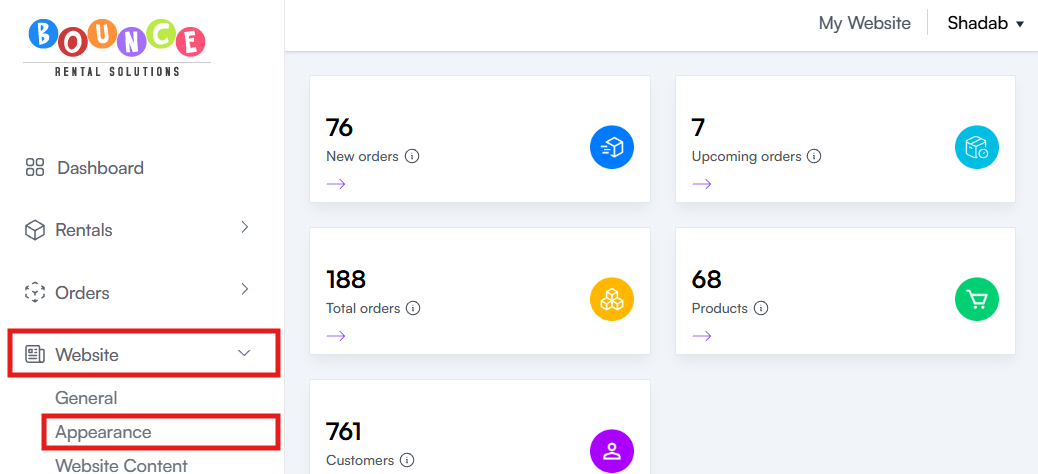
This section contains all available branding and design options for your website.
Website Templates
BRS currently offers the following website templates:
- Birthday Blast
- Summer Rush
- Polished Pro (New)

Each template has its own design and includes pre-built color themes to help you get started quickly.
As new templates are released, they will automatically become available in the Appearance section.
Preview the Website Templates
Want to see how each template looks before choosing one? Explore our live demo websites below:
Birthday Blast
Summer Rush
Polished Pro
These demo websites showcase the different layouts, color presets, and overall design of each template. You can use them for inspiration before customizing your own website.
Available Color Presets
The available color presets depend on the website template you've selected.
Birthday Blast Presets
- Classic Party
- Superhero
- Princess Party
- Glow Party

Summer Rush Presets
- Summer Rush
- Main Street Fun
- Electric Rush

Polished Pro Presets (NEW)
- Slate & Citrus
- Ink & Raspberry

To use a preset, simply select it from the Color Preset section. You can also enable Custom Colors if you'd like to create your own color scheme instead.
Creating Custom Brand Colors
If you want to use your own colors instead of a preset:
- Scroll to the Color Preset section
-
Enable the Custom Colors toggle
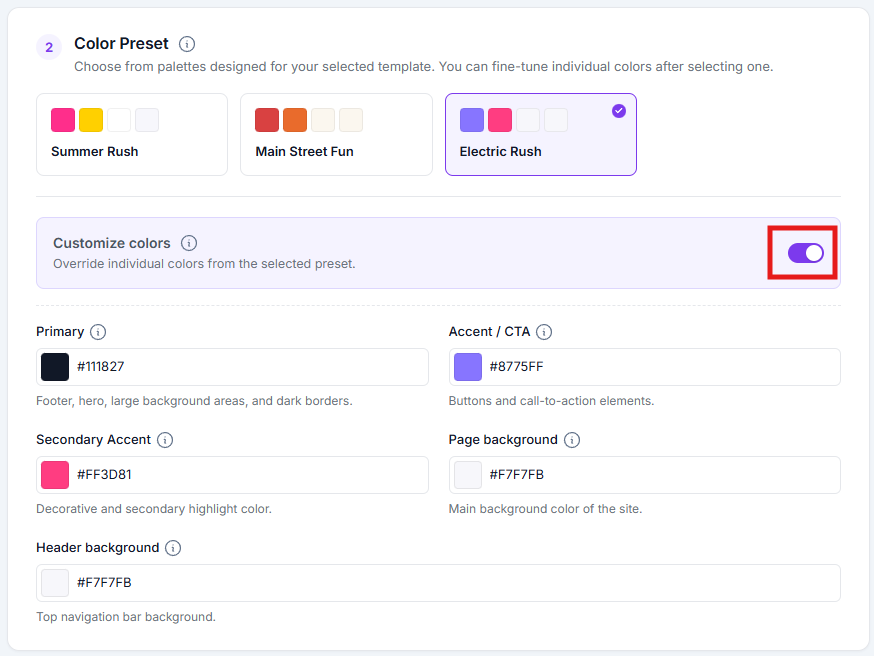
- Adjust your colors as needed
You can customize:
- Primary Color
- Secondary Accent Color
- Accent / CTA Color
- Page Background Color
- Header Background Color
Colors can be entered using:
-
Color codes (HEX values)

-
The built-in color picker
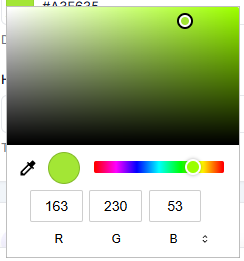
This allows you to match your website to your existing branding.
Choosing a Font Style
The Font Preset section allows you to change the typography used throughout your website.
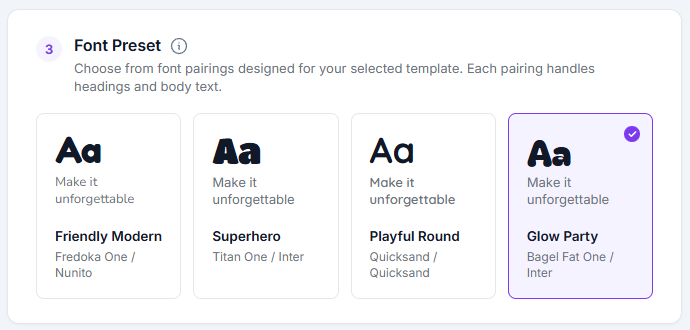
Available Font Presets
The available font presets depend on the website template you've selected.
Birthday Blast Fonts
- Friendly Modern
- Superhero
- Playful Round
- Glow Party

Summer Rush Fonts
- Summer Rush
- Main Street Fun
- Electric Rush

Polished Pro Fonts
- Slate & Citrus
- Ink & Raspberry

Select the font preset that best matches your brand and complements your chosen website template. All font presets are designed to provide a clean, readable experience across desktop and mobile devices.
Uploading Your Brand Assets
The Brand Basics section contains your logo and icon settings.
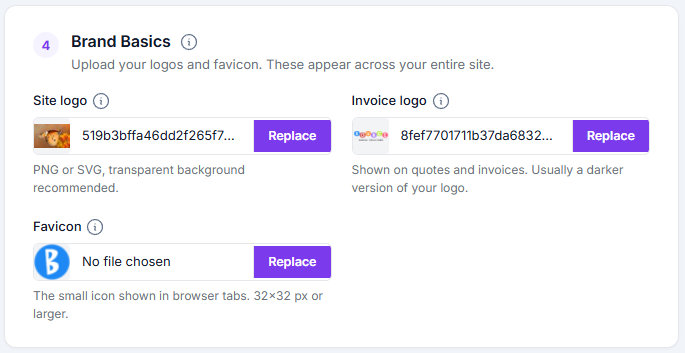
Site Logo
Your Site Logo appears throughout your website and is typically the primary version of your business logo.
Recommended format:
- PNG
- SVG
A transparent background is strongly recommended for the best appearance.
Invoice Logo
The Invoice Logo appears on:
- Quotes
- Invoices
Many businesses use a darker version of their logo for invoices to ensure it prints clearly.
Favicon
A favicon is the small icon displayed in browser tabs.
Recommended size:
- 32 × 32 pixels or larger
Using a favicon helps reinforce your branding and makes your website easier to identify when multiple browser tabs are open.
Advanced Appearance Settings
The Advanced section provides additional customization options.
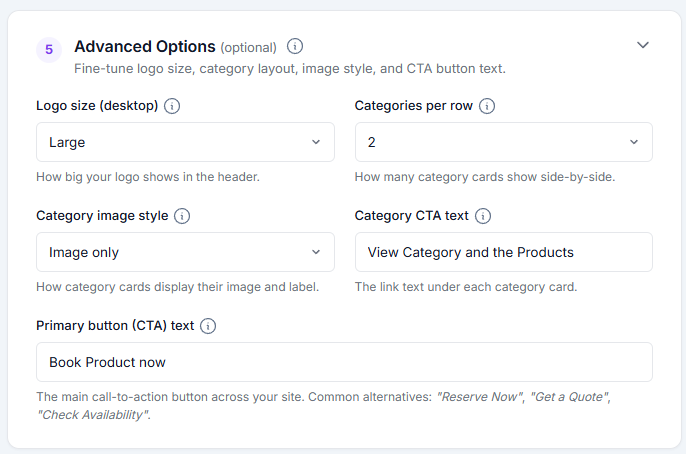
Logo Size
Adjust how large your logo appears on the website.
Categories Per Row
Control how many categories display in each row.
This can affect:
- Website layout
- Mobile responsiveness
- Customer browsing experience
Category Image Style
Customize how category images are displayed throughout the site.
Category CTA Text
Customize the call-to-action text shown on category sections.
Examples:
- View Products
- Shop Now
- Browse Inventory
Primary Button (CTA) Text
Customize the text used on your website's primary action buttons.
Examples:
- Book Now
- Reserve Today
- Get Started
Saving Your Changes
Once you have finished customizing your website:
- Click Save Changes
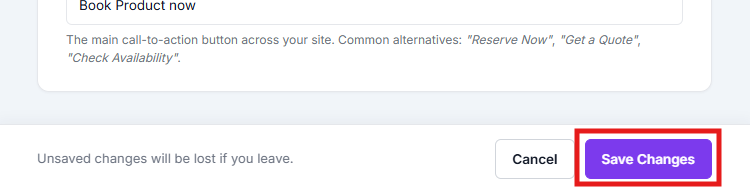
Your updates will then be applied to your website.
Best Practices
Keep Branding Consistent
Use the same:
- Logo
- Colors
- Fonts
across your website, social media pages, invoices, and marketing materials.
Use High-Quality Logos
Blurry or low-resolution logos can make a website appear less professional.
Whenever possible:
- Use SVG files
- Use transparent PNG files
- Avoid screenshots of logos
Don't Overuse Colors
Many websites perform best with:
- One primary color
- One accent color
- Neutral backgrounds
Too many competing colors can make the site feel cluttered.
Important Notes
Appearance settings affect the visual presentation of your website only.
They do not:
- Change products
- Affect pricing
- Modify inventory
- Impact existing bookings
Changes can be updated at any time as your branding evolves.
Additional Recommendations
Before making major branding changes, consider reviewing your website as a customer would.
A clean logo, readable fonts, consistent colors, and clear call-to-action buttons often have a greater impact on conversions than complex design changes.
Your branding should help customers quickly understand who you are, what you offer, and how to book.