
How to Send a Quote and Convert It to an Order
What This Is
A quote is an estimate you send to a customer before the booking is confirmed.
The customer must review the quote, complete checkout, and accept the terms before it becomes an active order.
Steps
- Go to Orders → Quotes / Manual Orders
-
Click Add Quote / Manual Order
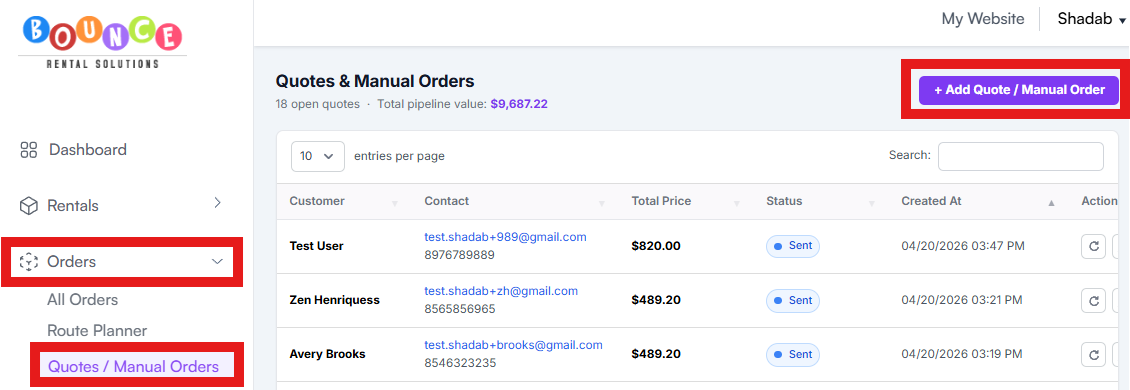
- Add the customer, date, time, products, delivery details, and pricing
-
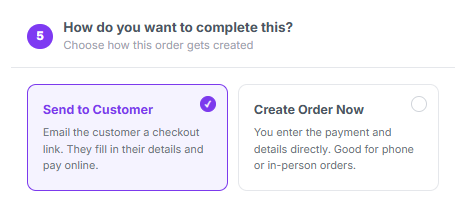
Select Send to Customer
-
Click Create Quote
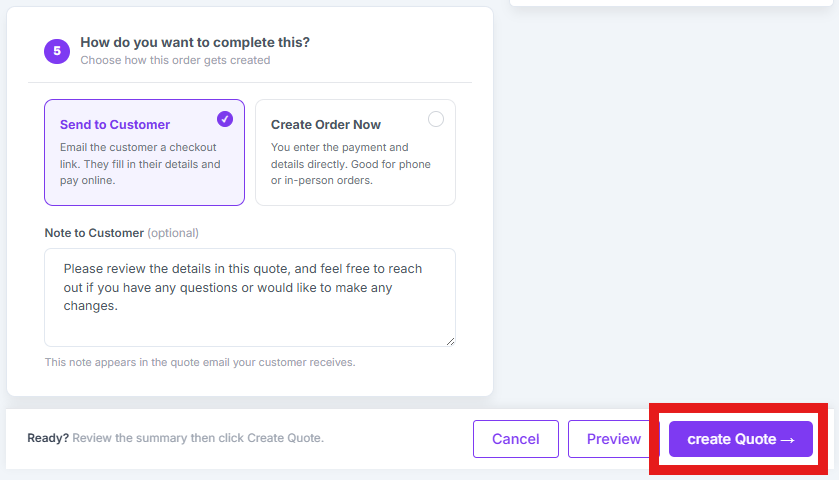
- The customer receives a checkout link by email
- The customer opens the link, reviews the order, enters payment if required, and accepts the terms and conditions
- Once completed, the quote automatically converts into an active order and appears on your calendar
If the Customer Is Ready to Book
If you already sent a quote and the customer says they are ready to book, you can convert the quote to a manual order.
Go to:
Orders → Quotes / Manual Orders
Then click Convert to Manual Order.

This officially turns the quote into an active order and adds it to your calendar.
Updating a Quote
If a customer needs changes to a quote:
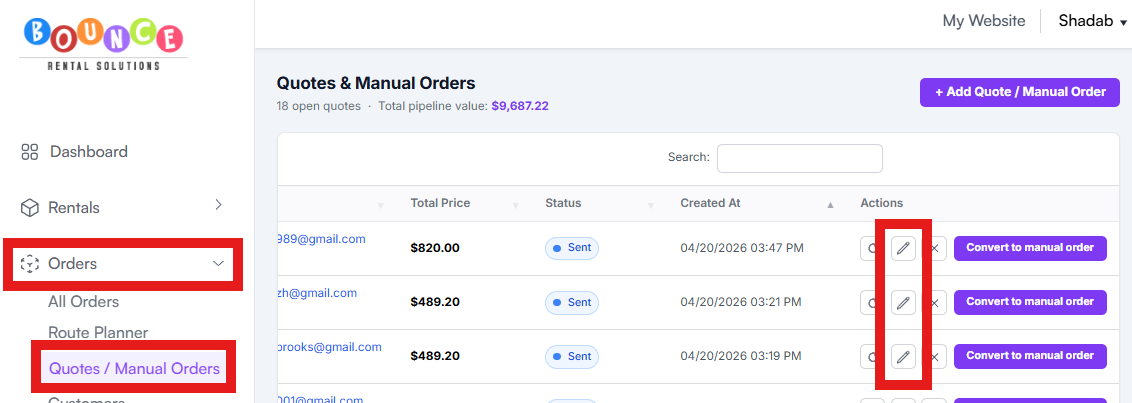
- Go to Orders → Quotes / Manual Orders
- Open the quote
-
Click the pencil/edit option
- Make the updates
- Save the changes
The customer will automatically receive an updated quote email using the email address on file.
Make Quotes Easy for Customers
For the smoothest experience, enter the customer’s full information before sending the quote, including:
- Name
- Phone number
- Delivery address
You can technically send a quote with only an email address, but the customer will need to complete the missing information during checkout.
Adding it ahead of time makes the process easier for them.
Editing the Quote Email
To edit the email customers receive when a quote is sent or updated, go to:
Emails → Customer Emails → Quote Email

Use the emails titled Version 4 whenever available. These are the latest updated email templates and include the most complete information.