
How the Route Planner Works
What This Is
The Route Planner helps you organize deliveries and pickups, assign orders to trucks, view stops on a map, create load sheets, and give drivers the information they need to complete each route.
Route Planner is available on the Premium plan.
How to Access It
Go to:
Orders → Route Planner
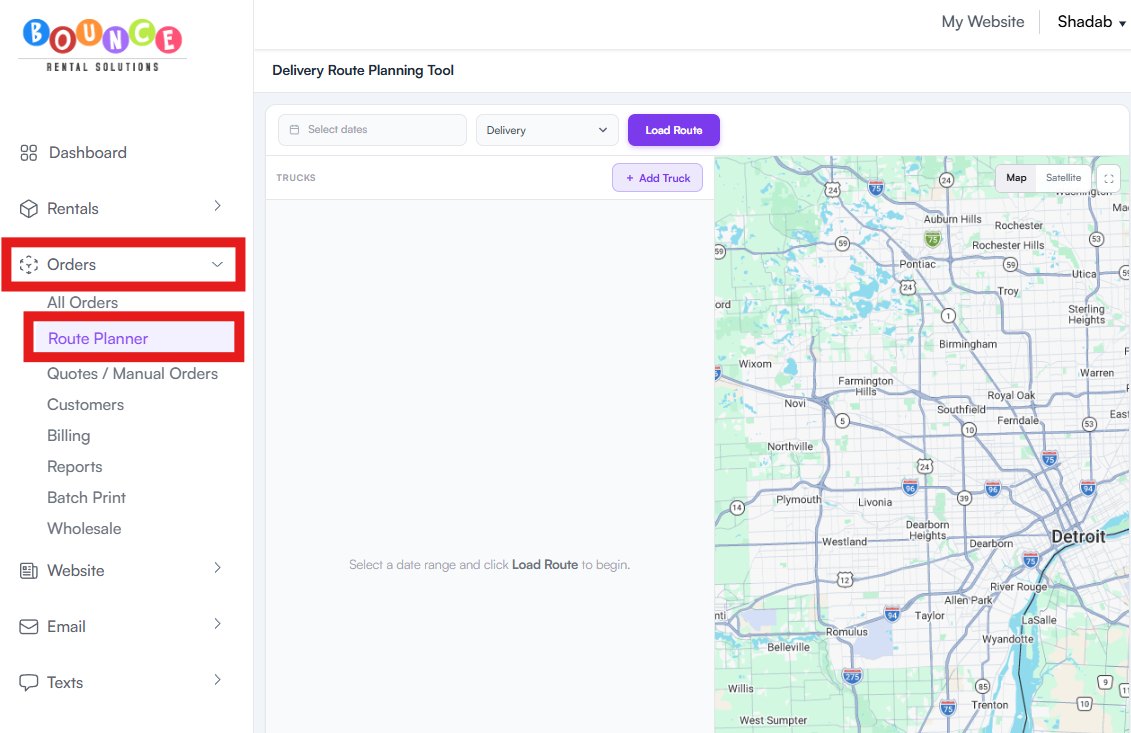
From here, you can select:
- A specific date
- Multiple dates
- Deliveries only
- Pickups only
- Both deliveries and pickups
How It Works
The Route Planner lets you:
- View scheduled deliveries and pickups
- See orders on a map
- Click a stop number on the map to view the order details
- Move orders around to adjust the route
- Add multiple trucks
- Assign orders to each truck
- Move orders between trucks
- Delete a truck and move its orders to another truck
- Generate load sheets
- Send route details to drivers by text
Managing Trucks and Routes
Each truck has its own route view.
Before creating a load sheet, you can review what is assigned to that truck and add route notes for the driver.
For example, you can add:
- Number of stakes
- Sandbags
- Setup notes
- Special instructions
- Any extra items needed for the route
These notes will automatically appear on the load sheet.
Driver View
When you text the route to a driver, they can access the route from their phone.
Drivers can:
- View order details
- See what is included in each order
- Call the customer
- Text the customer that they are on the way
- Mark the order as delivered
When an order is marked delivered, the route updates automatically.
Map View
Orders appear on the map so you can visually see where everything is going.
You can click the numbered stops on the map to pull up the order and see what is included. This makes it easier to understand the route, group nearby orders, and adjust stops as needed.
Load Sheets
You can generate a load sheet for each truck.
The load sheet includes:
- Orders assigned to that truck
- Items included in each order
- Delivery details
- Route notes
- Driver instructions
This helps make sure each truck leaves with everything needed for the route.
Important Note
If you need to move an order to a different date, update the date on the order itself. The Route Planner will then update based on the new order date.
Recommended Action
Use the Route Planner before busy delivery days to organize trucks, review routes, add driver notes, generate load sheets, and send each driver the information they need.