
Google Ads Conversion Tracking Setup
What This Is
If you run Google Ads, BRS supports installing your Google Ads tag directly on your site through the Header Code field. This is self-service — you can do it yourself in under two minutes — and it enables remarketing and traffic tracking inside your Google Ads account.
What's Available Today
You can install the Google Ads remarketing tag (also called the Google Tag or gtag) yourself. Once installed, this tag:
- Builds remarketing audiences in Google Ads (visitors, cart abandoners, product viewers)
- Lets you run remarketing campaigns to those audiences
- Sends site traffic data to your Google Ads account
Coming Soon: Custom conversion tracking — counting completed bookings as conversions for campaign optimization — is on the BRS roadmap and will be added in a future update. We'll update this article when those features are available. Until then, the steps below cover what you can do today.
How to Install Your Google Ads Tag
- In your Google Ads account, get your Google Tag script:
- Click Tools → Data manager → Tags, or
- Click Tools → Conversions → Conversion tag setup
- Copy the full Google Tag script (it starts with <script async src="https://www.googletagmanager.com/gtag/js...")
- In BRS, go to Website → General → Analytics & Tracking
-
Find the Header Code field (the label notes it's for "Google Adword Remarketing Tag, Event Hawk Component, etc.")
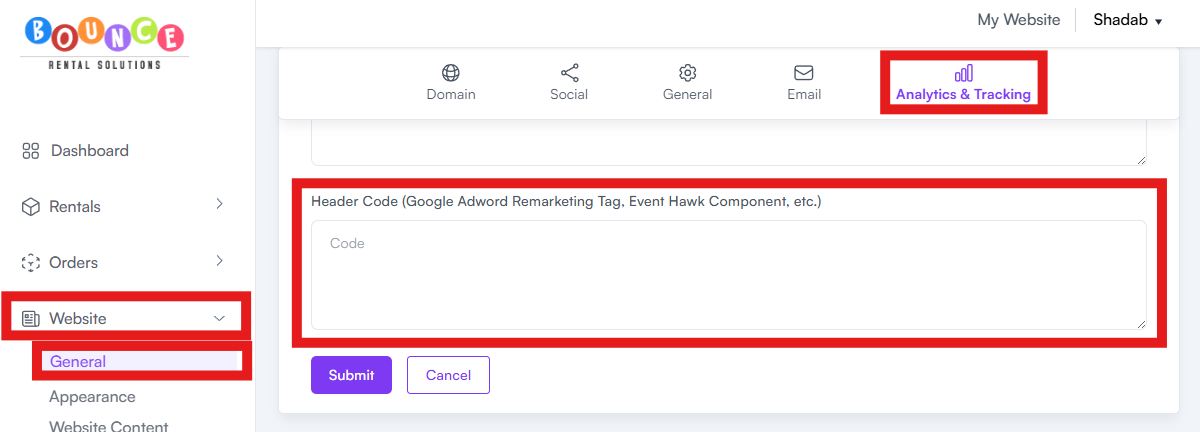
- Paste the full Google Tag script into the Header Code field
- Click Submit
The tag will now load on every public page of your site. Within 24 hours, you should see audience data populating in your Google Ads account.
What This Enables vs Doesn't Enable
Enables today:
- Building remarketing audiences in Google Ads
- Running remarketing campaigns to people who visited your site
- Seeing site traffic data inside Google Ads
- Verifying your tag is firing using the Google Tag Assistant Chrome extension
Not enabled today (planned for a future update):
- Counting completed bookings as conversions
- Optimizing campaigns toward bookings using "Maximize Conversions" or "Maximize Conversion Value" strategies
For now, you can run Website Traffic or Remarketing campaigns. Once custom conversion tracking is released, you'll be able to switch to Conversion campaigns for significantly better ROI.
Other Tracking Tags You Can Install in Header Code
The Header Code field isn't just for Google Ads. You can also use it for:
- Meta (Facebook) Pixel — paste your Pixel script
- Bing / Microsoft Ads tag — paste the UET tag script
- Pinterest tag — paste the Pinterest tag script
- Hotjar / Microsoft Clarity — paste the tracking script for heatmaps and session recording
- Verification tags — Bing Webmaster Tools, Pinterest verification, etc.
Same rules apply: paste the full script tag, and don't duplicate tags that are already set up in dedicated fields (like the GA4 field). See What Is Header Code, and When Should I Use It?
Important Notes
- BRS cannot advise on Google Ads strategy. For campaign optimization, work with a Google Ads specialist or certified agency.
- Allow 24 hours for tag verification after install before assuming something is broken.
- Test in Incognito mode — Google Ads tags can be blocked by ad blockers, so use a private window to verify they're firing.
- Use the Google Tag Assistant Chrome extension to confirm your tag is loading correctly.