
How to Connect Stripe
What This Is
Stripe is the most commonly used payment processor on BRS. Connecting Stripe allows your customers to pay online using:
- Credit and debit cards
- Apple Pay
- Google Pay
Stripe uses an embedded checkout experience, which means customers stay on your website during checkout instead of being redirected elsewhere.
Before You Start
Before connecting Stripe:
- You need an active Stripe account
- Your Stripe account should be fully verified
- You should have access to log into Stripe during setup
You no longer need to manually copy and paste API keys into BRS. The new Stripe connection process handles this automatically.
If you do not already have a Stripe account, create one first at Stripe
How to Connect Stripe
-
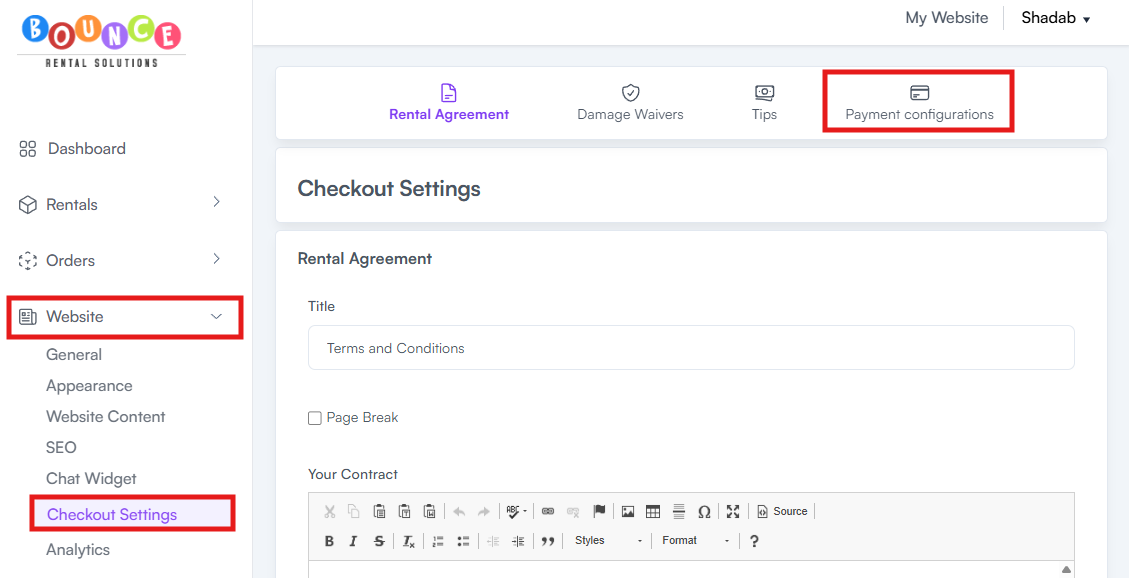
In your BRS dashboard, go to Website → Checkout Settings → Payment Configurations
-
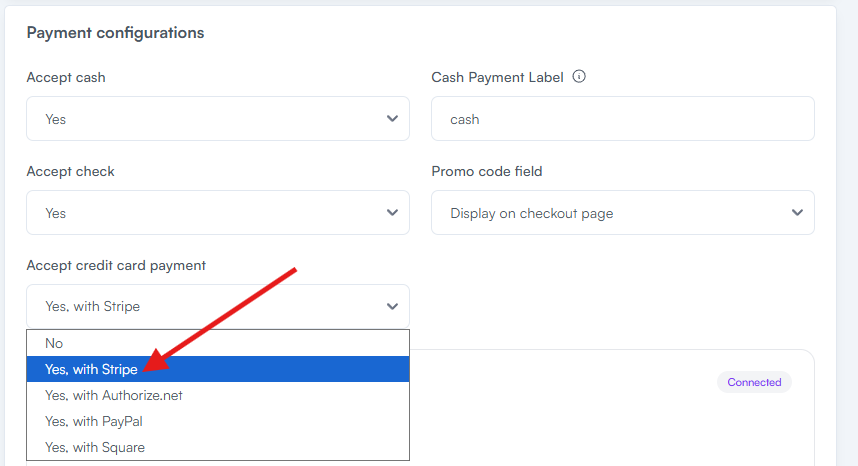
Select Stripe as your payment processor
-
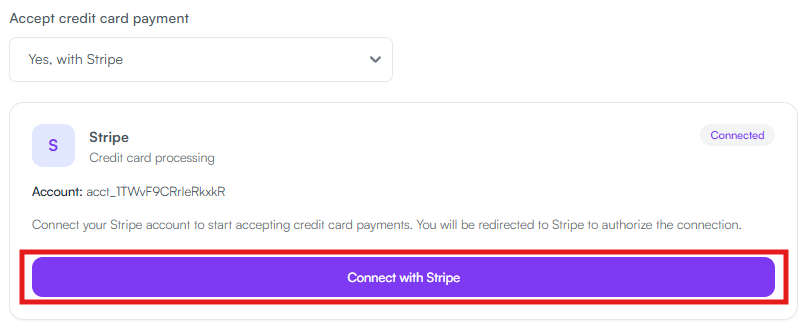
Click Connect with Stripe
- Log into your Stripe account if prompted
- Follow the connection process inside Stripe
- Once completed, return to BRS
-
Click Save Payment Configurations
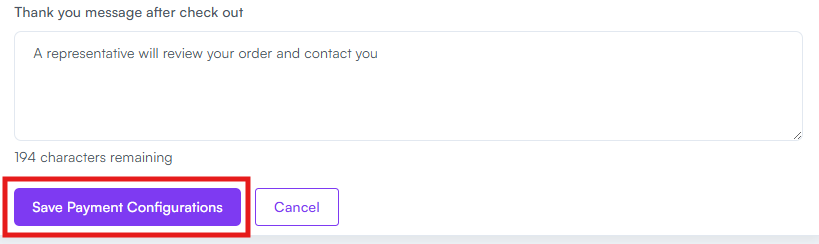
After saving, Stripe will be connected to your BRS site.
Recommended After Setup
After connecting Stripe:
- Place a small test booking
- Verify payments process correctly
- Confirm Apple Pay and Google Pay appear properly on supported devices
Testing immediately helps catch setup issues before customers encounter them.
Common Issues
Stripe Connection Not Completing
Make sure:
- You completed the entire Stripe authorization flow
- You returned to BRS after authorizing Stripe
- You clicked Save Payment Configurations
Closing the browser too early can interrupt the connection process.
Payments Not Processing
Check the following inside Stripe:
- Your Stripe account verification is completed
- Card payments are enabled
- Your account is not restricted or pending review
Incomplete Stripe verification commonly blocks live payment processing.
Apple Pay or Google Pay Not Appearing
Apple Pay and Google Pay availability depends on:
- Device compatibility
- Browser support
- SSL being active on your website
- Stripe account configuration
Not all customers or devices will see the same payment methods.
Unable to Access Stripe Account
If 2-factor authentication, passkeys, or login verification prevents access to your Stripe account, contact Stripe Support directly.
BRS cannot bypass Stripe account security restrictions.
Additional Recommendations
Stripe is generally the easiest and most reliable payment processor option for most BRS businesses.
If you're still deciding which payment processor to use see: How to Accept Card Payments on Your BRS Site (Choosing a Processor)