
How to Customize Your Automated Text Message Templates
What This Is
BRS allows you to customize the automated text messages sent to both your customers and your business.
There are two types of text templates:
Customer Texts
Customer Texts are automated messages sent to customers based on actions they take or events related to their booking.
Examples include:
- Order Confirmation
- Delivery Reminder
- Google Review Request
- Abandoned Checkout Reminder
- Order On The Way
- Order Delivered
- Add-On Upsell Messages
These messages automatically personalize themselves using customer information, order details, delivery timing, and other booking data.
Your Texts
Your Texts are automated notifications sent to you as the business owner.
These messages help keep you informed about important customer activity.
Available templates include:
New Order Alert
Abandoned Checkout Alert
For example, when a customer places a booking, you can receive a text notification immediately.
How to Edit Customer Text Templates
-
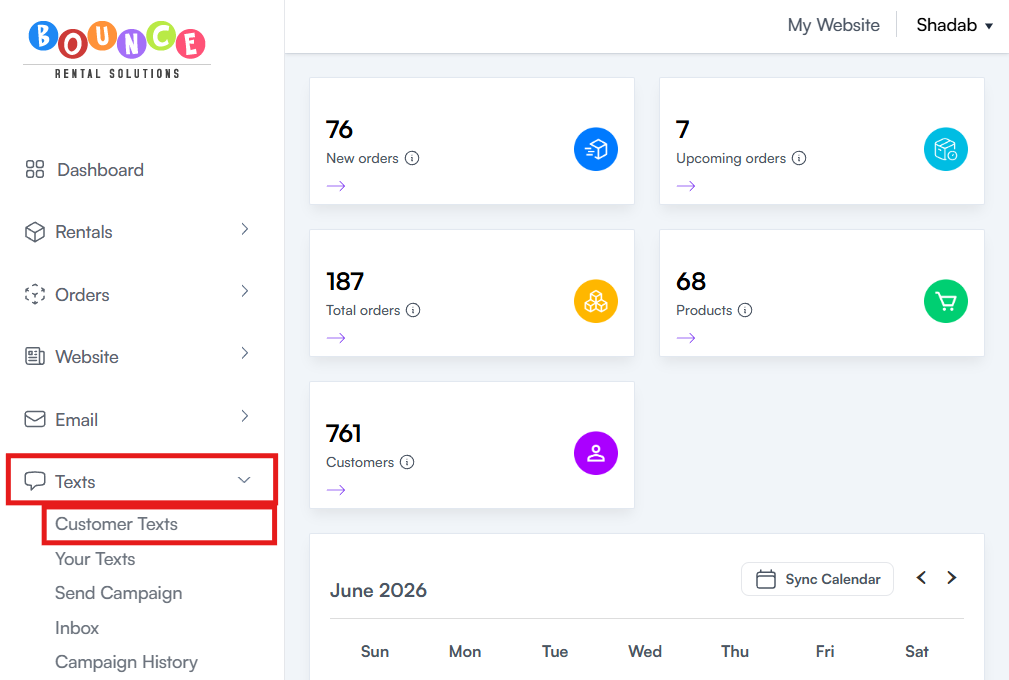
Go to Dashboard → Texts → Customer Texts
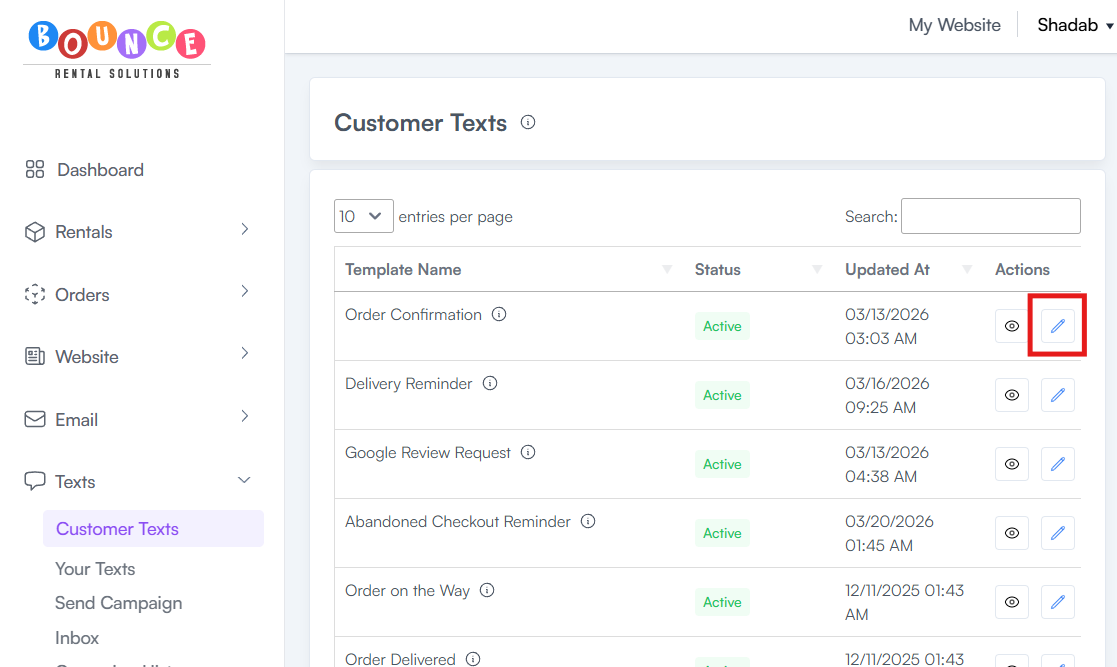
- Locate the template you want to modify
-
Click the Edit button (pencil icon)
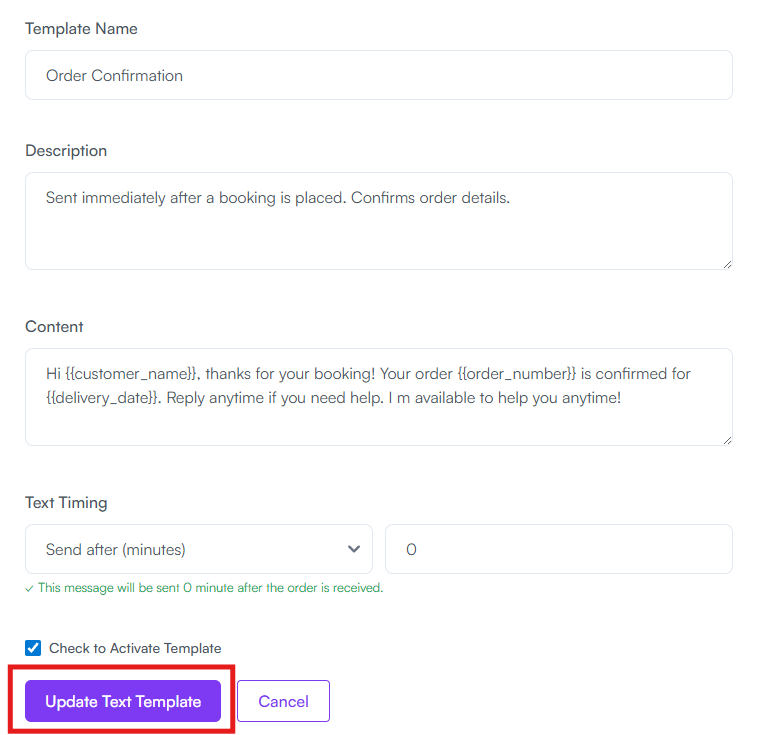
- Make your desired changes
You can customize:
- Template Name
- Description
- Content (the text message itself)
- Text Timing
-
Click Update Text Template
Your changes will apply to future messages sent using that template.
How to Edit Your Text Templates
-
Go to Dashboard → Texts → Your Texts
- Locate the template you want to modify
-
Click the Edit button (pencil icon)
- Make your desired changes
You can customize:
- Template Name
- Description
- Content (the text message itself)
- Text Timing
-
Click Update Text Template
Your changes will apply to future notifications sent to your business.
Why Customize Your Text Templates?
Customizing your messages allows you to:
- Match your brand's voice
- Provide additional customer instructions
- Include important business information
- Improve customer communication
- Create a more personalized experience
Many businesses use custom messaging to reinforce their professionalism and reduce common customer questions.
Best Practices
Keep Messages Short
Text messages should be concise and easy to read.
Customers are more likely to read short messages than long paragraphs.
Focus on Important Information
Include details such as:
- Delivery expectations
- Contact information
- Important reminders
- Next steps for the customer
Review Timing Carefully
The timing of a message can be just as important as the content.
For example:
- Delivery reminders should be sent close enough to the event to be useful
- Review requests should be sent after the rental experience is complete
- Abandoned checkout reminders should be sent while the customer is still considering their purchase
Important Notes
Changes to a template only affect future messages.
Previously sent texts will not be updated after a template is modified.
Additionally, some templates may contain dynamic information that automatically populates when the message is sent, such as:
- Customer names
- Order details
- Delivery dates
- Booking information
These details are generated automatically by the system.
Related Articles
See: Understanding the BRS Text Messaging System (Premium Feature)
Additional Recommendations
Review your text templates periodically to ensure:
- Contact information is current
- Messaging matches your business style
- Instructions remain accurate
- Promotional content is still relevant
Well-written automated messages can improve customer communication, reduce confusion, and create a more professional booking experience.