
Understanding Dynamic Pricing Rules
What This Is
Dynamic Pricing allows you to automatically adjust rental prices based on specific dates, days of the week, or delivery and pickup times.
This feature can be used to create:
- Weekend pricing
- Holiday surcharges
- Special event pricing
- Early delivery fees
- Late pickup fees
Instead of manually adjusting prices for every booking, Dynamic Pricing automatically applies the rules you create.
How to Access Dynamic Pricing
- Go to Rentals → Rental Settings
-
Click Dynamic Pricing
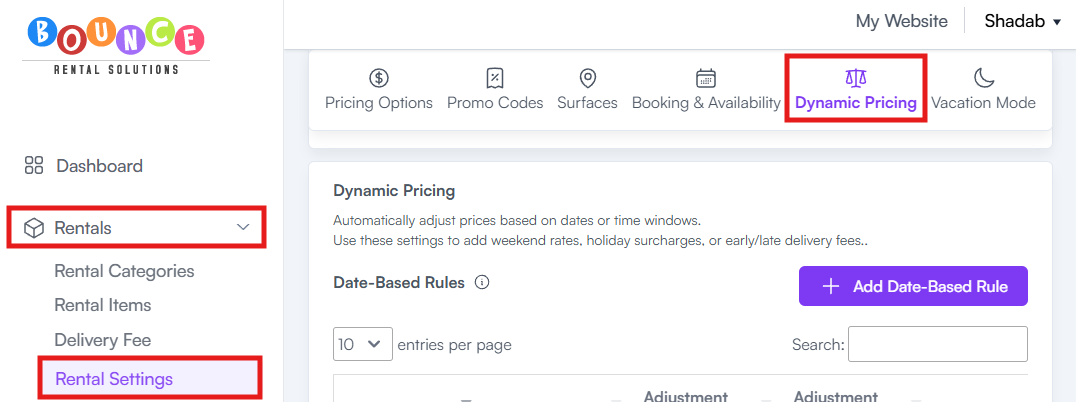
From here, you can create both Date-Based Rules and Time-Based Rules.
Date-Based Rules
What Are Date-Based Rules?
Date-Based Rules allow you to automatically adjust pricing for specific dates or recurring days.
Common examples include:
- Charging more on weekends
- Adding a holiday surcharge
- Creating special event pricing
- Increasing rates during peak seasons
Examples
- Add 15% to all weekend rentals
- Add $25 for July 4th bookings
- Add 10% during a local festival
- Increase pricing on high-demand dates
How to Create a Date-Based Rule
-
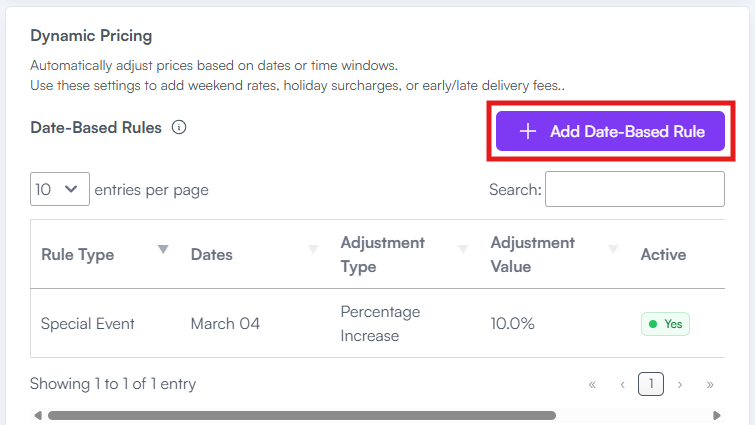
From the Dynamic Pricing page, click Add Date-Based Rule
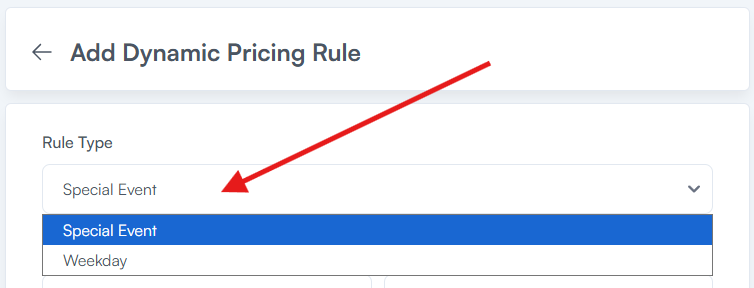
- Select the Rule Type:
- Special Event
-
Weekday
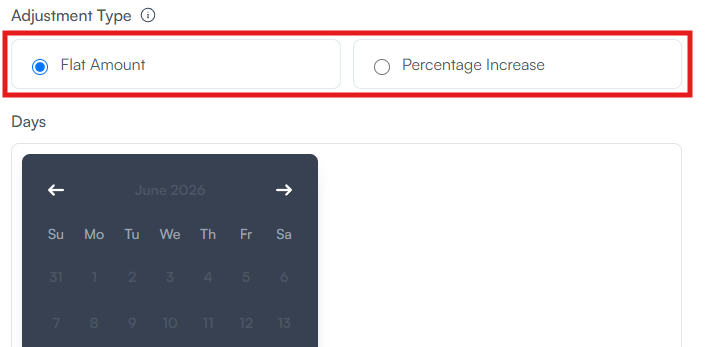
- Select the Adjustment Type:
- Flat Amount
-
Percentage Increase
-
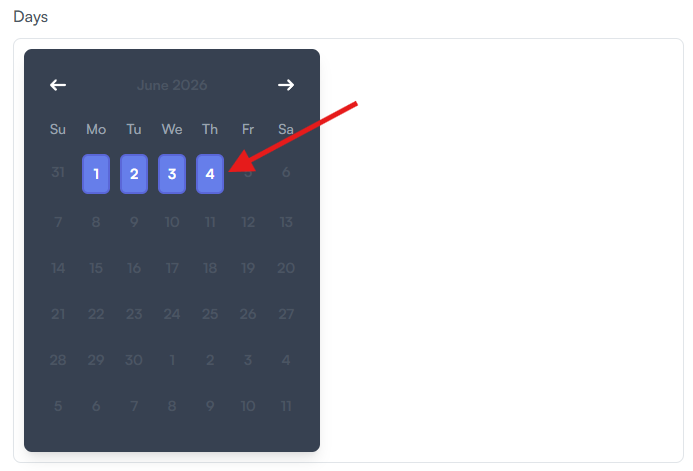
Select the applicable date or day
-
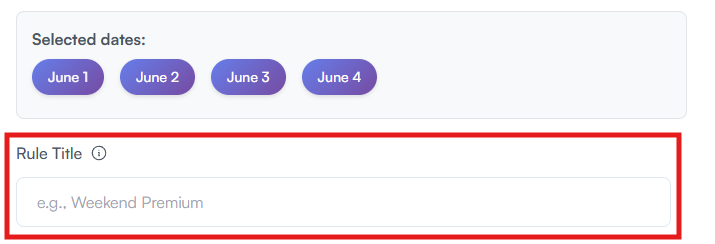
Enter a Rule Title
-
Enter the Adjustment Value

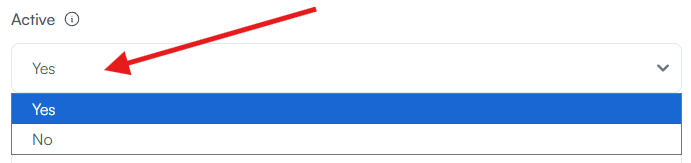
- Under Active, choose:
- Yes to activate immediately
-
No to save the rule for future use
- Add a Rule Description (optional)
-
Click Create Dynamic Pricing Rule
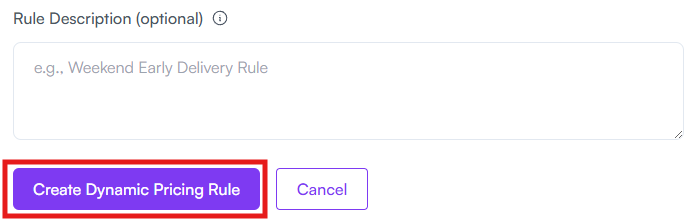
The rule will now be available and automatically applied when applicable.
Understanding Adjustment Types
Flat Amount
Adds a fixed dollar amount to the rental price.
Example:
- Normal Price: $200
- Flat Amount Rule: +$25
Result:
- Customer Pays: $225
Percentage Increase
Adds a percentage based on the rental price.
Example:
- Normal Price: $200
- Percentage Increase: 15%
Result:
- Customer Pays: $230
Time-Based Rules
What Are Time-Based Rules?
Time-Based Rules allow you to add additional charges when customers request deliveries or pickups outside of your normal operating hours.
This helps cover the additional labor, scheduling, and operational costs associated with non-standard service times.
Examples
- $25 extra for deliveries before 8:00 AM
- $30 extra for pickups after 9:00 PM
- Additional charges for early-morning setups
- Additional charges for late-night pickups
How to Create a Time-Based Rule
-
From the Dynamic Pricing page, click Add Time-Based Rule
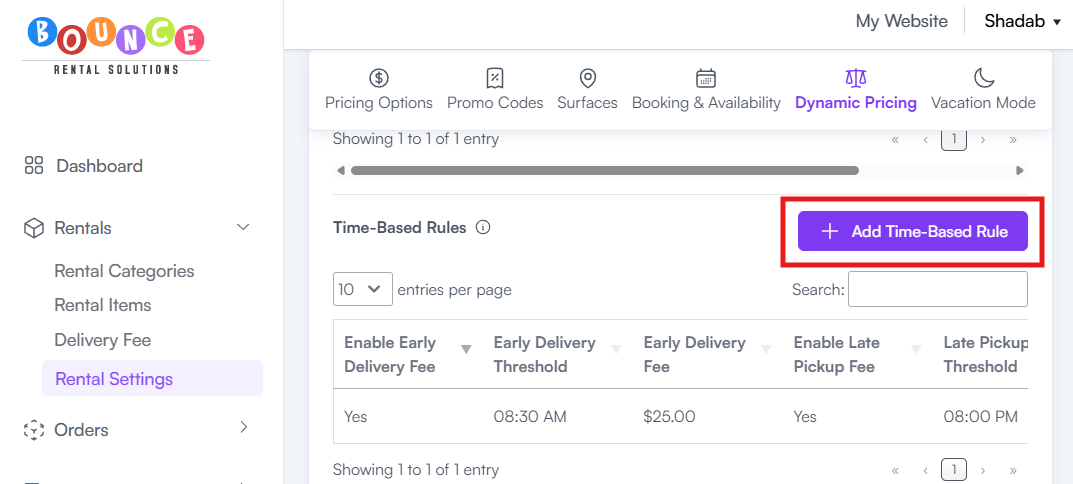
You will see two available options:
Early Delivery Settings - Applies a fee when a customer requests delivery before your standard delivery start time.
Late Pickup Settings - Applies a fee when a customer requests pickup after your normal pickup cutoff time.

-
Enable one or both options by checking the appropriate box
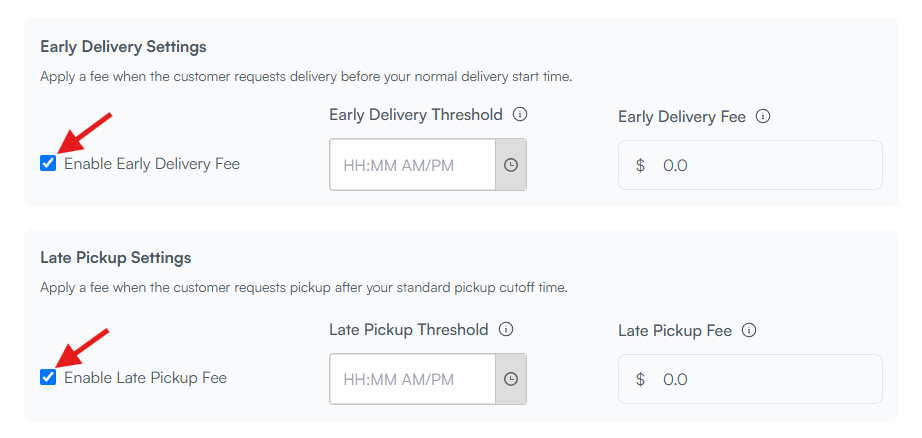
Early Delivery Settings
- Enter the Early Delivery Threshold - Any delivery scheduled before this time will trigger the fee.
- Enter the Early Delivery Fee - This is a flat dollar amount added to the order.

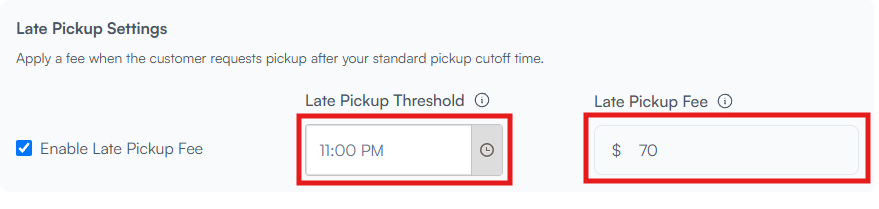
Late Pickup Settings
- Enter the Late Pickup Threshold - Any pickup scheduled after this time will trigger the fee.
-
Enter the Late Pickup Fee - This is a flat dollar amount added to the order.
- Add a Description
-
Click Create Rule
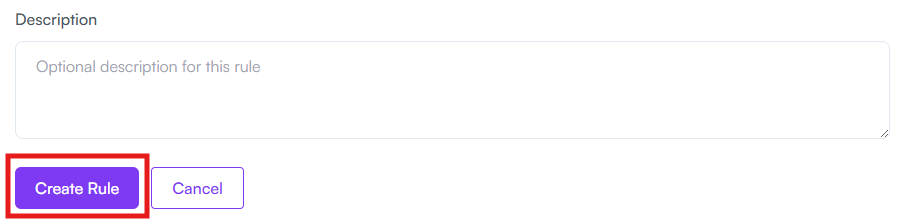
The fee will automatically apply whenever a booking meets the conditions you configured.
Why Use Dynamic Pricing?
Dynamic Pricing helps businesses:
- Increase revenue during high-demand periods
- Recover costs for special scheduling requests
- Manage seasonal demand
- Reduce manual pricing adjustments
- Encourage bookings during preferred times
Many rental businesses use Dynamic Pricing to ensure pricing better reflects operational costs and demand levels.
Important Notes
Date-Based Rules and Time-Based Rules apply automatically when their conditions are met.
Before activating a rule, make sure you:
- Review the adjustment amount carefully
- Test the pricing on your website
- Verify the rule applies as expected
Unexpected pricing increases can lead to customer confusion if rules are configured incorrectly.
Best Practices
Use Date-Based Rules For:
- Holidays
- Peak seasons
- Local events
- Weekend pricing
- High-demand periods
Use Time-Based Rules For:
- Early morning deliveries
- After-hours pickups
- Staffing-intensive requests
- Non-standard scheduling
Keep Pricing Reasonable
Dynamic Pricing works best when customers understand the reason for the additional charge.
A modest surcharge for special circumstances is often better received than large unexpected fees.
Related Articles
See: Understanding Delivery Time Increment Settings
See: Understanding Setup and Breakdown Fees
Additional Recommendations
Review your Dynamic Pricing rules periodically throughout the year.
Many businesses adjust their pricing strategy based on:
- Seasonal demand
- Staffing costs
- Fuel costs
- Local events
- Customer booking trends
Well-configured Dynamic Pricing can increase profitability while reducing the need for constant manual price adjustments.