
Understanding SEO Settings
What This Is
The SEO Settings page allows you to manage your website's search engine optimization (SEO), Google business information, structured data, image optimization, competitor tracking, and page-level SEO settings from one place.
These tools help improve how your website appears in search engines like Google and can increase your chances of being found by potential customers searching for rental services in your area.
How to Access SEO Settings
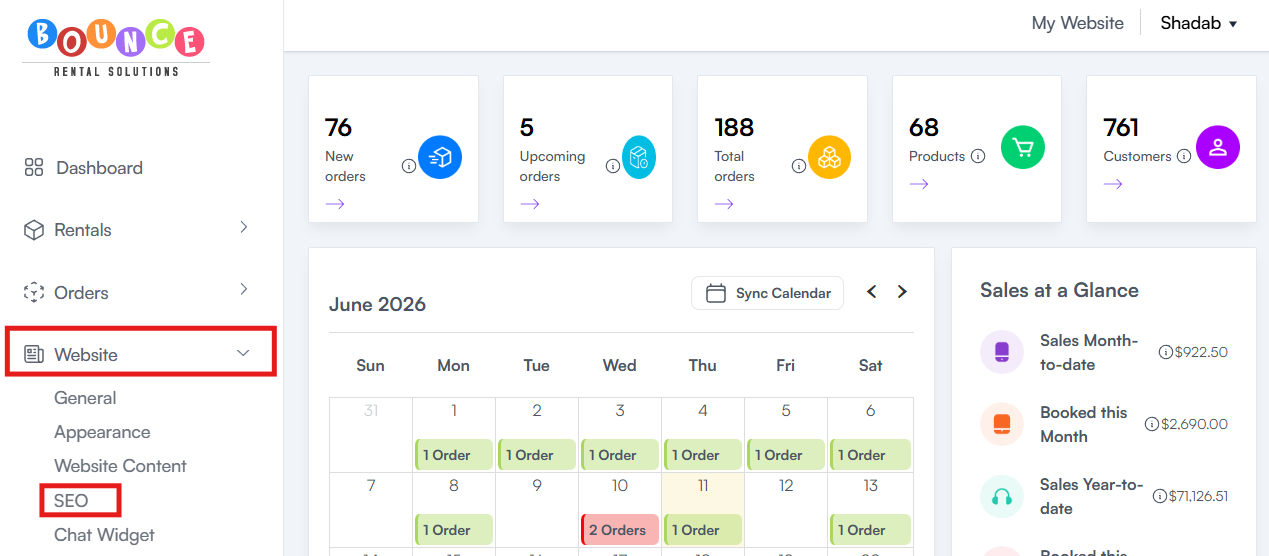
Go to Website → SEO
From this page, you can manage:
- Meta Titles and Descriptions
- Local Business Schema
- Google Reputation Metrics
- Service Areas
- Image SEO Optimization
- Competitor Tracking
- Page SEO
- 301 Redirects
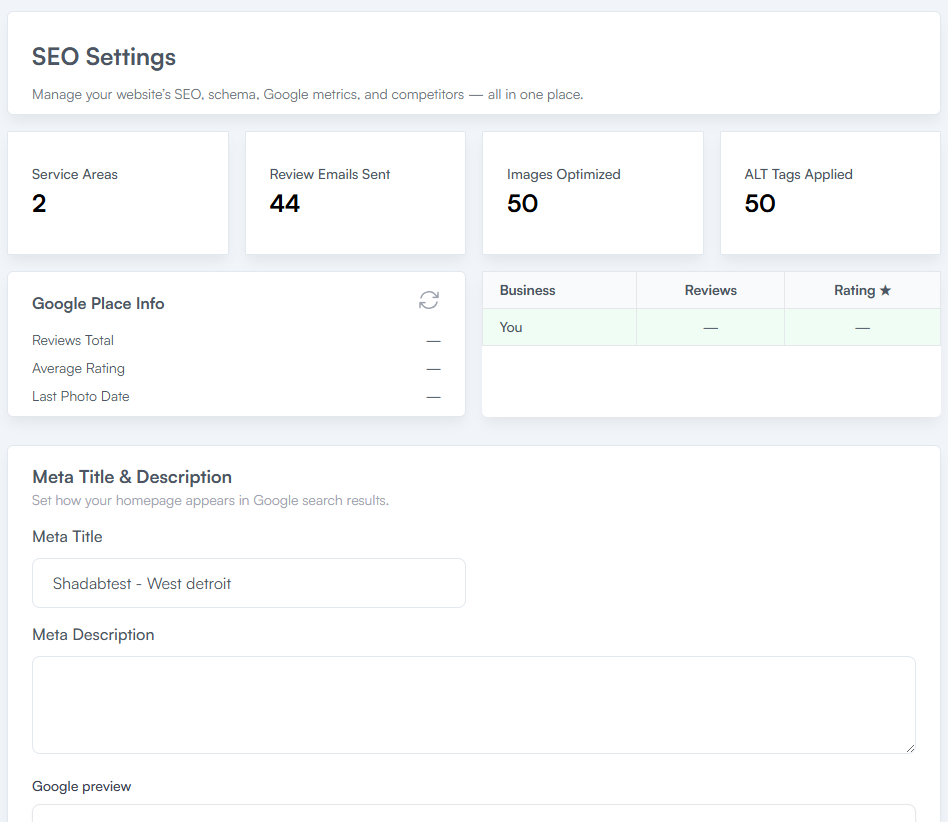
SEO Dashboard Overview
At the top of the page, you'll see a quick overview of your SEO activity.
Metrics may include:
Service Areas - Shows how many service areas are currently configured for your business.
Review Emails Sent - Displays the number of review request emails sent through the system.
Images Optimized - Shows how many images have been optimized for SEO.
ALT Tags Applied - Displays how many images have ALT tags applied.
ALT tags help search engines understand what an image contains and can improve accessibility.
Meta Title & Description
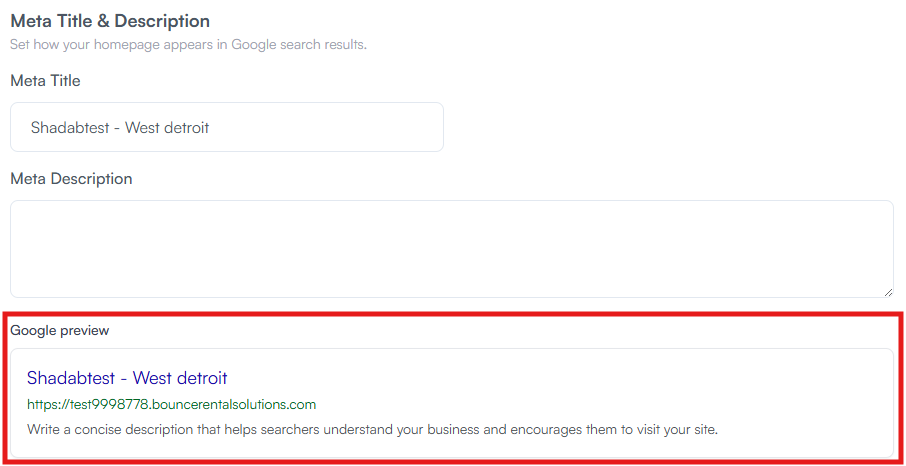
The Meta Title and Meta Description control how your homepage appears in Google search results.
Meta Title - The title displayed in search results.
Example:
ABC Party Rentals | Bounce Houses & Water Slides in Dallas
Meta Description - The short description displayed underneath your title in search results.
A good description helps searchers understand:
- What you offer
- Where you operate
- Why they should visit your website
Best Practices
Meta Title
Keep it:
- Clear
- Descriptive
- Location-focused
Example:
Dallas Bounce House Rentals | ABC Party Rentals
Meta Description
Include:
- Your services
- Your location
- A reason to click
Example:
Rent bounce houses, water slides, tents, and party equipment throughout Dallas and surrounding areas. Book online today.
Local Business Schema (JSON-LD)
Local Business Schema adds structured data to your website.
This helps search engines better understand:
- Your business name
- Phone number
- Address
- Business hours
- Service area
Search engines use this information to improve local search visibility.
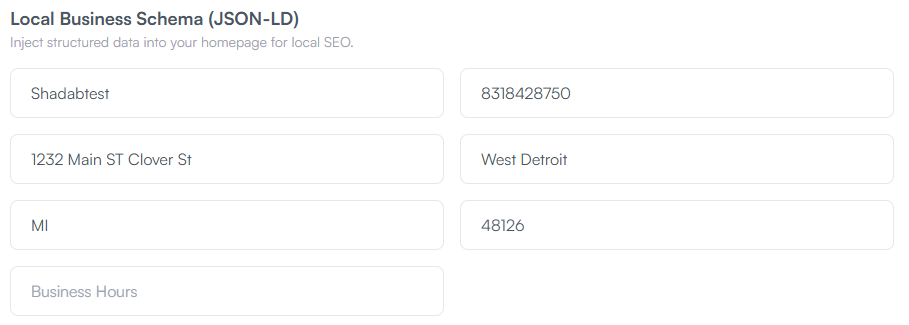
Information Included
Typically:
- Business Name
- Phone Number
- Street Address
- City
- State
- ZIP Code
- Business Hours
Keeping this information accurate is important for local SEO.
Google Reputation Metrics
This section connects your Google Business Profile information to your website.
It may display:
- Total Reviews
- Average Rating
- Business Information
- Photos
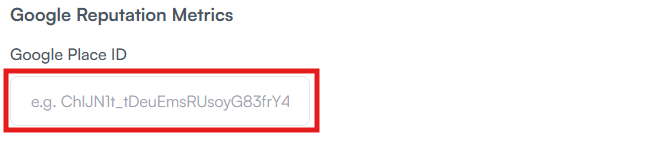
- Google Place ID
The Google Place ID identifies your business within Google's system.
To connect your business:
- Locate your Google Place ID. See Finding Your Google Place ID (Including Service-Area Businesses)
-
Enter it into the Google Place ID field
- Save your changes
This helps pull Google Business Profile information into your SEO dashboard.
Service Areas
Service Areas tell search engines where your business operates.
Examples:
- Dallas
- Fort Worth
- Arlington
Adding service areas can improve your visibility for local searches related to those locations.
How to Add Service Areas
- Locate the Service Areas section
-
Enter the cities you serve
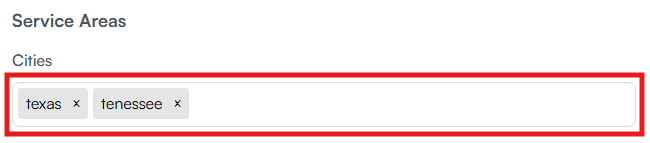
- Save your changes
Keep your list focused on areas you actually service.
Adding locations you do not serve can negatively impact your SEO efforts.
Image SEO Optimization
Image SEO Optimization helps improve how search engines understand the images on your website.
Optimizing images can:
- Improve accessibility
- Improve image search visibility
- Help search engines understand your content
How to Run Optimization
- Locate the Image SEO Optimization section
-
Click Run Optimization

The system will review and optimize eligible images.
Competitor Snapshot
The Competitor Snapshot feature allows you to track up to three competitors.
This provides visibility into how your business compares against other rental companies in your market.
How to Add Competitors
- Locate the Competitor Snapshot section
-
Paste up to three Google Maps URLs
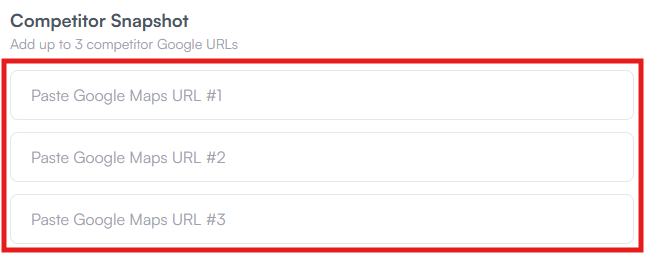
- Save your changes
This information can help identify opportunities to improve your online presence.
Page SEO
Page SEO allows you to review and manage SEO settings for individual pages on your website.
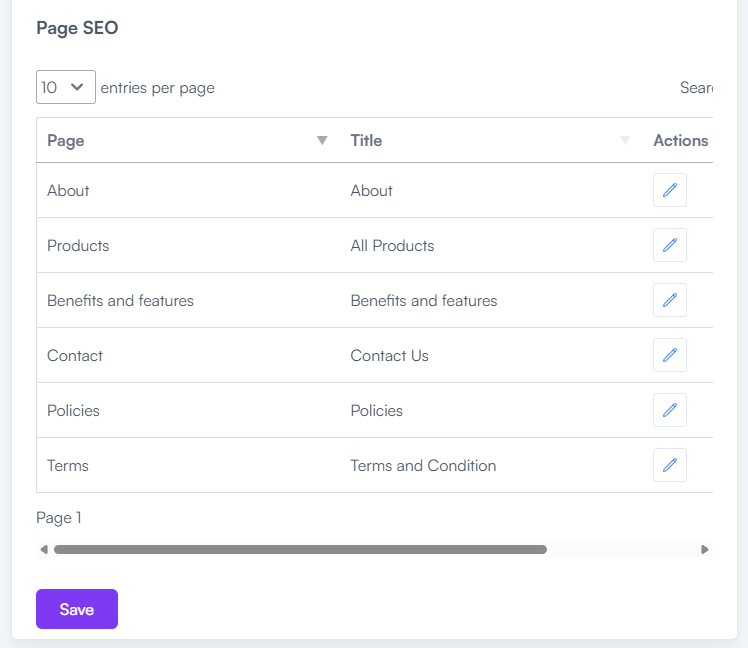
Common pages include:
- Home
- About
- Products
- Contact
- Policies
- Terms & Conditions
Each page can have its own SEO settings to improve search visibility.
Why This Matters
Different pages often target different search terms.
Examples:
- Home Page → General business keywords
- Product Page → Rental-related keywords
- About Page → Company information
- Contact Page → Local searches
Optimizing each page individually can improve overall website performance.
301 Redirects
301 Redirects automatically send visitors from an old URL to a new page on your website.
This is especially useful when migrating from a previous website.
Example
Old URL:
/bounce-house-rentals
Redirects To:
/products/bounce-houses
Visitors and search engines are automatically sent to the correct page.
How to Create a Redirect
- Locate the 301 Redirects section
- Enter the old URL
- Select the destination page
-
Click Add redirect
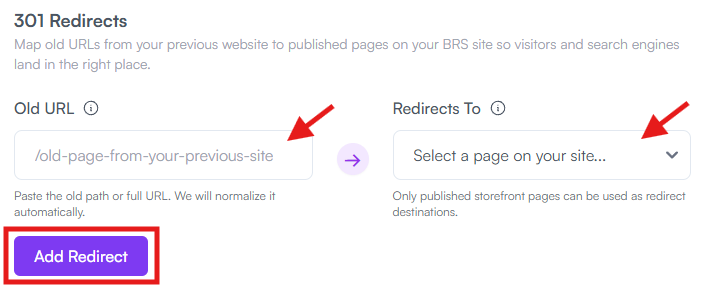
The redirect becomes active immediately.
Why Redirects Matter
Without redirects:
- Visitors may encounter 404 errors
- Search rankings may be lost
- Old links may stop working
Redirects help preserve traffic and SEO value when pages change.
Best Practices
Review SEO Settings Regularly
As your business grows, update:
- Service areas
- Business information
- Competitor tracking
- Page SEO settings
Keep Information Accurate
Search engines prefer consistency.
Make sure:
- Business name matches everywhere
- Phone numbers are correct
- Addresses are current
- Service areas are accurate
Optimize Images
Images are often overlooked but can contribute significantly to SEO performance.
Run image optimization whenever new images are added to your website.
Additional Recommendations
SEO is not a one-time task.
The businesses that perform best in search results typically:
- Keep their information updated
- Add new content regularly
- Maintain accurate service areas
- Collect customer reviews
- Optimize their pages over time
The SEO Settings page gives you the tools to manage these factors directly from your BRS dashboard and improve your website's visibility in search engines.