
How to Edit an Existing Order
What This Is
The Order Edit page allows you to make changes to an existing order after it has been created.
This is useful when customers need to update their booking information, add or remove products, change delivery details, update payment methods, or make other adjustments before the event.
How to Access an Order
-
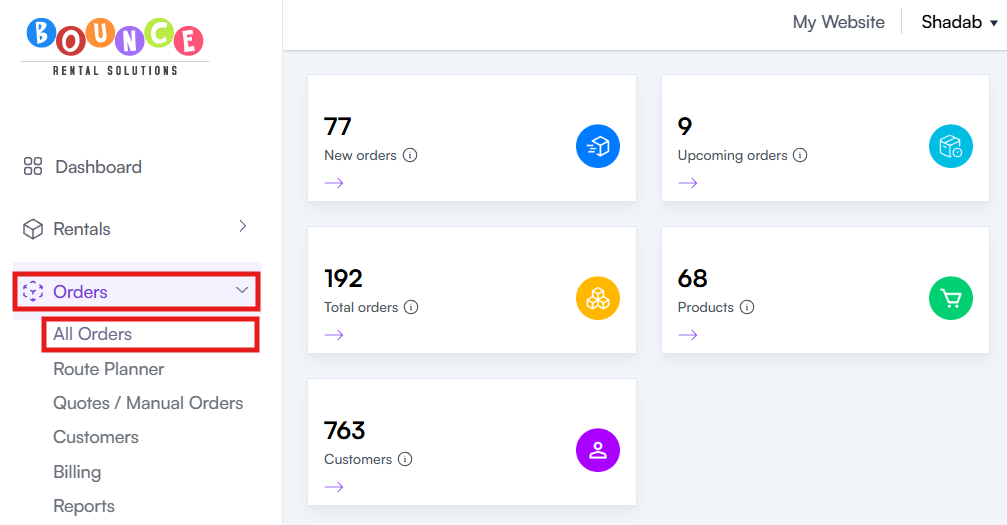
Go to Orders → All Orders
- Search for or locate the order you want to edit
-
Click Edit (Pencil Icon)
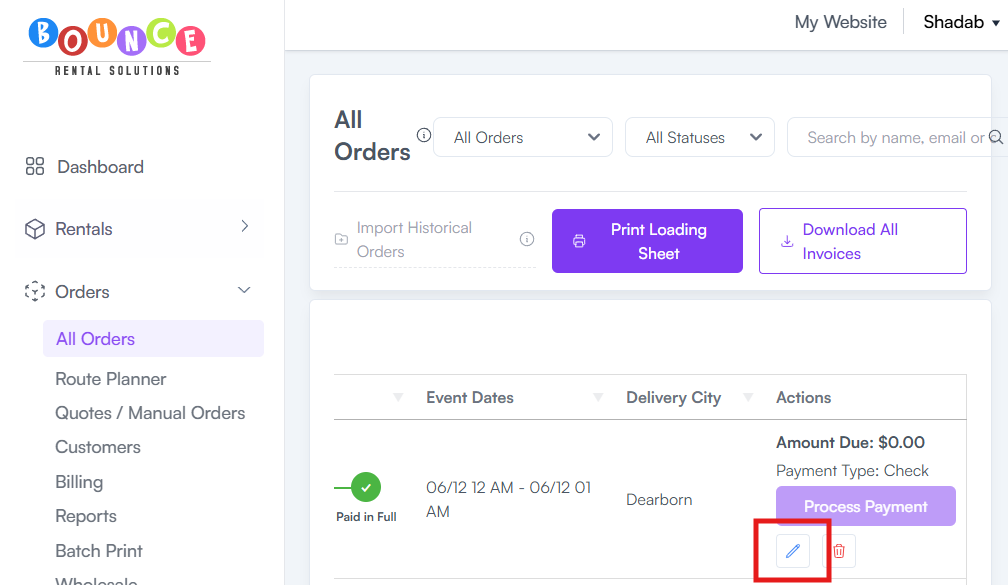
You will be taken to the Order Edit page.
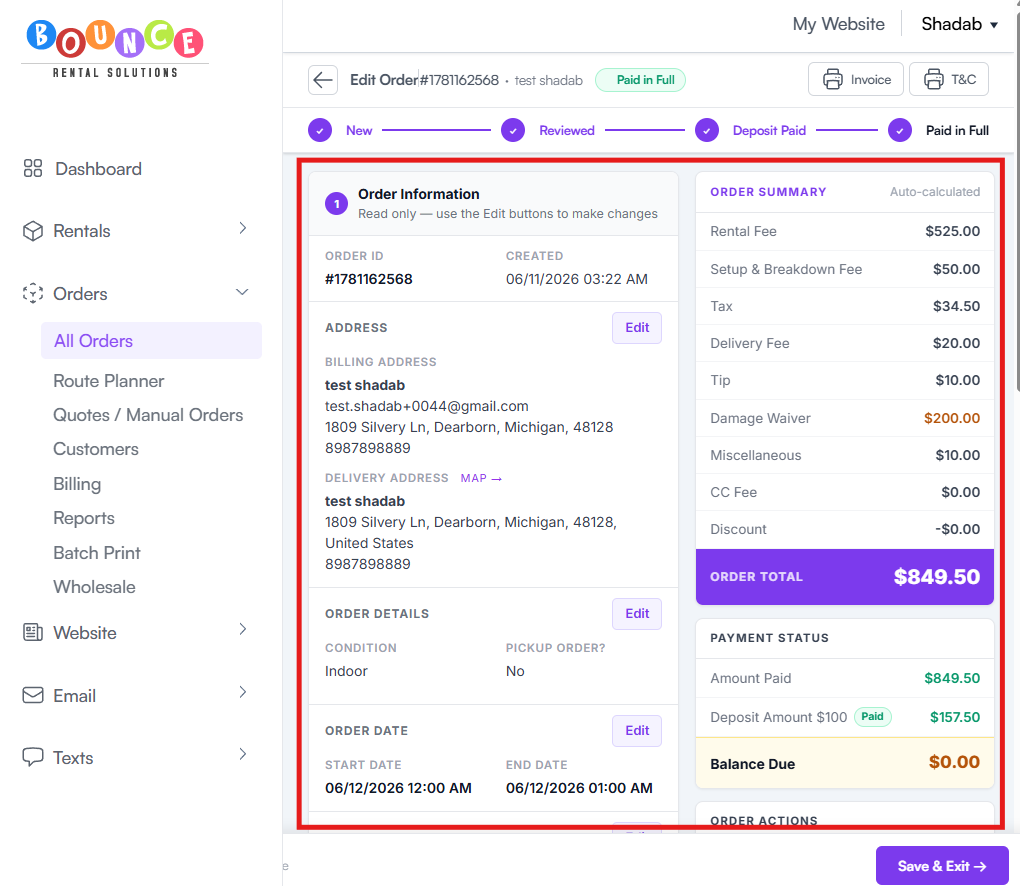
What You Can Edit
Billing and Delivery Information
You can update:
- Customer name
- Billing address
- Delivery address
- Contact information
This is helpful if a customer moves the event location or needs their contact details corrected.
Order Details
Within the Order Details section, you can update:
- Public Notes
- Private Notes
- Surface Options
Public Notes
Public Notes appear on customer-facing documents such as invoices.
These are typically used for:
- Customer instructions
- Event information
- Special requests
- Additional booking details
See:
Private Notes
Private Notes are internal and do not appear on customer invoices.
These are commonly used for:
- Driver instructions
- Gate codes
- Collection reminders
- Internal team communication
- Setup considerations
See: How to Add Notes to an Order
Booking Dates and Times
You can modify:
- Booking Start Date
- Booking End Date
- Delivery Times
- Pickup Times
This allows you to accommodate schedule changes without creating a new order.
Products on the Order
You can:
- Add products
- Remove products
- Adjust quantities
- Replace products
The order total will automatically update based on the changes made.
Fees and Adjustments
You can modify:
- Discounts
- Additional charges
- Manual adjustments
- Delivery fees
- Other order-related fees
This is useful when making pricing exceptions or correcting order totals.
Payment Method
You can change the payment type associated with the order.
Examples include:
- Credit Card
- Cash
- Check
- Other supported payment methods
Additional Actions Available
Send Invoice
You can resend the invoice to the customer directly from the order.
This is useful if:
- The customer misplaced the original invoice
- Changes were made to the booking
- Additional payment is required
Place an Order on Hold
The Hold feature allows you to temporarily reserve inventory while waiting for:
- Customer approval
- Payment
- Scheduling confirmation
- Additional information
Cancel an Order
If a booking is no longer needed, you can cancel the order directly from the Order Edit page.
Before canceling, make sure to review:
- Payment status
- Refund requirements
- Cancellation policies
Additional Information Available
The Order Edit page also provides important order information.
Order Summary
Displays:
- Rental subtotal
- Fees
- Taxes
- Discounts
- Total amount due
This allows you to quickly review the financial details of the booking.
Payment Status
Shows the current payment status of the order.
Examples may include:
- Paid
- Partially Paid
- Unpaid
- Refunded
This helps you determine whether additional payment action is required.
Common Reasons for Editing Orders
Businesses commonly edit orders to:
- Change event dates
- Update delivery addresses
- Add products
- Remove products
- Adjust pricing
- Change payment methods
- Add internal notes
- Correct customer information
Most order changes can be handled directly from the Order Edit page without creating a new booking.
Important Notes
Changes made to an order may affect:
- Inventory availability
- Pricing
- Delivery schedules
- Payment balances
Always review the updated Order Summary before saving major changes.
If pricing or products are modified, consider resending the invoice so the customer has the latest version of the order.
Best Practices
Before saving changes:
- Verify customer information is accurate
- Confirm delivery details
- Review product quantities
- Check pricing adjustments
- Confirm payment status
Small mistakes in order details can create delivery issues later, especially during busy seasons.
Additional Recommendations
Whenever significant changes are made to an order, communicate those changes to the customer as soon as possible.
Keeping customers informed helps prevent misunderstandings and ensures everyone is working from the most up-to-date booking information.