
How Pricing Options Work (Fixed Rental Packages)
What This Is
Pricing Options let you create fixed rental packages for day-based rentals.
Each pricing option includes:
- An option name
- A price
- The number of calendar days the option covers
Customers choose from the options you create, such as “Full Day,” “Weekend,” or “Full Week.” You can name the option whatever you want, but the system still needs to know how many calendar days that option represents.
Pricing options are an alternative to time increment pricing (see: How Time Increments Work (Day-Based Pricing))
Example Setup
- Full Day: $150, covers 1 calendar day
- Weekend: $225, covers 2 calendar days
- Full Week: $400, covers 7 calendar days
The calendar-day value controls how many days the customer must select on the calendar.
For example, if Weekend is set to cover 2 calendar days, the customer must select a 2-day rental on the calendar in order for that option to apply. If they only select 1 day, the Weekend option will not work correctly because the selected rental length does not match the number of calendar days assigned to that price option.
When to Use Pricing Options
In most cases, we recommend using Time Increments for day-based rentals, especially if your pricing changes based on the length of the rental.
Use Time Increments when:
- You charge a different price for the second day or third day
- You offer discounts for additional days
- You want pricing to scale automatically based on how many days the customer selects
- You want the system to calculate multi-day pricing more flexibly
Use Pricing Options when:
- You mostly offer one-day rentals
- You want customers to choose from fixed package options
- Your second-day and third-day pricing is the same as the first day
- You do not offer discounts for additional days
- You want the customer to select a specific package tied to a specific number of calendar days
For example, Pricing Options work well if a rental is $150 per day no matter how many days the customer books. They are less ideal if the rental is $150 for day one, $75 for day two, and $50 for day three, because Time Increments handle that type of pricing better.
Make sure your booking type aligns with your pricing model (see: Day-Based vs. Hourly — Which Booking Type Should You Use)
Steps
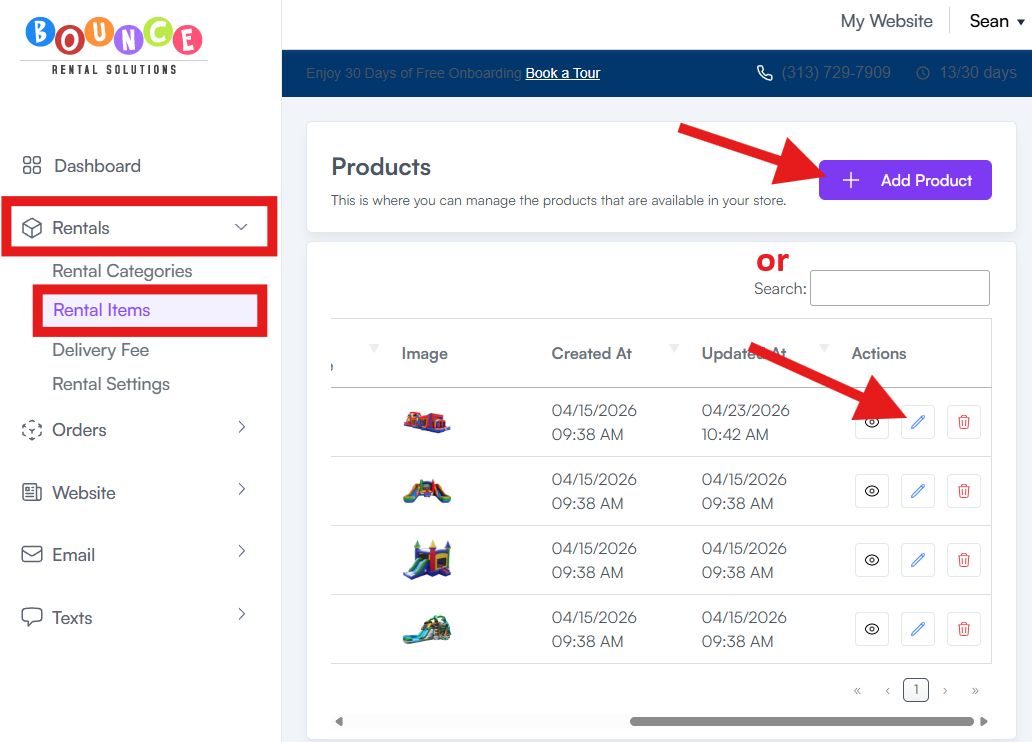
1. Open the product in Rentals → Rental Items → Add Product or Select product to edit
2. In the pricing section, select Day Based → Pricing Options

3. Add each option with a name and price

4. Save/Update the product
Note: Pricing options and time increments are separate settings — you use one or the other, not both.