
How to Set Up Hourly Pricing
What This Is
For products set to Hourly booking type, here is how to configure pricing correctly.
Steps
1. Open the product in Rentals → Rental Items → Add Product or Select the product to edit
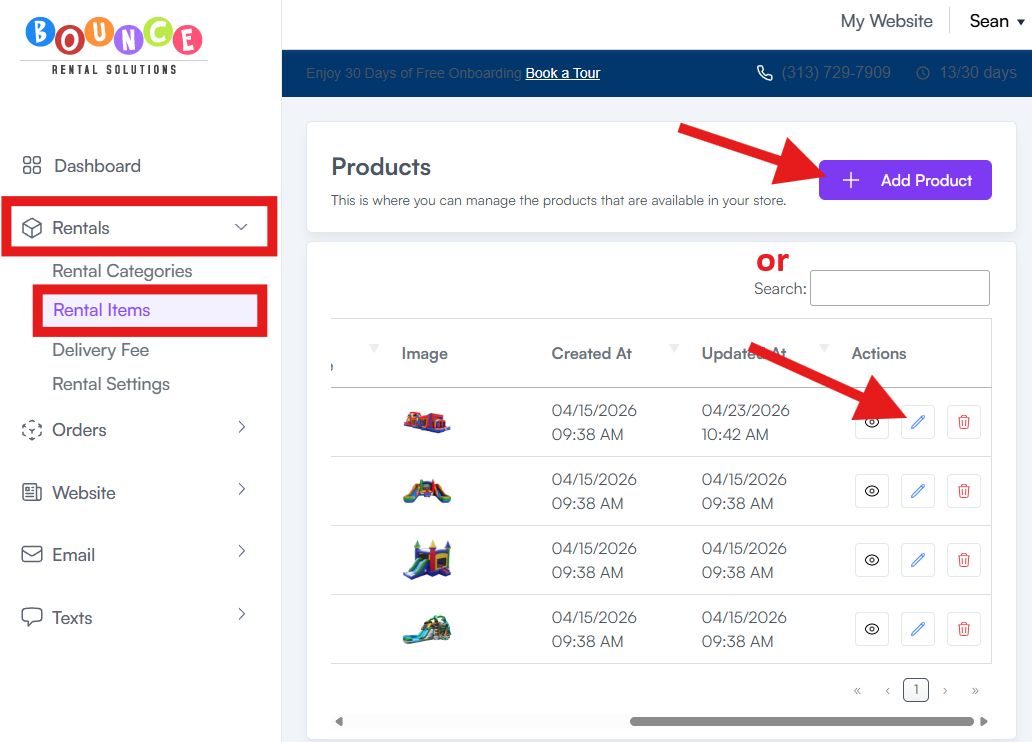
2. In the Pricing section, select Hourly/Time Block

3. Set a minimum booking duration (e.g. minimum 2 hours)

4. Set a maximum booking duration (e.g. maximum 4 hours)

5. Set buffer time between bookings if needed (e.g. 30 minutes to pick up and reset)

- Set your hourly rate

7. Save/Update the product
Buffer time between bookings helps prevent scheduling conflicts (see: Setting Up Buffer Time Between Bookings)
Common Issues
• Non-standard durations not showing correctly in the dropdown — use the manual input field rather than the dropdown when booking a non-standard duration. A fix for hourly increment display is in development.
• Same item being double-booked — verify your maximum duration and buffer time are set correctly so there is no overlap between bookings.
If availability or scheduling seems incorrect, review your booking settings (see: Setting Your Drop-Off and Pickup Windows)