
How to Add FAQs to Your Website
What This Is
The FAQ section on your website lets you answer common customer questions upfront, reducing calls and emails before people book. A strong FAQ section is one of the single best ways to lower your support volume and increase booking confidence at checkout.
Steps to Add an FAQ
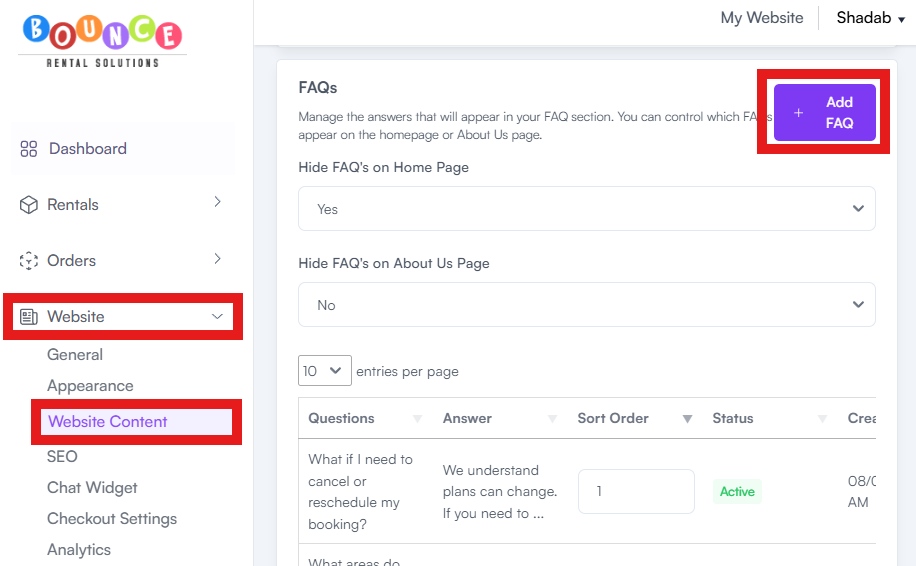
- Go to Website → Website Content → FAQs
-
Click Add FAQ
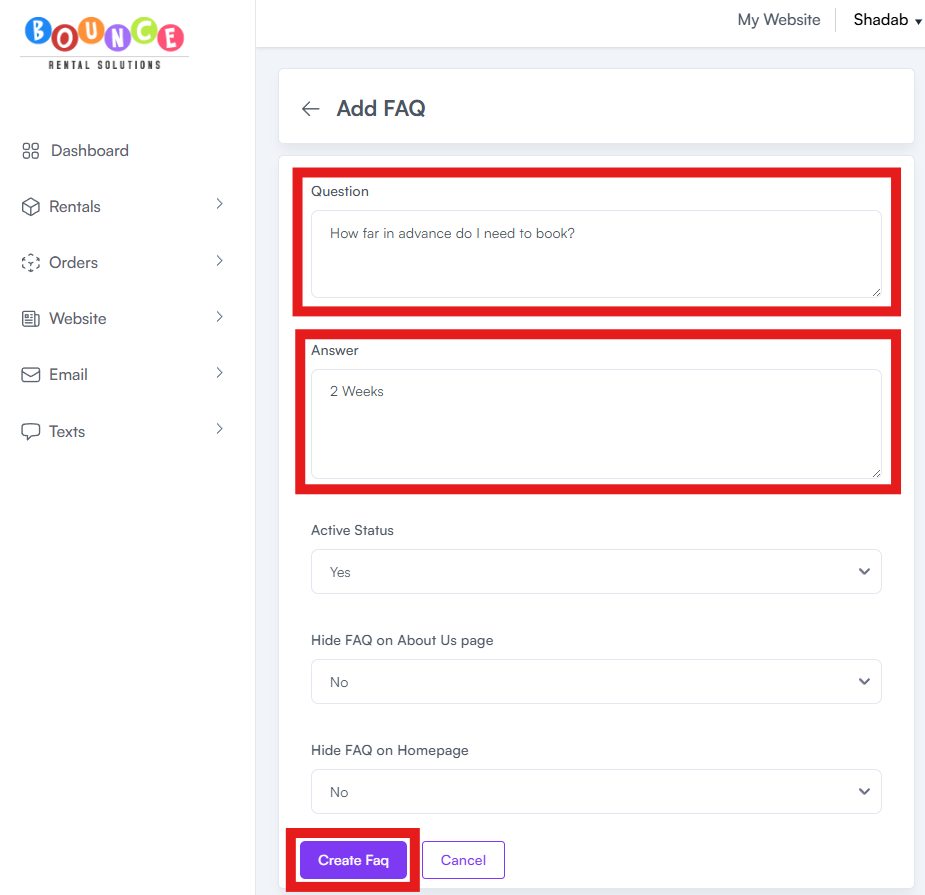
- Enter the question and answer
-
Click Create FAQ and repeat for each question
- Preview using My Website
How to Reorder Your FAQs (Sort Order)
The order your FAQs appear on your website can be controlled — most-important questions should be at the top so customers see them first.
- Go to Website → Website Content → FAQs
-
Each FAQ has a Sort Order field — enter a number (1, 2, 3, etc.) to set its position. Lower numbers appear higher on the page.
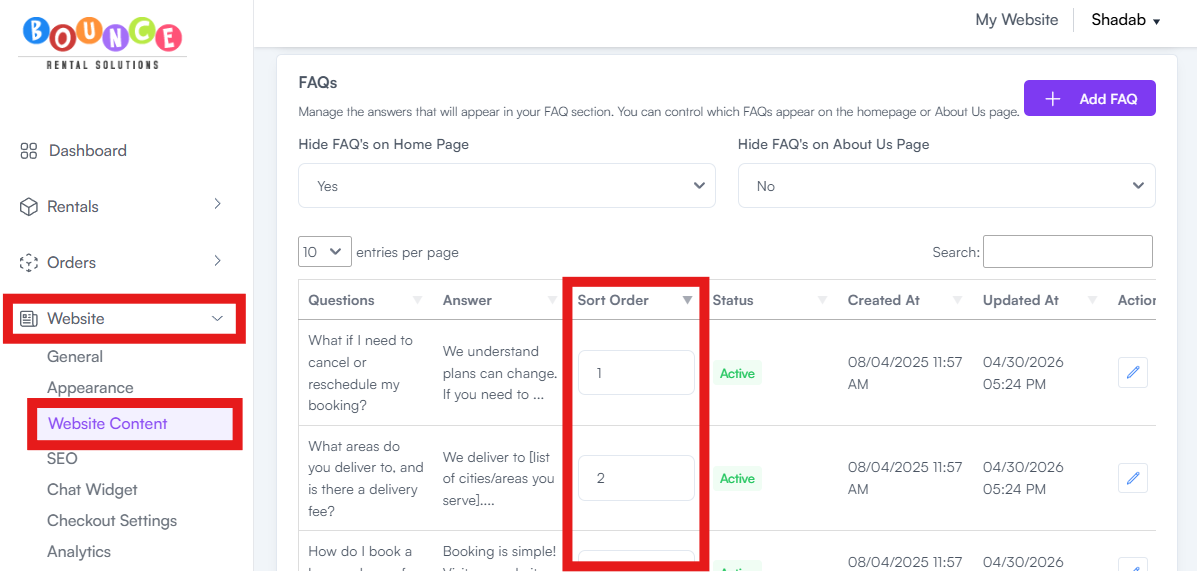
- As you update the numbers, the list automatically reorders itself to match
- Save changes
- Preview using My Website to confirm the new order
Most operators put their most-asked or most-impactful questions first. Deposit, cancellation, and weather questions tend to convert best at the top of the list.
Recommended FAQs to Add
- What is your delivery area?
- How far in advance do I need to book?
- What surfaces can you set up on?
- What if it rains?
- What is your cancellation policy?
- Do you require a deposit?
- How long does setup take?
- What power requirements do you need?
Tip: Copy questions straight from your most common support emails. If three different customers asked the same question this month, it belongs in your FAQ — at the top.
Strong FAQs improve trust and reduce friction during checkout. See How to Add Google Reviews to Your Website for another trust-builder.