
How to Add Google Reviews to Your Website
What This Is
You can display your Google reviews on your BRS website by connecting your Google Business Profile using your Place ID. Showing real Google reviews on your site is one of the most effective trust signals you can add — it directly improves booking conversion.
Important — service-area businesses: If your Google Business Profile is service-area only (no public address), Google reviews will not pull onto your website even with a valid Place ID. To fix this, convert your listing to a storefront by adding a public business address. Note that this address will then display publicly on Google Search and Google Maps. See Finding Your Google Place ID (Including Service-Area Businesses) for instructions.
Steps
- Find your Google Place ID (see Finding Your Google Place ID (Including Service-Area Businesses))
- In BRS, go to Website → Website Content → Testimonials
- Find the Google Place ID field
-
Paste your Place ID
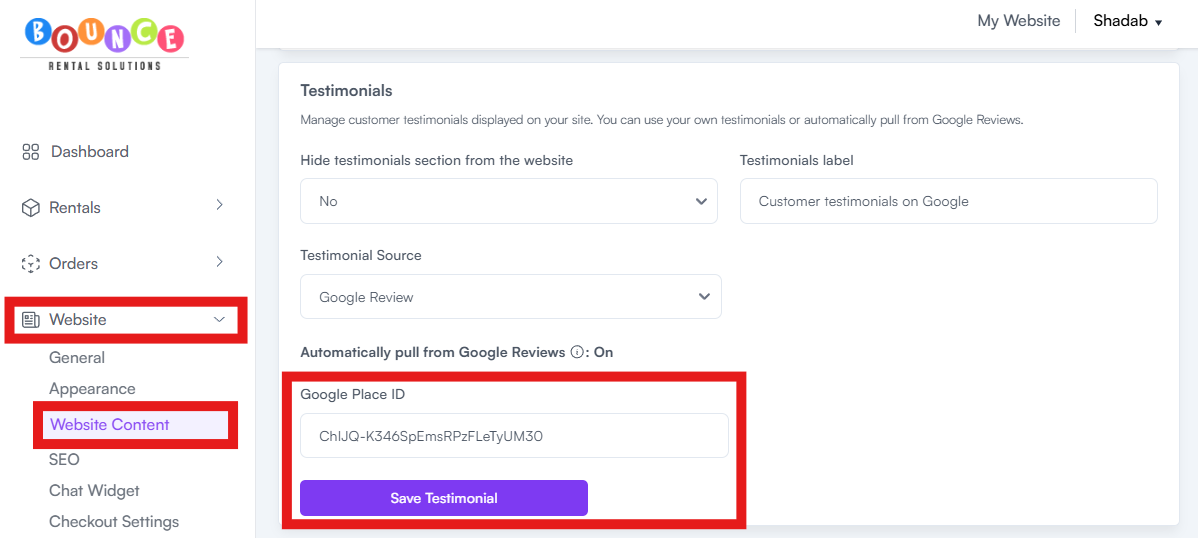
- Save
Your Google reviews will begin pulling into the testimonials section of your website.
What NOT to Do
Do not add a fake address, a UPS Store address, or any address you don't legitimately operate from. This violates Google Business Profile policies and can get your listing suspended — which would lose you not just your reviews integration but your entire Google presence.
Common Issues
- Reviews not showing up — verify your Place ID is correct. Even one character off will cause it to fail.
- Only 5 reviews displayed — Google's standard API limits this. If you need more reviews shown, contact BRS support to discuss options.
- Service-area business not pulling reviews — see the section above. The fix is either Option 1 (add a public address) or Option 2 (contact support).
If You Don't Have Enough Reviews Yet
If you have fewer than 5 strong Google reviews, you have two solid options instead of showing a thin testimonials section that hurts trust more than it helps:
Option 1 — Use Your Own Testimonials
Manually enter testimonials from happy customers you've already worked with — text messages thanking you after an event, Facebook comments, emails, word-of-mouth quotes, anything genuine. Your customers may not have all left Google reviews yet, but the kind feedback they've sent you is just as valuable as a public review when it comes to building trust with new visitors. Enter these directly into BRS as testimonials in Website → Website Content → Testimonials, and they'll display alongside (or instead of) your Google reviews.
This is the recommended approach for new businesses — you almost certainly have positive feedback already, it just isn't on Google yet.
Option 2 — Hide the Testimonials Section
If you'd rather not show any testimonials until your Google reviews are flowing, hide the section entirely. See How to Hide the Testimonials Section on Your Website. You can turn it back on as soon as your reviews are ready.