
How to Place a Test Booking Before Going Live
What This Is
Before your site goes live, place a test booking to make sure the full customer experience is working correctly.
This is one of the most important steps before launching.
Why This Matters
A test booking lets you confirm:
- Products display correctly
- Pricing calculates correctly
- Delivery and pickup windows appear correctly
- Delivery fees and taxes are accurate
- Payments are working
- Confirmation emails are being sent
- The order appears correctly inside BRS
Steps
-
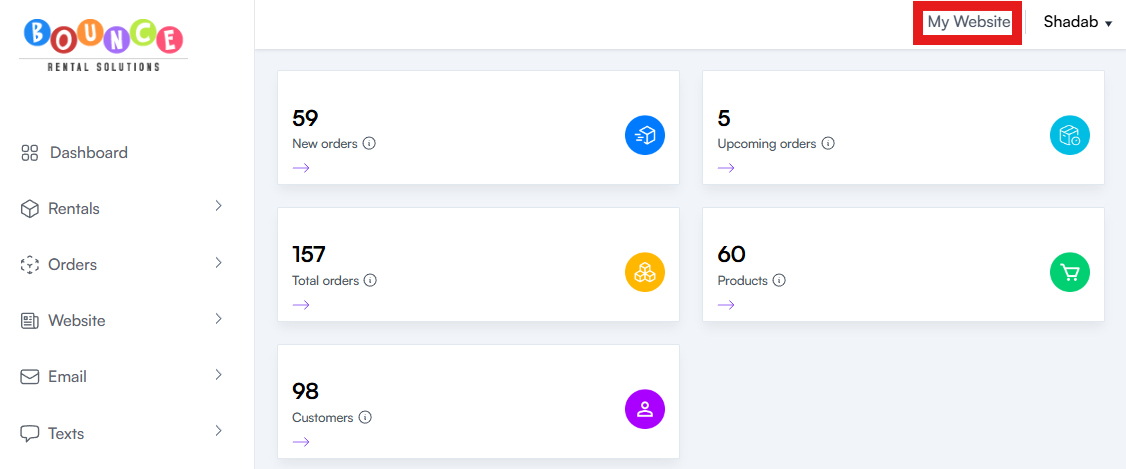
Click My Website from your dashboard
- Go through the website like a real customer
- Browse your products
-
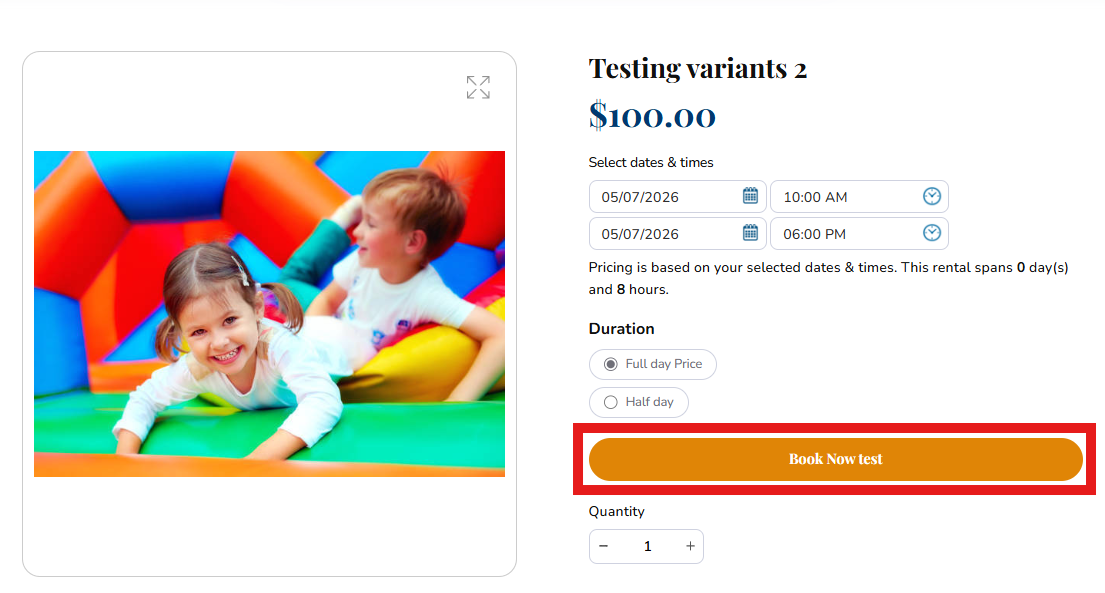
Select a delivery date, delivery time, and pickup time then add an item to the cart
- Proceed to Checkout then Enter billing and delivery address
-
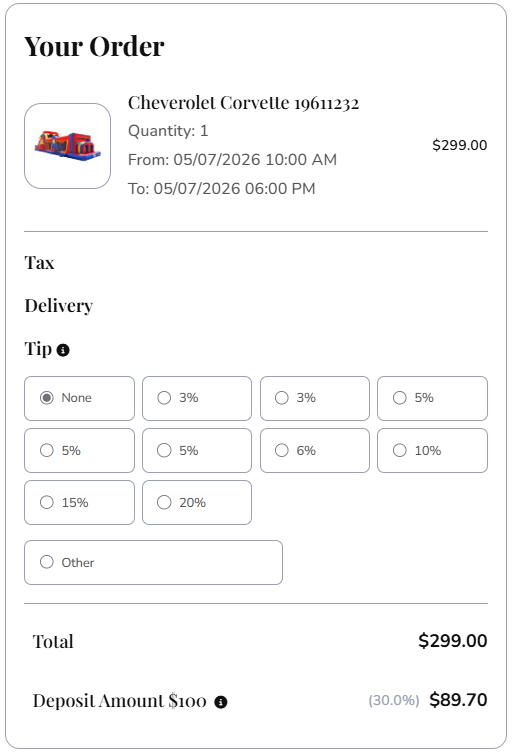
Review the delivery fee, taxes, deposit, and total
- If you accept credit cards, complete checkout using a real credit card
- For the test, you can temporarily adjust your deposit to $1
- This lets you confirm credit card payments are working without charging a large amount
- Check that you received the confirmation email
- Go back into BRS and confirm the order appears correctly under Orders
Refund the test payment if needed by going to:
Orders → Payments → Billing
What to Review
As you test, confirm:
- Product names, images, and descriptions look right
- Prices are calculating correctly
- Add-ons or fees are appearing correctly
- Delivery/pickup windows match your settings
- Delivery fee and tax are correct
- Credit card payment processes successfully, if enabled
- Confirmation email looks correct
- Order details are accurate inside BRS
Important Note
Do not skip the payment test if you accept credit cards.
Using a real credit card, even with a small $1 deposit, is the best way to confirm your payment processor is connected correctly before a real customer tries to book.
It is also a good idea to test the refund process so you know how it works before you need it for a real customer.