
How to View Payment History and Process a Refund
What this article covers
You can review customer payment history and process refunds from the Payments section in BRS.
View payment history
Go to: Orders → Billing → Payments
Search for the customer, order, date, or payment.
From there, review:
- Deposit amount
- Additional payments
- Remaining balance
- Payment method
- Payment date
- Refunds, if applicable
This is especially useful when a customer made multiple payments on one order.
If you are reviewing payment history because the order balance looks wrong, see Balance Shows Incorrectly or Cannot Be Cleared on an Order.
Process a refund
-
Go to Orders → Billing → Payments.
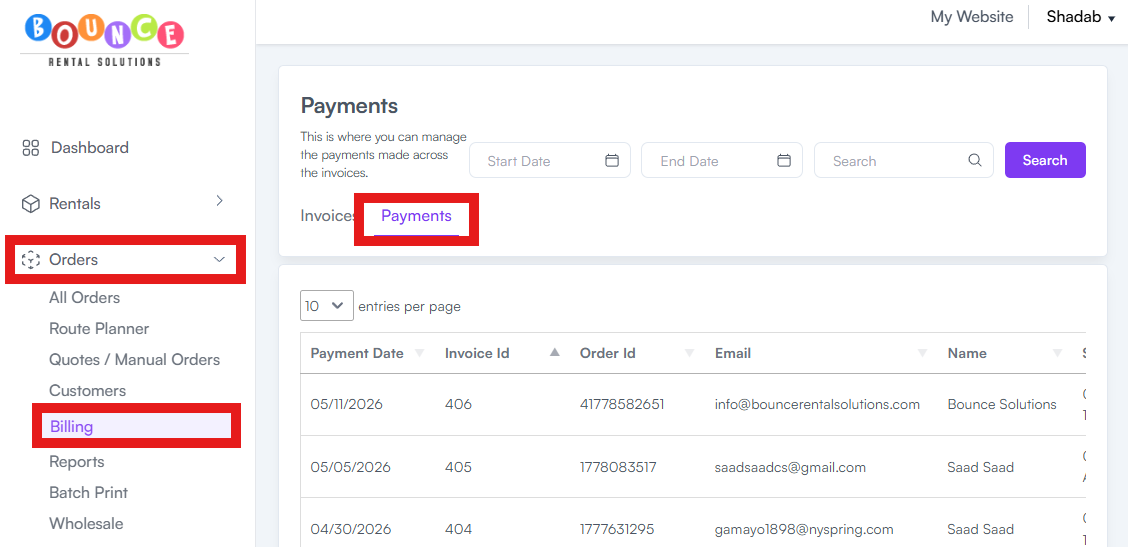
- Search for the customer or payment.
- Find the payment you need to refund.
- Open the available action for that payment.
- Enter the refund amount.
- Confirm the refund.
You may be able to process a full or partial refund, depending on the payment and processor.
Important refund notes
Refunding a payment is separate from canceling or deleting an order.
If you want to cancel an order and refund the customer, make sure you complete both steps as needed.
Refund timing depends on the payment processor and the customer’s bank. Customers may not see the credit immediately.
Manual payments
If the customer paid by cash, check, Zelle, or another offline method, the refund may need to be handled outside the payment processor.
You may still need to record the adjustment in BRS so the order balance stays accurate.
For more detail on non-card payments, review How Cash, Check, and Custom Payments Work.
If you still need help
If you are unsure whether a refund processed correctly, check your payment processor dashboard and then contact BRS support if needed.
Include:
- Customer name
- Order number
- Payment amount
- Refund amount
- Payment method
- Screenshot of payment history