
How to Access, Send, and Print Invoices
What this article covers
You can access invoices from an order, send invoices to customers, and print invoices for your records or delivery team.
Send an invoice from an individual order
Use this when you want to email an invoice directly to a customer.
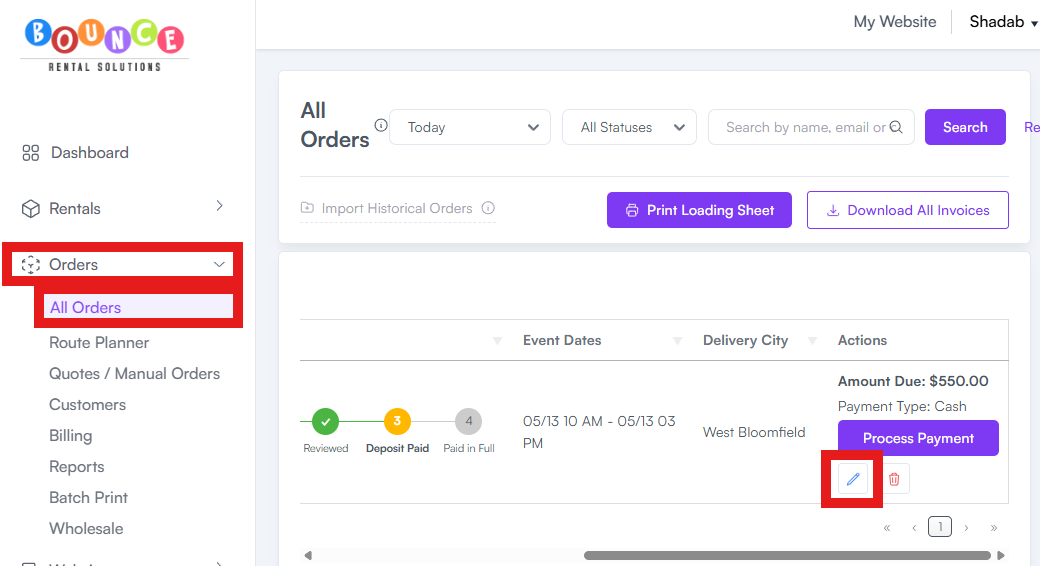
- Go to Orders → All Orders .
-
Open the specific order → Edit.
- Click Order Actions.
-
Select Send Invoice.
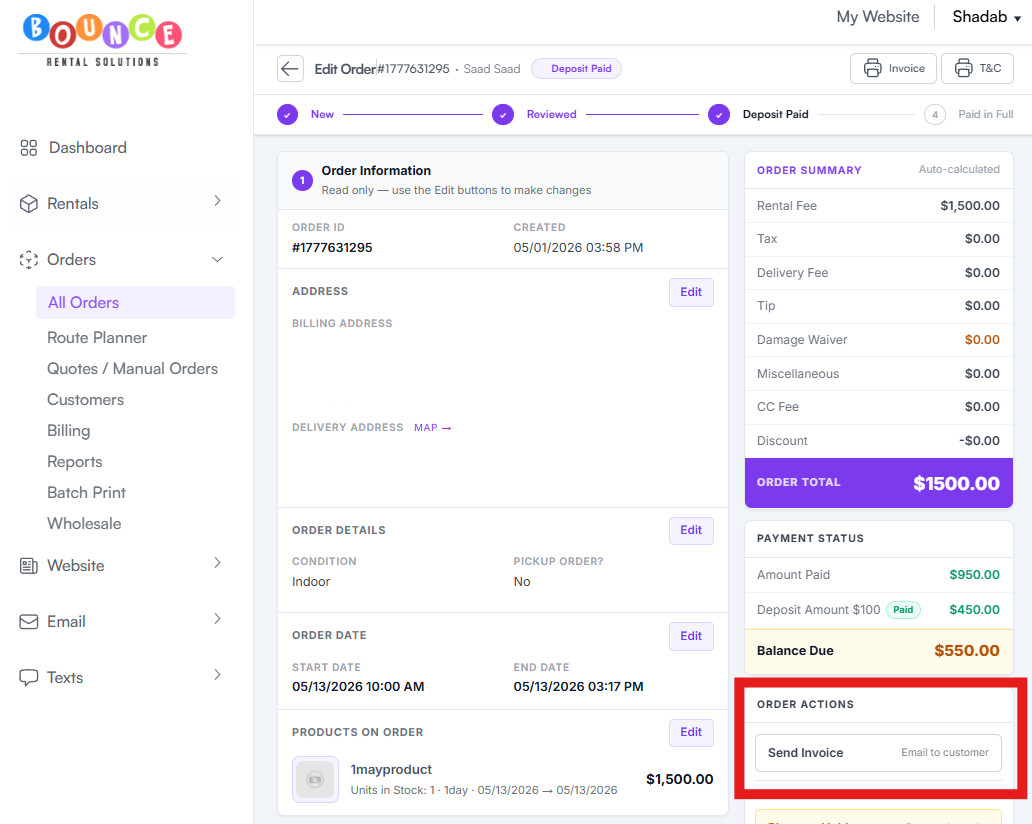
- The invoice will be sent to the customer’s email address on file.
View or print an invoice
Use this when you want to open the invoice yourself.
- Go to Orders → All Orders .
- Open the specific order → Edit.
-
Look for the Invoice button near the top of the order.
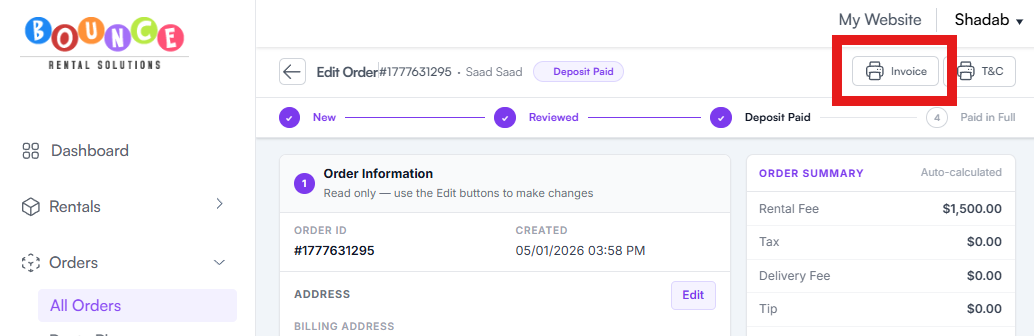
- Open the invoice.
-
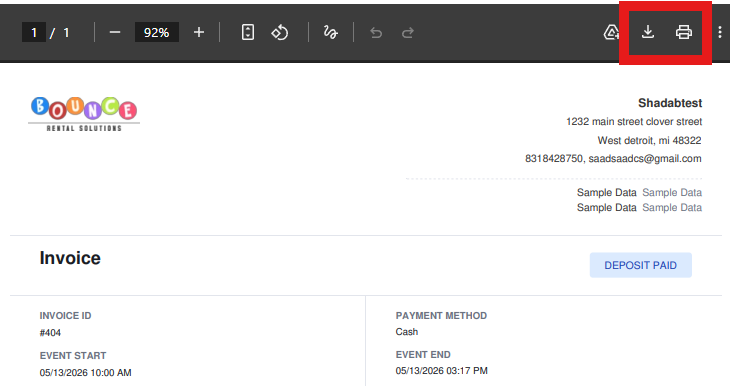
Print or download it from the invoice view.
Batch print invoices
Use this when you want to print multiple invoices for a specific date or set of orders.
- Go to Orders → Batch Print
- Use the search or date filters to find the orders you need.
- Select the orders you want to include.
- Use the batch print option to print the selected invoices.
This is useful when preparing paperwork for a busy delivery day or weekend. For more detail, review How to Use Batch Print.
If the invoice total looks wrong
If the invoice total does not look right, review the order first.
Check:
- Rental items
- Delivery fee
- Setup/breakdown fee
- Taxes
- Promo codes
- Deposit/payment history
- Manual adjustments
The invoice reflects the charges and payments currently attached to the order.
If you need to review payments connected to the order, see How to View Payment History and Process a Refund.
If the customer did not receive the invoice
Ask the customer to check their inbox and spam folder.
Also confirm that the email address on the order is correct.
If needed, resend the invoice from the order.