
Understanding Abandoned Checkout Notifications (Premium Feature)
What This Is
The Abandoned Checkout feature helps recover potential bookings that were started but never completed.
When a customer enters either their email address or phone number during checkout but does not complete their booking within 2 hours, BRS can automatically send follow-up notifications.
These notifications can be sent to:
- The customer
- The business owner
- Both
This feature is available on Premium plans and must be activated before notifications will be sent.
How Abandoned Checkout Works
For an abandoned checkout notification to trigger:
- The customer must enter an email address and/or phone number during checkout
- The booking must remain incomplete for at least 2 hours
- The notification template must be activated
- Your account must be on a Premium plan
If these requirements are met, BRS will automatically send the configured notification.
Available Abandoned Checkout Notifications
There are four available notification types:
Customer Emails
An email sent to the customer reminding them to complete their booking.
Your Emails
An email sent to you notifying you that a potential customer abandoned checkout.
Customer Texts
A text message sent to the customer reminding them to complete their booking.
Your Texts
A text message sent to you notifying you that a potential customer abandoned checkout.
How to Activate Customer Abandoned Checkout Emails
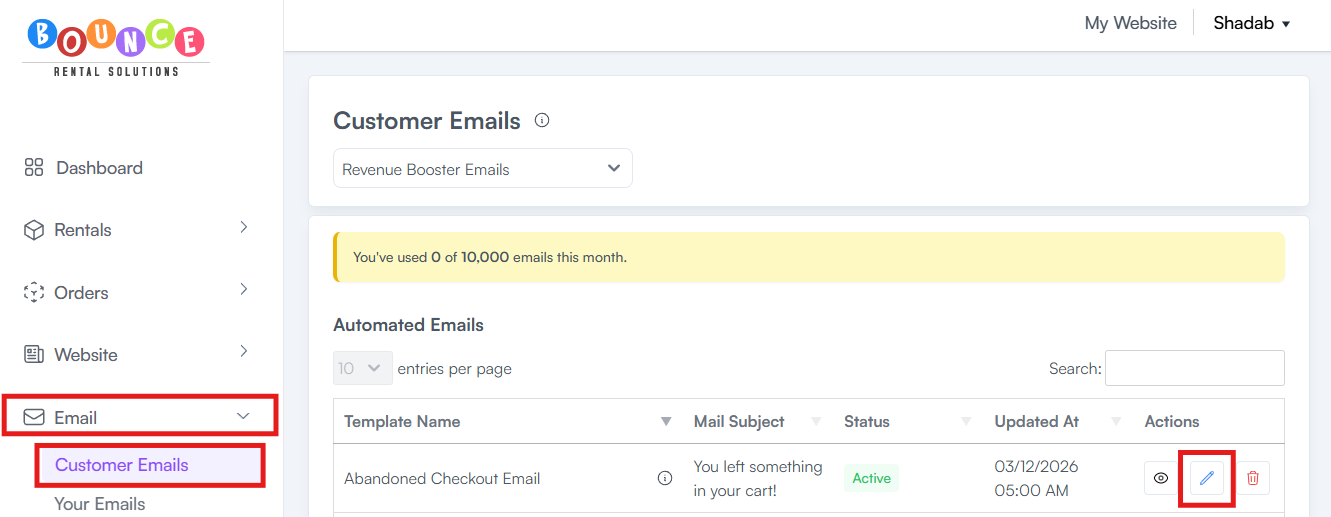
- Go to Email → Customer Emails
- Locate Abandoned Checkout Email
-
Click Edit (pencil icon)
-
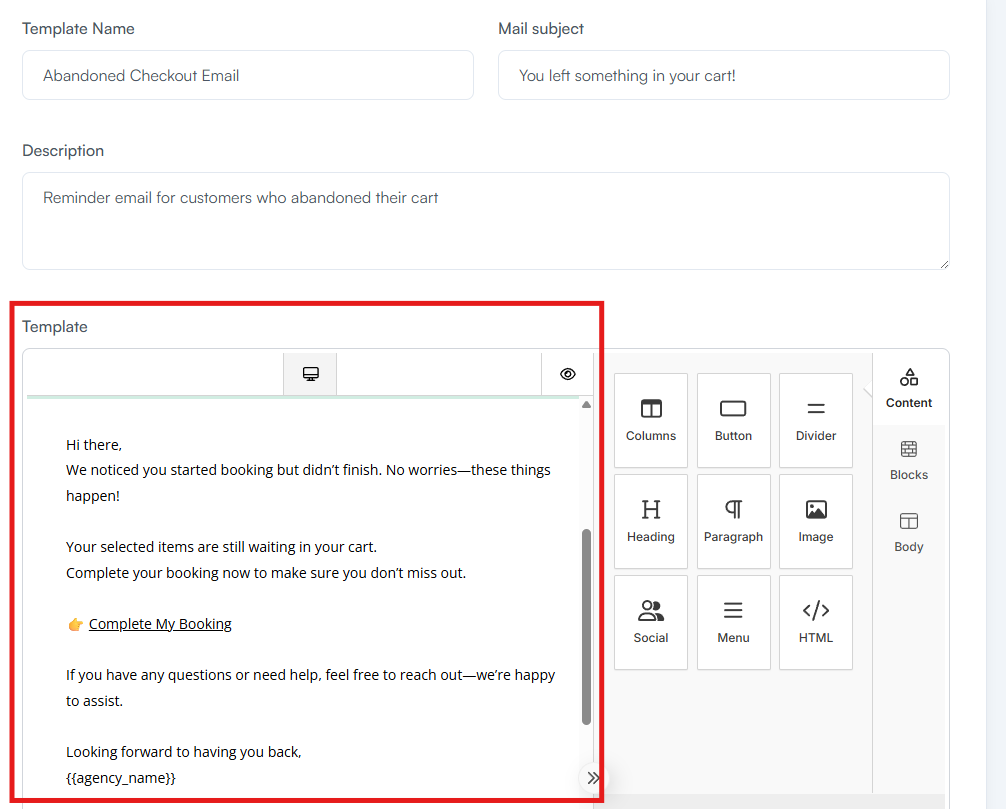
Review or customize the template
Important: Do not remove or modify the Complete My Booking link included in the template. This link automatically generates a unique checkout URL for each customer, allowing them to return directly to their abandoned cart. Editing or removing this link may prevent customers from completing their booking.
- Scroll down and check Check to Activate Email
-
Click Update Email Template
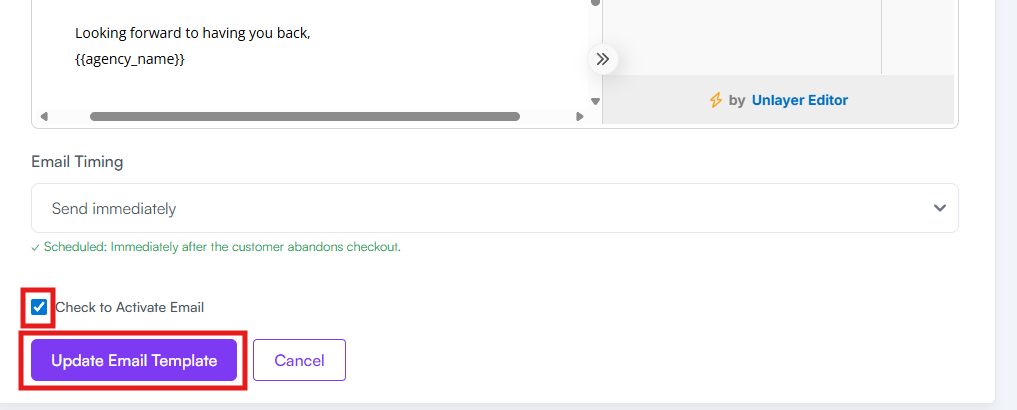
The email will now be sent automatically when eligible abandoned checkouts occur.
How to Activate Your Abandoned Checkout Email Notifications
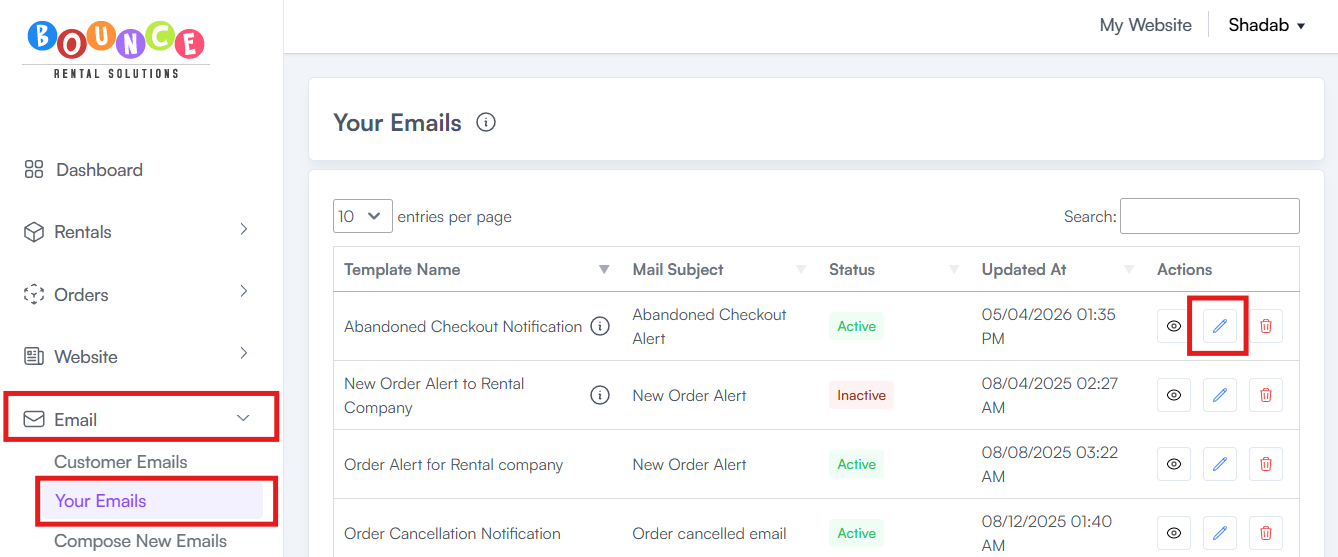
- Go to Email → Your Emails
- Locate Abandoned Checkout Notification
-
Click Edit (pencil icon)
-
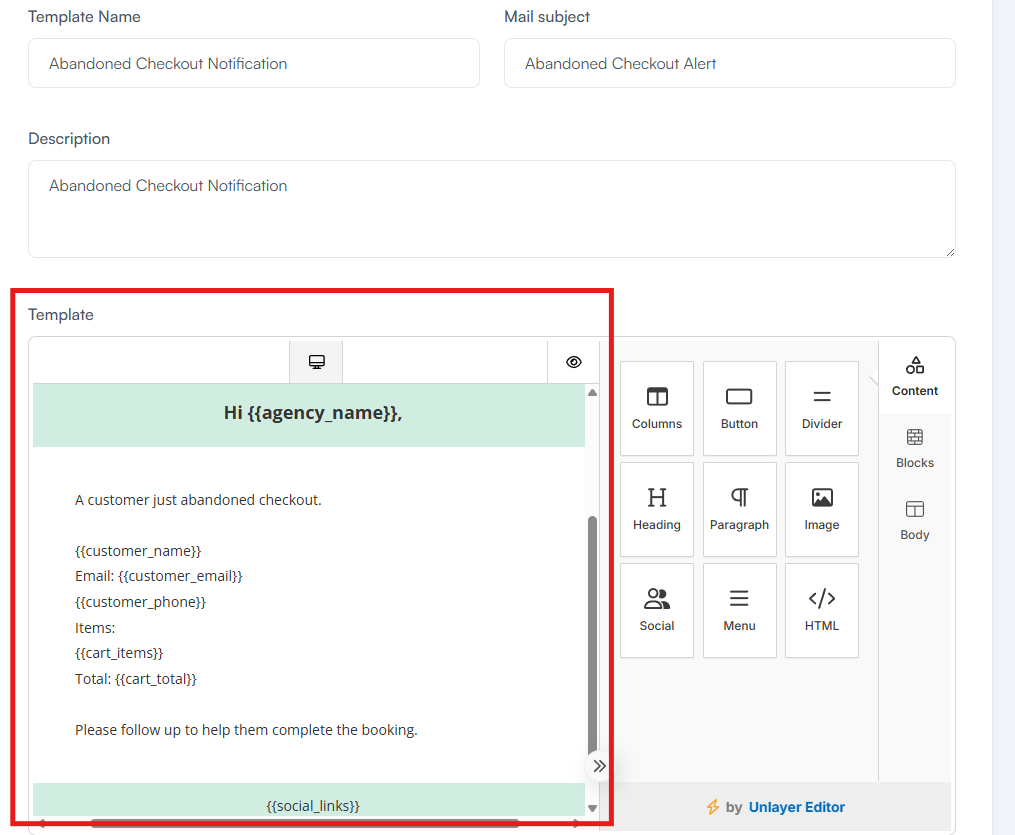
Review or customize the template
Important: Do not remove the merge codes included in the template. Merge codes automatically pull information from the abandoned checkout and insert it into the notification email. Only fields that contain information will be populated when the email is sent. If a field is blank on the customer's checkout, that merge code will simply remain empty. Removing merge codes may prevent important customer or booking information from appearing in your notification.
- Scroll down and check Check to Activate Email
-
Click Update Email Template
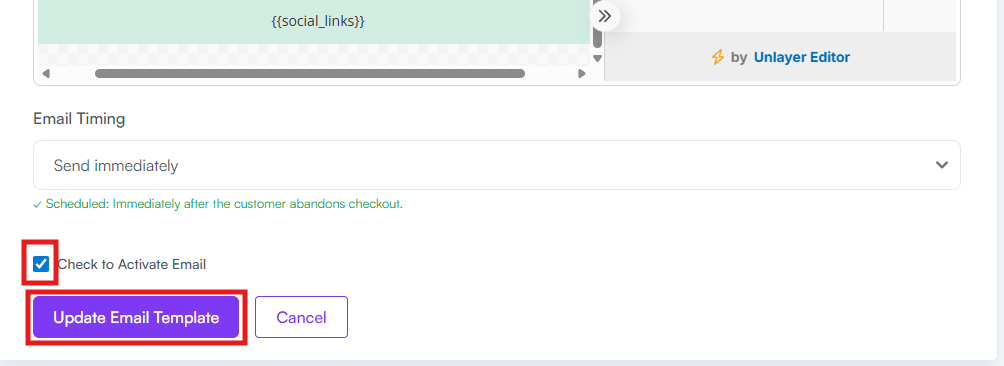
You will now receive email notifications when customers abandon checkout.
How to Activate Customer Abandoned Checkout Text Messages
- Go to Texts → Customer Texts
- Locate Abandoned Checkout Reminder
-
Click Edit (pencil icon)
-
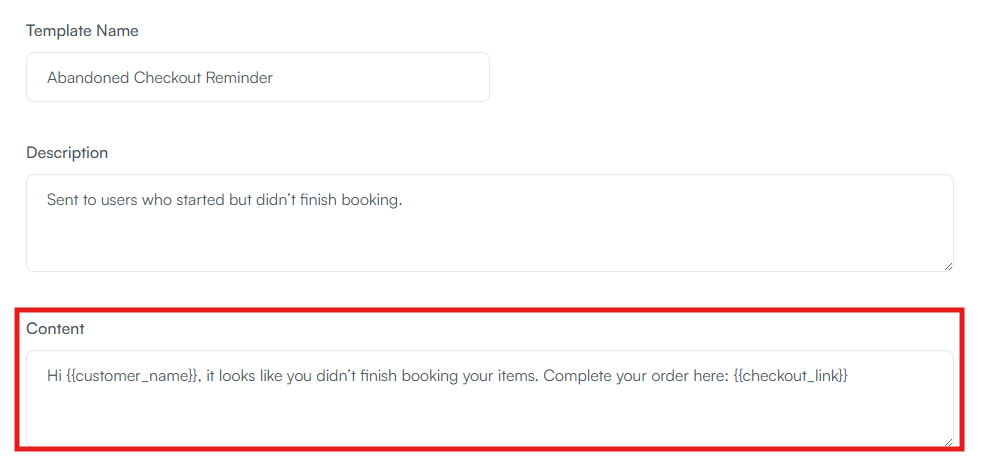
Review or customize the template
Important: Do not remove the merge codes included in the template. Merge codes automatically pull information from the abandoned checkout and insert it into the notification email. Only fields that contain information will be populated when the email is sent. If a field is blank on the customer's checkout, that merge code will simply remain empty. Removing merge codes may prevent important customer or booking information from appearing in your notification.
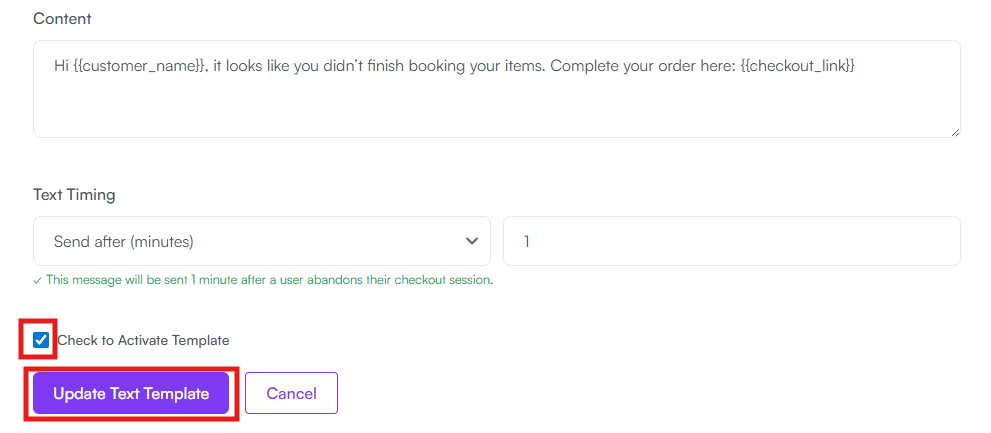
- Scroll down and check Check to Activate Template
-
Click Update Text Template
The text message will now be sent automatically to eligible customers.
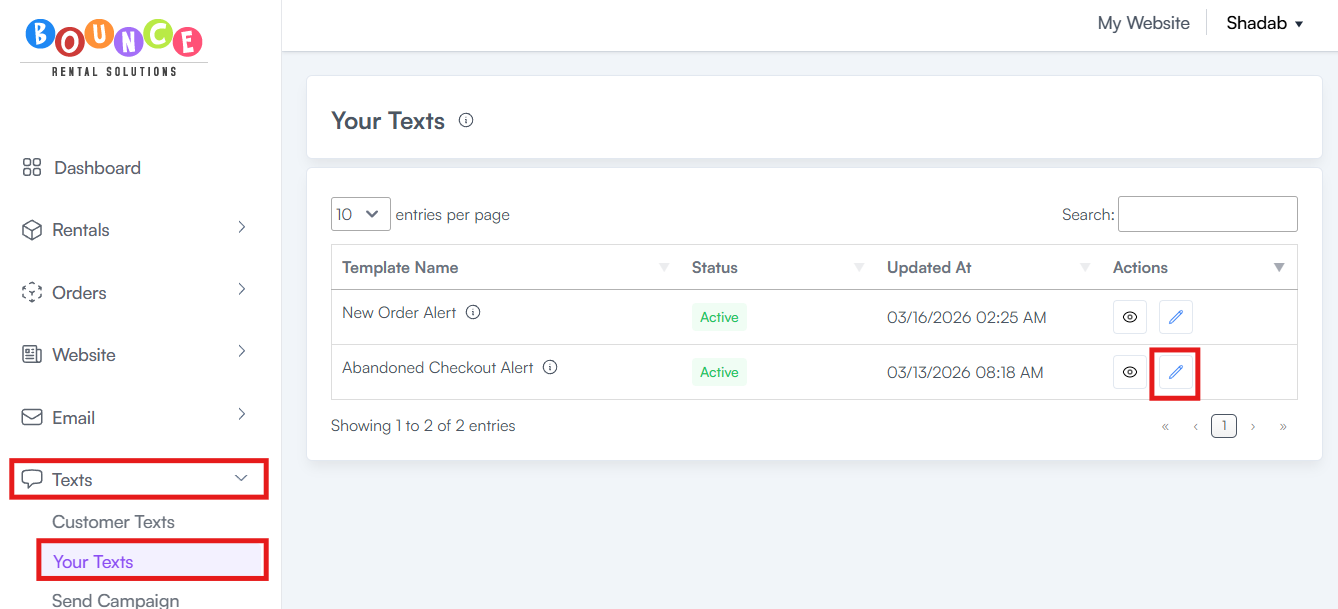
How to Activate Your Abandoned Checkout Text Alerts
- Go to Texts → Your Texts
- Locate Abandoned Checkout Alert
-
Click Edit (pencil icon)
-
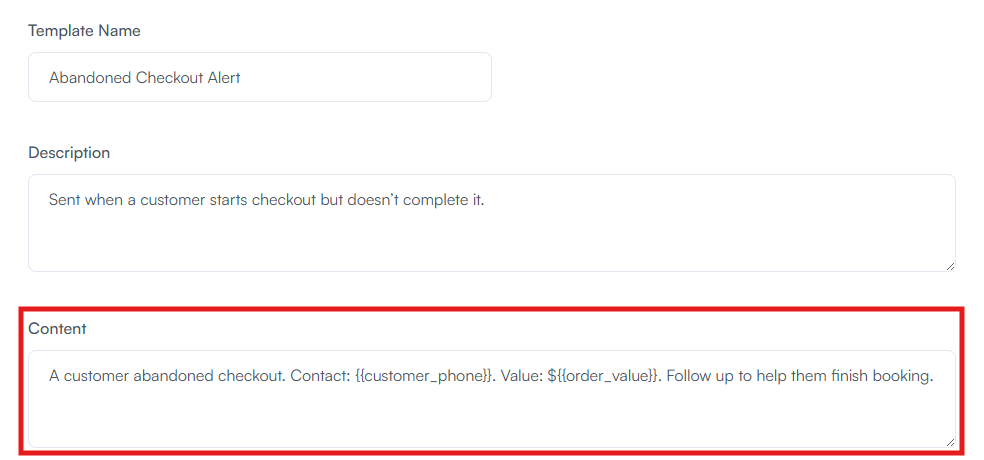
Review or customize the template
Important: Do not remove the merge codes included in the template. Merge codes automatically pull information from the abandoned checkout and insert it into the notification email. Only fields that contain information will be populated when the email is sent. If a field is blank on the customer's checkout, that merge code will simply remain empty. Removing merge codes may prevent important customer or booking information from appearing in your notification.
- Scroll down and check Check to Activate Template
-
Click Update Text Template
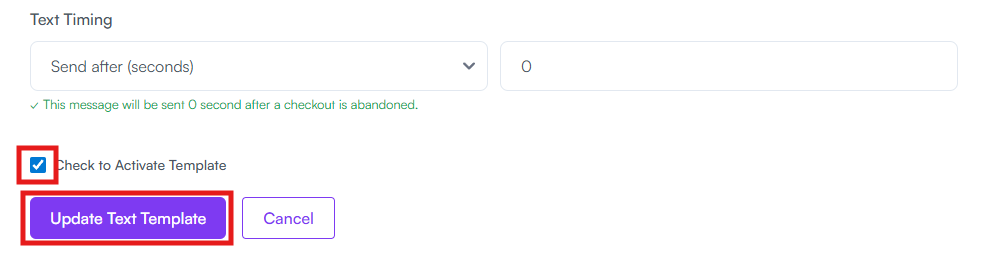
You will now receive text notifications when customers abandon checkout.
Why Use Abandoned Checkout Notifications?
Many customers begin the checkout process but get distracted before completing their booking.
Common reasons include:
- Comparing prices
- Waiting for approval from family or event organizers
- Getting interrupted during checkout
- Needing more time to decide
A timely reminder can help bring customers back to complete their order.
Best Practices
Keep Customer Messages Simple
The default templates are already optimized and generally perform well.
If you customize them:
- Keep the message short
- Include a clear call to action
- Avoid excessive sales language
- Enable Both Customer and Owner Notifications
Many businesses choose to activate both customer and owner notifications.
This allows:
- The customer to receive an automatic reminder
- The business owner to follow up personally if desired
- Review Performance Periodically
If you're receiving frequent abandoned checkout notifications, consider reviewing:
- Checkout complexity
- Pricing clarity
- Delivery fees
- Mobile checkout experience
Abandoned carts often reveal opportunities to improve conversions.
Related Articles
How to Customize Your Automated Text Message Templates
Understanding the BRS Text Messaging System (Premium Feature)
Important Notes
Abandoned checkout notifications only trigger when contact information has been entered.
If a customer leaves the website before entering an email address or phone number, BRS has no way to send a follow-up notification.
Additionally, activating a template is required. Simply editing a template does not automatically turn the notification on.
Additional Recommendations
For most Premium users, enabling all four abandoned checkout notifications provides the best visibility into potential lost bookings.
Even recovering a small percentage of abandoned checkouts can generate additional revenue with little ongoing effort.