
How to Add Google Analytics to Your Website
What This Is
Google Analytics 4 (GA4) lets you track website traffic, where visitors come from, what they look at, and how they convert into bookings. BRS supports GA4 directly through a built-in field on your settings page — no need to paste full scripts.
This page also includes a Header Code field for advanced tracking tools (Google Ads remarketing tags, Meta Pixel, third-party verification codes, etc.).
Where to Add Tracking
All tracking fields live in one place:
Website → General → Analytics & Tracking (tab at the top of the General settings page)

How to Add Google Analytics 4 (GA4)
- Go to Website → General → Analytics & Tracking
-
Find the Google Analytics 4 (GA4) field
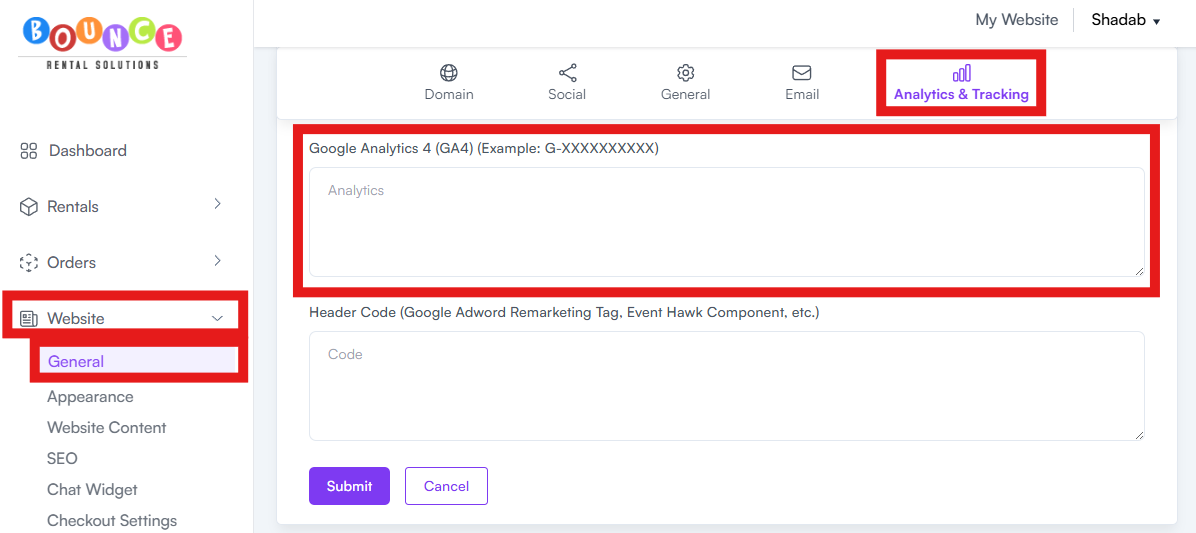
- Enter only your GA4 Measurement ID (example format: G-XXXXXXXXXX)
- Do not paste the full Google Analytics script — only the Measurement ID
- Click Submit
After saving, the system will automatically add the tracking code to your website. Google Analytics may take a few hours before data starts appearing in your GA4 dashboard.
Where to Find Your GA4 Measurement ID
In your Google Analytics account:
- Click the gear icon (Admin) in the bottom left
- Under the Property column, click Data Streams
- Click on your web data stream
- Your Measurement ID is shown at the top right — it starts with G-
How to Use the Header Code Field
The Header Code field is for advanced scripts that don't have a dedicated field — for example:
- Google Ads remarketing tags (see Google Ads Conversion Tracking Setup)
- Meta (Facebook) Pixel
- Third-party verification codes (Bing Webmaster, Pinterest, etc.)
- Custom analytics or heatmap scripts (Hotjar, Microsoft Clarity, etc.)
To add a script:
- Go to Website → General → Analytics & Tracking
-
Find the Header Code field
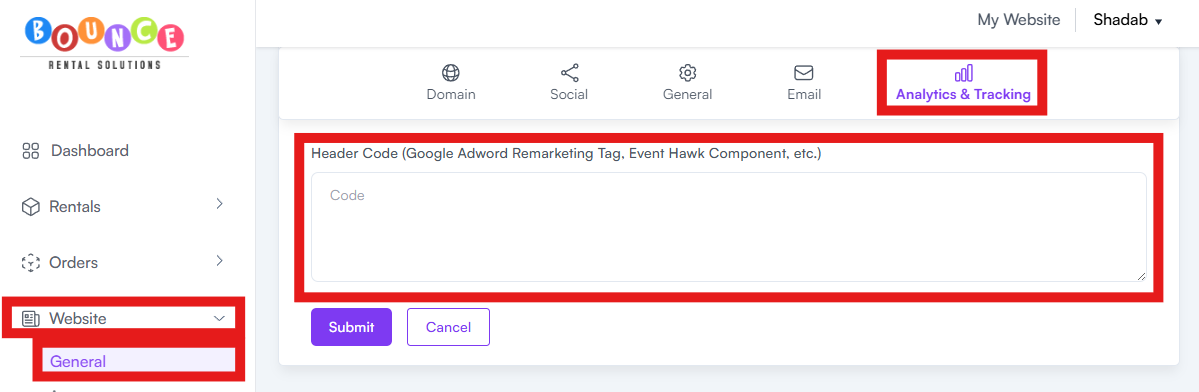
- Paste the full script tag (anything starting with <script>)
- Click Submit
The code will be added to the <head> section of every public page on your site.
Important Rules
- Do not put your GA4 script in the Header Code field if you've already added your Measurement ID in the GA4 field. This will cause double tracking and incorrect data.
- Only paste full script tags in Header Code (anything in <script> tags). Don't paste just an ID — those go in their dedicated fields.
- Test after every change. Malformed code can break your site's rendering. If something looks off, remove what you just pasted and contact support.
See What Is Header Code, and When Should I Use It? for more.
What Else Is on This Page
Above the Analytics section, you'll also see:
- Send emails from your own domain — for connecting your business email. See How to Set Up a Business Email Address on Your Domain
- Newsletter Sending Status — shows whether your account is set up to send Premium newsletter campaigns (requires a verified business email and a Premium plan)