
Why Customers Can’t Book or Complete Checkout
What this usually means
If a customer cannot book or complete checkout, it is usually because something about the selected date, time, product, delivery address, inventory, or checkout form is preventing the order from going through.
In most cases, this is caused by a setting, availability rule, delivery rule, or missing checkout requirement.
Things to review first
1. Check the selected date and time
Make sure the customer selected a valid date and time.
Common issues include:
- The customer selected a date that has already passed.
- The customer selected a time that has already passed.
- The selected date is blocked off.
- The selected time conflicts with your availability settings.
- The selected rental window overlaps with another booking.
- The order does not meet your advance booking requirements.
2. Check product inventory
-
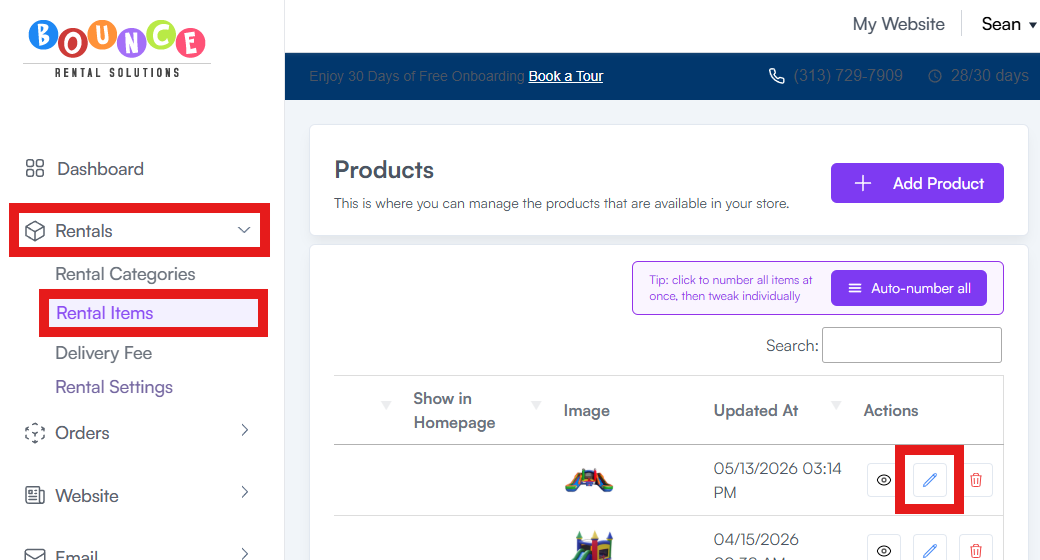
Go to: Rentals → Rental Items
-
Open the product and review the inventory count.
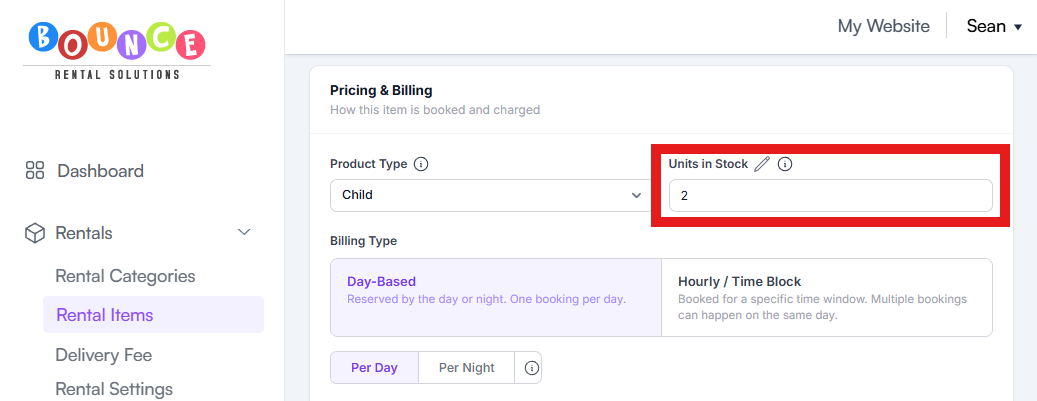
- If the item is already booked for that date and there is no remaining inventory available, the customer will not be able to book it.
3. Check delivery settings
If the customer is entering a delivery address, make sure the address falls within your delivery area.
Review your delivery settings under:
Rentals → Delivery Fee

Depending on how your account is set up, delivery may be based on zip code, distance, or other delivery rules. If your business uses distance-based delivery, review How to Set Up Distance-Based Delivery. If your business uses zip-code-based delivery, review How to Set Up Zip Code-Based Delivery.
4. Check required checkout fields
A customer may not be able to complete checkout if they have not filled out all required fields.
Common required items include:
- Name
- Phone number
- Address
- Event date and time
- Surface selection
- Terms and conditions acceptance
- Payment or deposit information
If a required field is missing, checkout should show a message letting the customer know what needs to be completed.
5. Place a test order
Before contacting support, try placing a test order using the same:
- Product
- Date
- Start and end time
- Customer address
- Delivery/pickup selection
- Checkout options
This is the fastest way to see whether the issue can be repeated. For help testing the checkout flow, review How to Place a Test Booking Before Going Live.
If you still need help
If you believe something is not working as expected, click your name in the top right corner of your BRS account, select Support, and search the knowledge base first.
If you still need help, use the Contact Us option under Support.
Please include as much detail as possible, such as:
- Order number, if available
- Customer name
- Product name
- Date and time selected
- Address used at checkout
- Screenshot of the issue
- Steps you took to test the issue
The more information you include, the faster we can review it. We typically respond by email within 24 hours on weekdays and within 48 hours on weekends.